
Canva is one of those tools everyone hears about, but maybe not everyone really understands its full potential. Whether you’re new to graphic design or just want to create visuals faster, this guide walks through exactly how to use Canva—right from creating your first project, to finishing a polished design you can share anywhere.
Why Choose Canva for Your Projects?
Canva stands out for its user-friendliness and versatility. It’s also web-based, so there’s no big software to download. The best part? Even the free plan offers plenty of features, including templates, icons, and fonts.
Getting Started: Setting Up Your Canva Account
To jump in, head over to the Canva website . If you already have a Google or Facebook account, you can sign up in one click. Otherwise, register with your email. The signup process really couldn’t be much simpler.
- Visit the site and hit “Sign up”.
- Confirm your email if prompted.
- That’s it—you’re in.
Understanding the Canva Dashboard
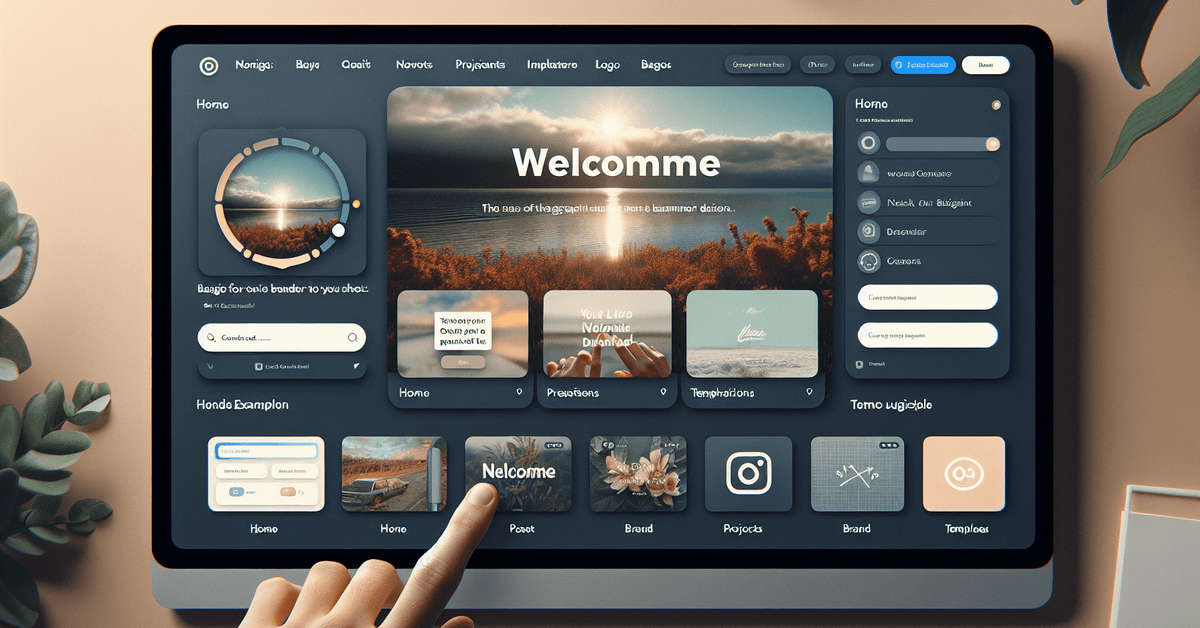
Once you’re inside, the dashboard feels welcoming. There’s a search bar at the top, and you’ll see template suggestions for presentations, social media posts, flyers, or logos right up front.
Main Navigation
- Home: Where you find all templates and design types.
- Projects: Stores your drafts and finished designs.
- Brand: For adding logos, colors, and fonts (mainly for Pro users).
- Templates: Search or browse thousands of ready-made layouts.
Creating Your First Design: A Simple Social Media Post
Let’s walk through a concrete example. Suppose you want to design an Instagram quote post. Here’s how:
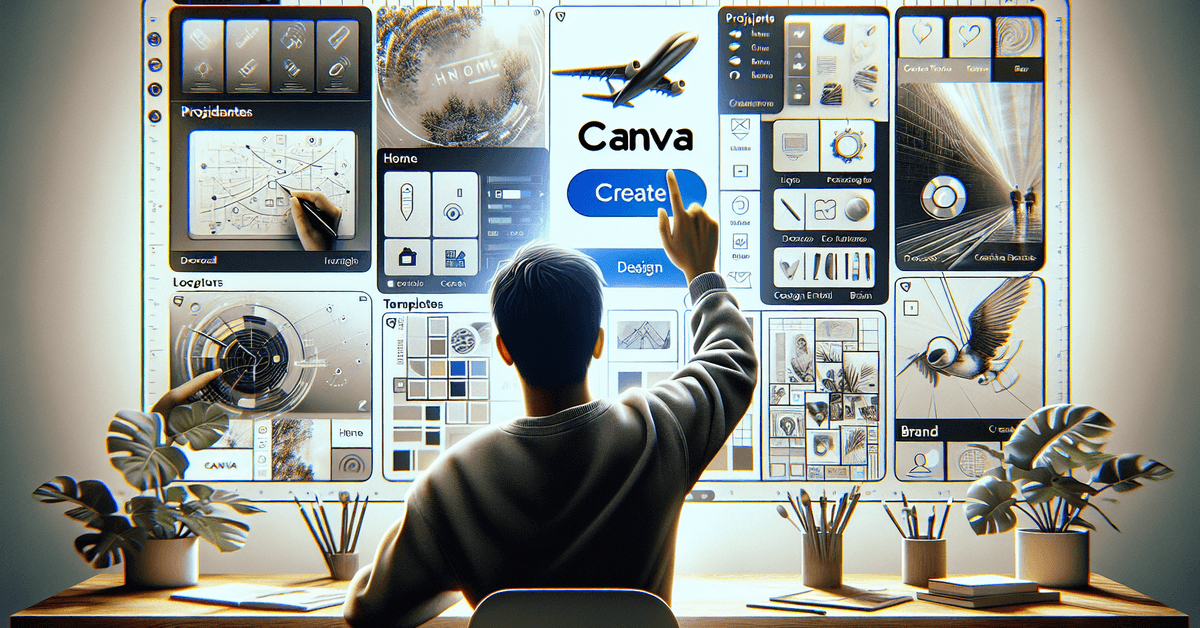
- Click “Create a Design” at the top right.
- Choose “Instagram Post” from the dropdown menu.
- You’ll land in the editor with the correct canvas size.
If you ever get lost, remember Canva’s search bar helps you find templates by purpose—just type “Instagram Quote” and see plenty of options.
The Essentials: Editing Your Design
Inside the Canva editor, you’ll see a blank template (or your chosen one). Here’s an overview of what’s available:
Adding Text
- Click the “Text” tab on the left.
- Pick from “Add a heading”, “subheading”, or “body text”.
- Customize fonts, sizes, and colors using the top menu.
Inserting Images
- Press “Elements” for photos and graphics, or upload your own images from your device.
- Drag images onto the canvas and resize as needed.
Applying Backgrounds and Colors
- Select the background by clicking the empty canvas area.
- Choose a color from the toolbar or upload a pattern.
Tips for Making Your Canva Designs Stand Out
Sometimes, the difference between an amateur and a polished design is subtle. Here are quick tips:
- Use consistent fonts (try not to mix too many).
- Allow for white space, so your content breathes.
- Leverage Canva’s grid tool for alignment.
- Don’t be afraid to play with bold colors, but keep them balanced.
- Test different layouts—the template browser is a goldmine for inspiration.
Saving and Downloading Your Project
Once finished, click the “Share” or “Download” button in the upper right. Choose your file type: PNG or JPG for images, PDF for print, or MP4 for animated designs. Canva does most of the work for you—file sizes and formats are explained right in the dialog box.
Publish Directly or Schedule
Some users (especially on Canva Pro) can publish designs straight to social media or even schedule them for post timing. For most, downloading is the usual option, but if you prefer tools to automate your workflow, it might be worth upgrading.
Platform Comparison Table
| Feature | Canva | Adobe Express | Piktochart |
|---|---|---|---|
| Ease of Use | Very easy | Moderate | Beginner-friendly |
| Templates | 10,000+ | 1,000+ | 500+ |
| Free Tier | Generous | Limited | Limited |
| Export Options | PNG, JPG, PDF, MP4 | PNG, JPG, PDF | PNG, JPG, PDF |
If you’re curious about the alternatives, Adobe Express and Piktochart both offer solid features—though Canva’s free tier arguably goes further for casual users. For more, check our in-depth guide on Canva vs. Piktochart .
Frequent Issues and Simple Fixes
Like with any platform, a few things can trip you up. Maybe your image won’t upload, or you’re having trouble with exports:
- If uploads fail, try a different browser or clear your cache.
- If downloads don’t work, make sure pop-ups aren’t blocked.
- Slow performance? Closing unused tabs or restarting your browser can really help.
Internal Resources and Advanced Tips
If you want to get more out of Canva, explore their official tutorials . You might also find our guides on how to remove backgrounds in Canva or using Canva for educational projects helpful.
Visual Prompt: Suggested Images
- [Placeholder for screenshot of Canva dashboard]
- [Placeholder for step-by-step sequence: creating a design, editing text, exporting]
Conclusion & Final Checklist
Canva really does make design accessible to anyone. Start with a simple project, experiment, and don’t worry about being perfect—sometimes the best results come from play. Ready to up your visual game?
Download your first Canva creation and share it today. And for more practical tutorials, check out our guide on the best free online tools for digital creators .








