Online data entry sounds simple, yet small formatting mistakes can break reports and slow approvals. This ” How to Complete Data Entry Using Online Tools guide gives you a repeatable workflow for clean records.
You will enter invoices, inventory, and contacts with fewer corrections and clearer checks. Each section uses one tool and one practical example to keep steps focused.
You will standardize formats, prevent duplicates, and verify totals before export. The goal is speed with accuracy, not rushed entry. After a few runs, your process becomes predictable and easy to audit.

Invoice Entry That Does Not Create Rework Later
In Zoho Invoice, decide what “correct” means before you enter any data. Set the fields you always fill, like customer, date, and tax status, then keep them consistent.
A consistent invoice structure helps you avoid mismatched totals when you export reports later.
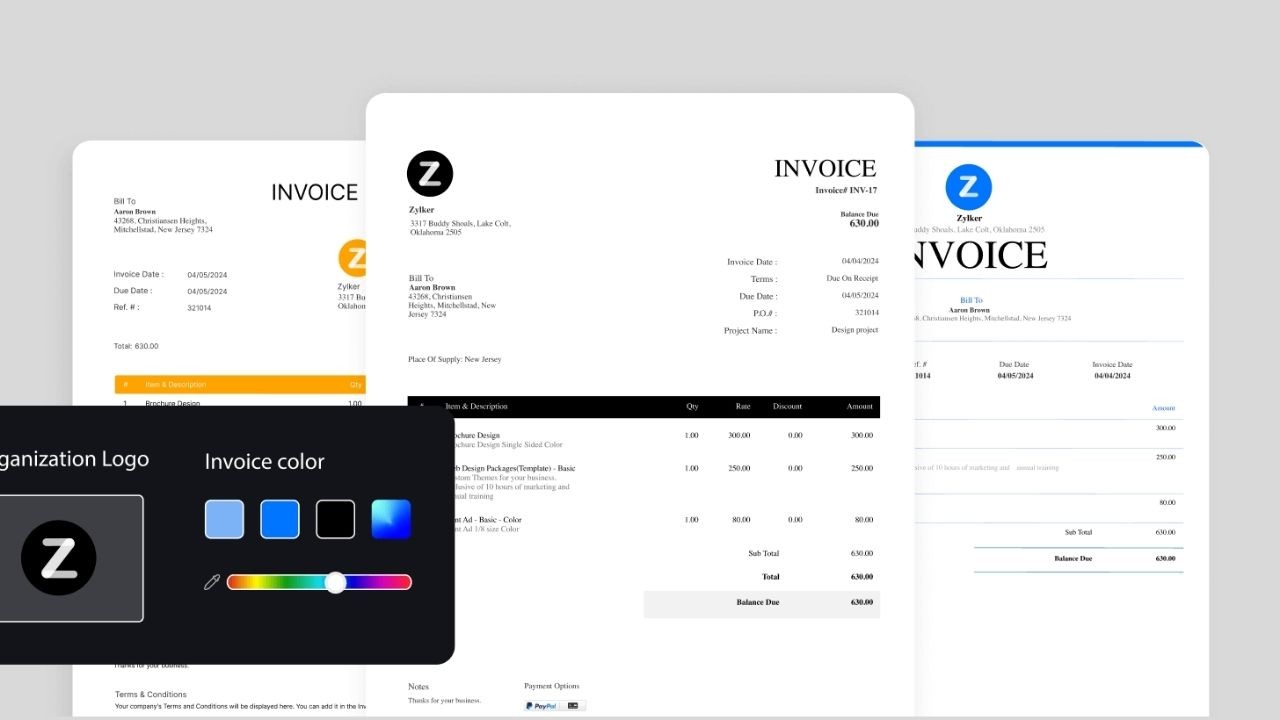
Hide fields you never use so the screen stays focused and less distracting. Use one rule for dates and currency and apply it across all invoices. This keeps entries readable, searchable, and easier to reconcile.
Build Customer Profiles With One Naming Rule
Build customer profiles first, because name mistakes create duplicates later. In Zoho Invoice, pick one naming style and use it for every client, such as “Company Name, Branch.”
Add billing email and phone in the same format each time so details stay consistent. Clean customer profiles speed up entry by eliminating the need to retype the same information.
If details change, update the profile instead of adding a new one. This protects history and avoids split payment trails in reports.
Use Line Item Templates To Keep Pricing Consistent
Set up line item templates for services or products you repeat often. Create a standard description, default rate, and tax setting per item so you do not retype values.
This reduces entry time and lowers the risk of price mismatches. Keep standard line item names stable so reports group items correctly.
When pricing changes, update the template once rather than editing every invoice. Your exports stay cleaner because item labels do not drift.
Export Reports That Match Your Review Format
Exporting is where entry issues show up, so review before you click. In Zoho Invoice, filter reports by date range, status, and customer to match your review needs.
Confirm the period is correct so you do not mix months or quarters. Reports should match your columns to prevent manual rearranging later.
Check that taxes, discounts, and totals appear in separate fields when needed. Save exports with date-based names so you can trace versions later.
Keep Payment Status Accurate Without Guessing
Status tracking is part of data entry, not an afterthought. In Zoho Invoice, update the payment status as soon as you have confirmation from the bank or platform.
Add a reference note, like the payment date or transaction ID, in the same place every time. Status labels become your truth, so you do not guess balances from memory.
Review overdue items weekly and correct any incorrectly entered dates or amounts. This keeps your dataset aligned with real cash movement.
Inventory Entry That Stays Clear As Items Grow
Inventory entry breaks when item names and categories vary across the same system. Sortly helps by storing items with categories, photos, and consistent identifiers.
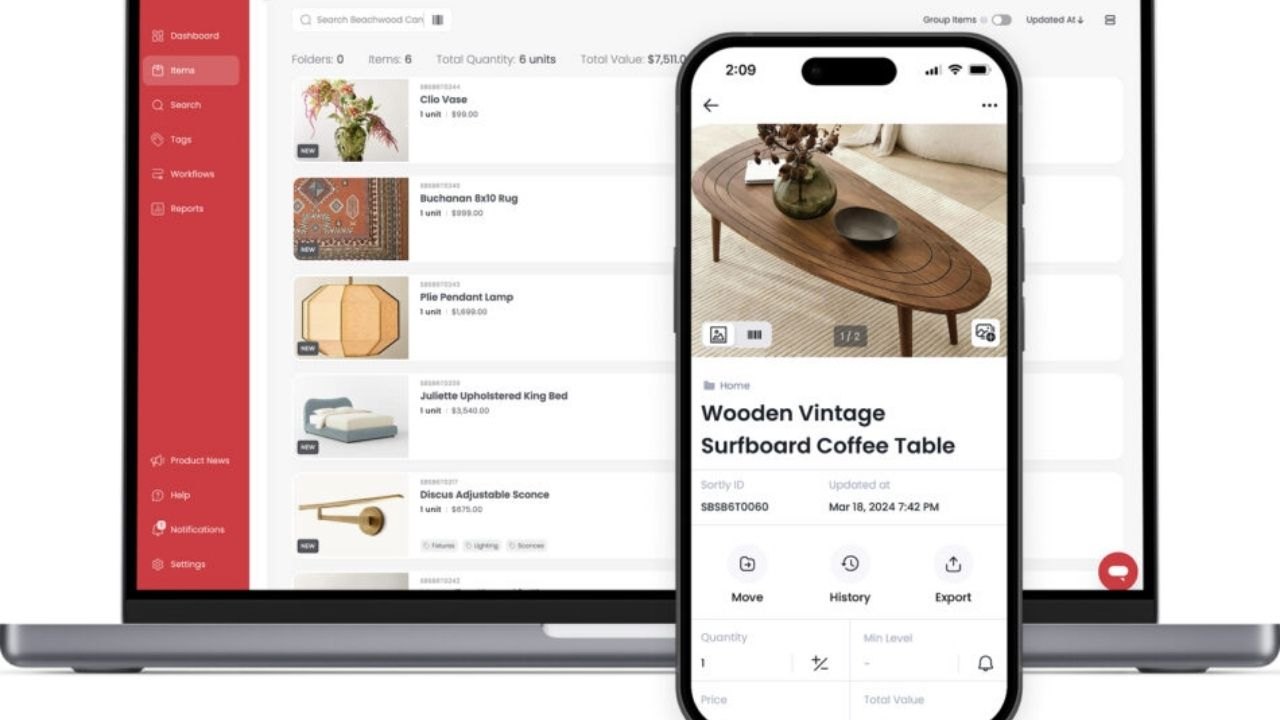
Inventory consistency prevents duplicate listings when similar products get entered twice.
Start by defining top categories and the fields you always fill for every item. Keep item names short, but include one key detail like size or model. Once rules exist, entry becomes faster and far more reliable.
Create A Simple SKU Rule You Can Enforce
Create a SKU rule before you add new inventory at scale. In Sortly, use a category code plus a short number sequence, then keep it consistent. Make the SKU visible so identity checks stay quick during entry.
A SKU rule stops duplicates that hide behind slightly different item names. Before adding anything, search by SKU and item name to confirm it is new. If it exists, update the quantity instead of creating a second record.
Reduce Manual Typing With Labels In Real Workflows
If you manage physical stock, labels reduce manual typing and speed up updates. In Sortly, generate QR labels for each SKU and place them on items or storage bins.
When stock arrives, scan the label and update the quantity immediately. Place labels where you look so the habit sticks during busy hours.
This reduces wrong updates and supports faster cycle counts. It also helps you trace mismatches much faster during audits.
Standardize Units And Descriptions To Protect Totals
Units and descriptions cause errors when they vary across entries. In Sortly, choose one unit style and apply it to every item, like “pcs” or “units.” Write descriptions in a consistent order, such as brand, size, and color.
Standard units make totals reliable when you compare counts and reorder points. If you change a unit, update the item and note the reason so you do not confuse future reviewers. This keeps your dataset consistent as it grows.
Use Activity History To Fix Mistakes Faster
Inventory entry needs an audit trail, especially when numbers change unexpectedly. Sortly activity history shows who updated an item and when it changed. Review adjustments like removals, transfers, or corrections before you accept them.
Activity history supports accountability without turning entry into blame. When you correct a mistake, add a short reason in item notes. Those notes teach your team what the correct entry looks like next time.
Contact Entry That Supports Follow-Ups and Reporting
Contact lists fail when records are incomplete, inconsistent, or duplicated. HubSpot CRM Free gives you structured fields, imports, and activity history.
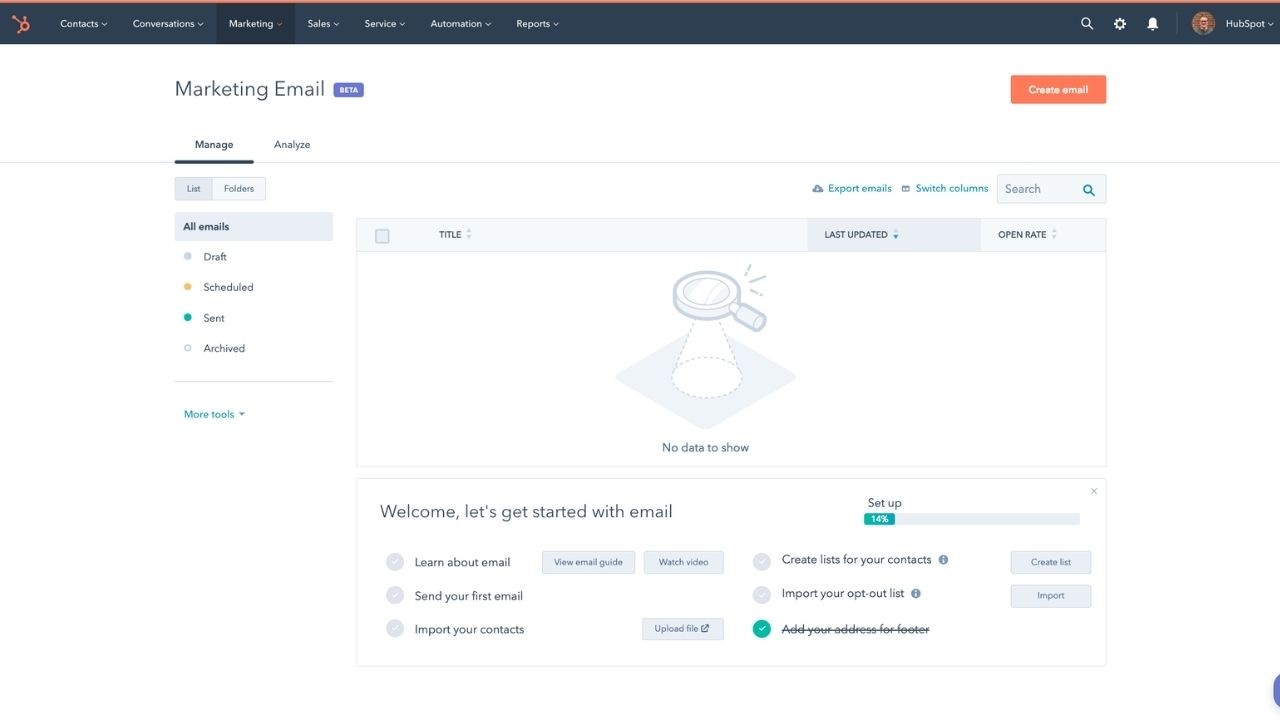
A clean contact list improves follow-ups because you trust the details you see. Define required fields like email, phone, company, and source before entry begins.
Pick one phone format and one casing style for names and companies. These rules prevent the same person from appearing twice with small variations.
Import Lists With Correct Field Mapping From The Start
If you already have a list, import it instead of typing each record. In HubSpot, map columns to fields and preview before you confirm the import. Fix source issues like empty emails or broken phone numbers before the upload.
Correct mapping prevents field drift where values land in the wrong place. After import, spot check a sample for format and completeness. If mapping is wrong, redo the import rather than making hundreds of manual edits.
Merge Duplicates Without Losing History
Duplicates happen when names differ or when emails are missing. Use HubSpot tools to review possible matches and merge carefully.
Treat email as the strongest identifier, then use phone and company as support signals. Merging duplicates protects history because notes and activities stay connected in one place.
Before merging, confirm you are not combining two different people with similar names. After merging, add a short note about what changed and why for clarity.
Add Notes And Tags That Stay Useful Over Time
Good contact entry includes context that supports action, not just raw fields. In HubSpot, use notes and tags to capture needs and next steps.
Keep tags short, like “Billing,” “Support,” or “Lead,” so filtering stays clean. Useful tags improve targeting when you build lists for outreach or updates.
In notes, summarize decisions instead of pasting long message threads. This keeps your CRM practical, readable, and easy to maintain.
Quality Checks That Make Your Data Easy To Trust
Before you submit or export data, run the same quality checks every time. Coda works as one page where you track entry, review, and sign off.
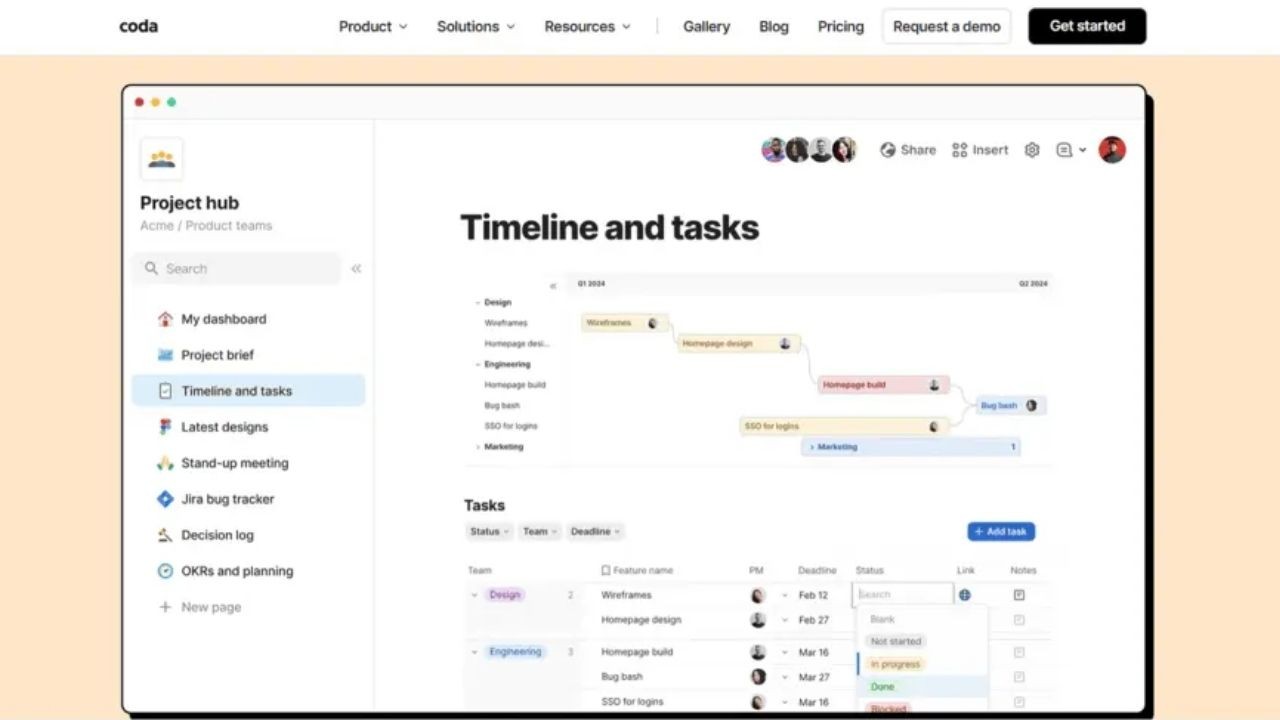
A final checklist prevents silent errors that show up later in reports or customer disputes. Create a page with checks for invoices, inventory, and contacts, then keep it short.
A short checklist is easier to finish consistently when you are busy. The goal is to catch errors early without slowing work.
Dry Run Your Checklist Before Scaling
Test your checklist on a small batch before you scale up. Enter a few invoices, update inventory items, import contacts, then review the results. A small test run reveals gaps in formats, required fields, and naming rules.
In Coda, mark each check as pass or fix and note the cause of any failure. If the same fix repeats, update the entry rule so the error stops earlier. This improves accuracy without increasing effort.
Spot Check A Sample To Catch Pattern Errors
Spot checking catches problems without rechecking every row. In Coda, review ten percent of rows for each dataset you touched, sampling from the top, middle, and bottom.
Random sampling finds hidden issues like swapped columns, wrong dates, or missing sources. Compare totals to the source and confirm names and IDs match your standards.
If errors appear, expand the sample until patterns look stable. This keeps your checks realistic and fast.
Confirm Required Fields Before You Export Or Submit
Required fields are where online data entry fails most often. In Coda, list required fields per dataset, then confirm none are blank before export.
Use a checkbox for “required fields present” and mark it only after review. Missing fields break automation and often trigger submission rejections.
If you find blanks, correct the records at the source, not only in exports. This keeps the system clean and prevents repeat gaps.
Keep A Simple Change Log For Accountability
Keep a change log so you can explain what you entered and edited. In Coda, record the date, dataset, and row count added or updated. Add a short reason for edits, like “merged duplicates” or “corrected units.”
A change log builds trust when someone questions numbers later. Save the export with the date as the log entry to keep versions aligned. If issues surface, you can trace the exact version quickly.
Conclusion
Clean data entry comes from repeatable steps, not rushed typing. This is how to complete data entry using online tools workflow helps you reduce errors in invoices, inventory, and contacts.
When an error repeats, fix the rule that caused it, not just the row. Use this routine weekly, and your data stays accurate, defensible, and easy to share.