Starting your digital life can feel overwhelming if you are not used to managing devices, accounts, or online tools. This beginner-friendly digital tutorial explains how to build your first organized setup step by step.
You will learn how to keep files in place, create secure logins, and handle everyday tasks like converting and sharing documents. The focus is on simplicity, not speed.
You will also learn how to avoid mistakes that confuse beginners the most. Once you understand these basics, daily digital tasks become second nature.

Set Up A Clean Starting Point On Your Device
Your device is the foundation of your digital life. The way you organize it will decide how easy your future tasks become.
Creating a clean digital workspace lets you focus on learning rather than cleaning up clutter later.
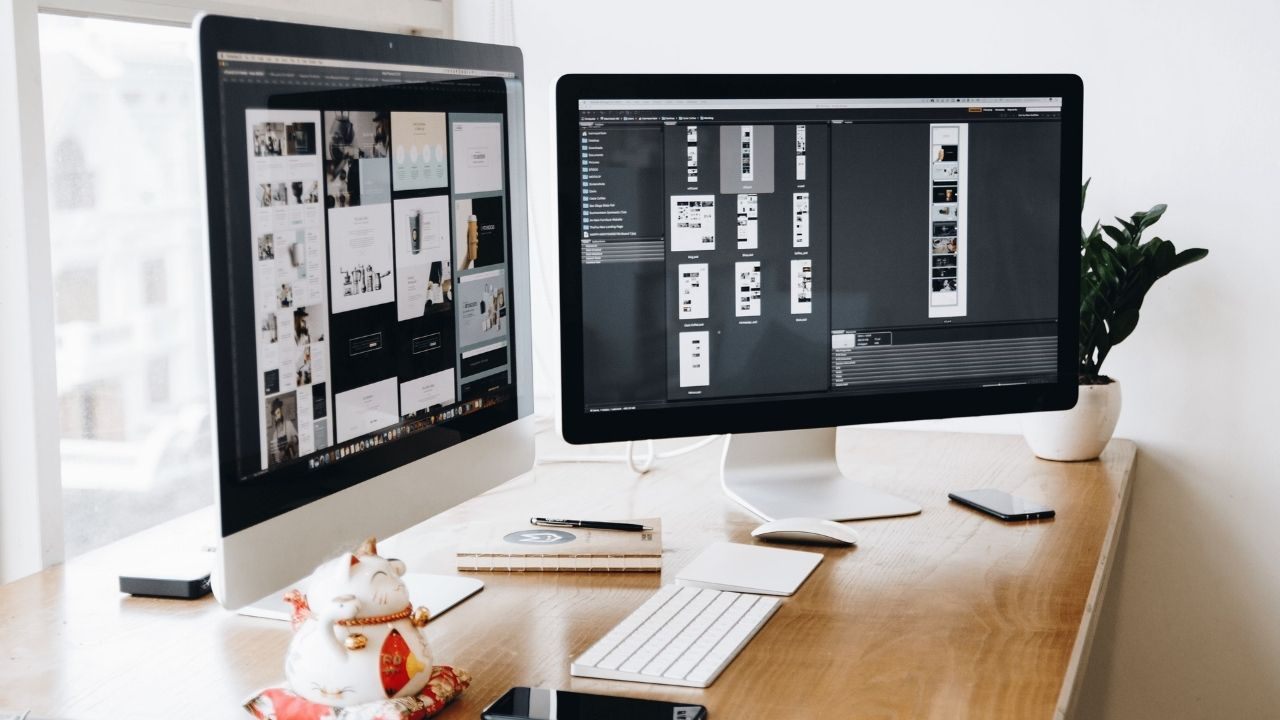
You only need one reliable browser, a few bookmarks, and a consistent system for handling downloads. These steps will make your computer feel organized from the first day and ready for every task.
Pick One Browser And Make It Your Default
Choosing a single browser helps you learn faster because you stop switching between different layouts. Google Chrome, Brave, or Microsoft Edge are excellent starting points.
Once chosen, set it as your default so links open consistently. Default browsers reduce confusion since all bookmarks, passwords, and downloads stay in one place.
Install the latest version to ensure safety and smoother performance. Use the sync feature if available so your preferences appear on every device you use.
Save A Few Bookmarks You Will Actually Use
Most beginners save every interesting page and forget about it later. Instead, start with five to six practical bookmarks that help with your daily use. For instance, bookmark your email, file storage, and learning websites.
Smart bookmarking builds habits because you visit essential sites directly instead of searching again. You can also use a simple tool like Raindrop.io to organize links visually. Keep them on your browser toolbar for quick access each day.
Control Downloads So Files Do Not Disappear
Downloads pile up quickly when you do not track them. Choose a specific folder, such as “Downloads” or “Active Files,” where everything lands.
Open it daily to rename, move, or delete old files. Good download habits save storage space and keep your desktop from becoming messy.
In Windows or macOS, change the default settings so your browser always asks where to save. This small step ensures every new file ends up exactly where it belongs.
Create A Simple, Safe Login System
Account security is the second pillar of a reliable setup. Every website asks for registration, and weak password habits create long-term risks.
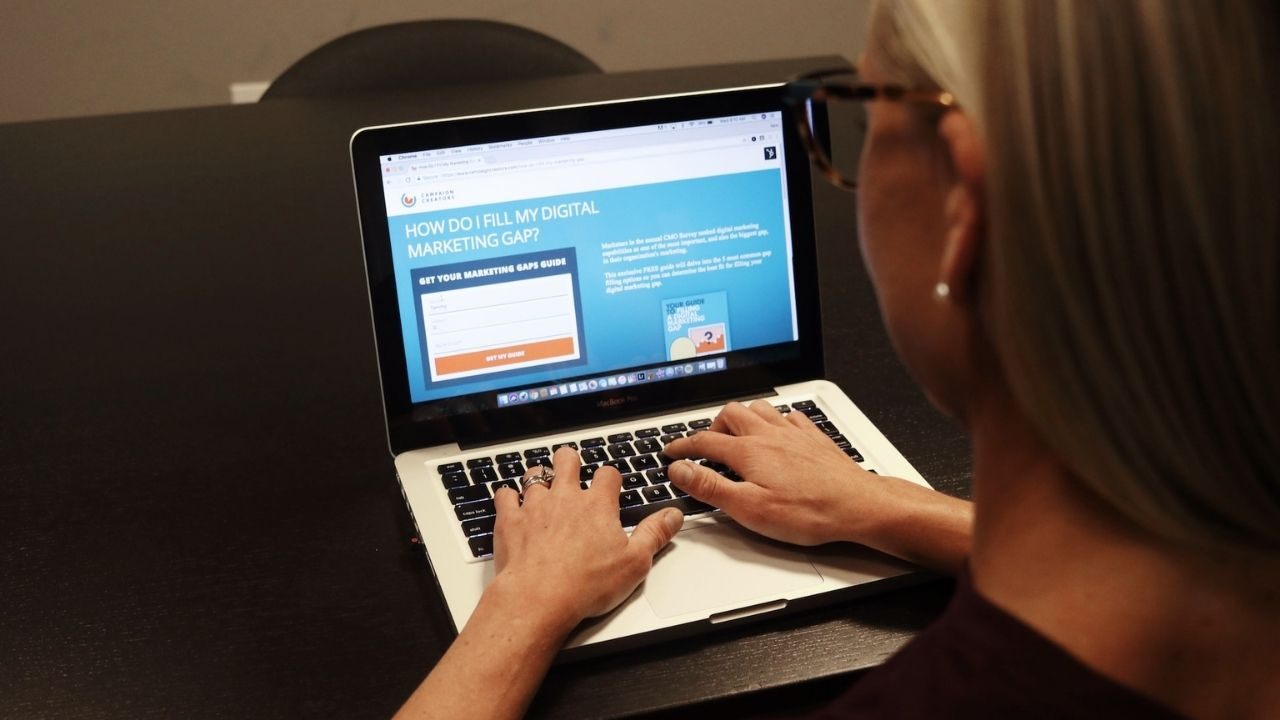
A secure login system ensures that you never lose access to your accounts or leak sensitive data.
Using one password manager, two-step verification, and backup codes gives you a strong foundation. It only takes a few minutes to set up, but it saves hours of recovery work later.
Store Passwords Without Reusing Them
Using different passwords for each site is critical, but remembering them all is impossible without help. Dashlane and Bitwarden are great beginner options. They store encrypted passwords and autofill them safely.
Password managers protect your privacy while making logins faster. Install their browser extensions for quick access. Once done, automatically generate random passwords and avoid reusing them across sites.
Turn On Two-Step Verification The Easy Way
Two-step verification, or 2FA, adds a second barrier between hackers and your data. Start with apps like Duo Mobile or Google Authenticator. They generate unique codes each time you log in.
Two-step verification prevents unauthorized access even if someone knows your password. Set it up for your main email and social media accounts first. Remember to save backup codes in a secure note so you can recover them if your phone is lost.
Keep Recovery Info So You Do Not Get Locked Out
Every secure account still needs a way back in case something goes wrong. Add a recovery email and phone number to your main accounts. Keep them updated if you change carriers or devices.
Recovery details guarantee access when passwords fail or devices break. You can also print backup codes and store them safely at home. This small precaution often saves beginners from losing important work or photos.
Learn A Basic File Routine You Can Repeat Weekly
A good file routine separates active projects from completed ones. Without it, everything feels lost after a few downloads.
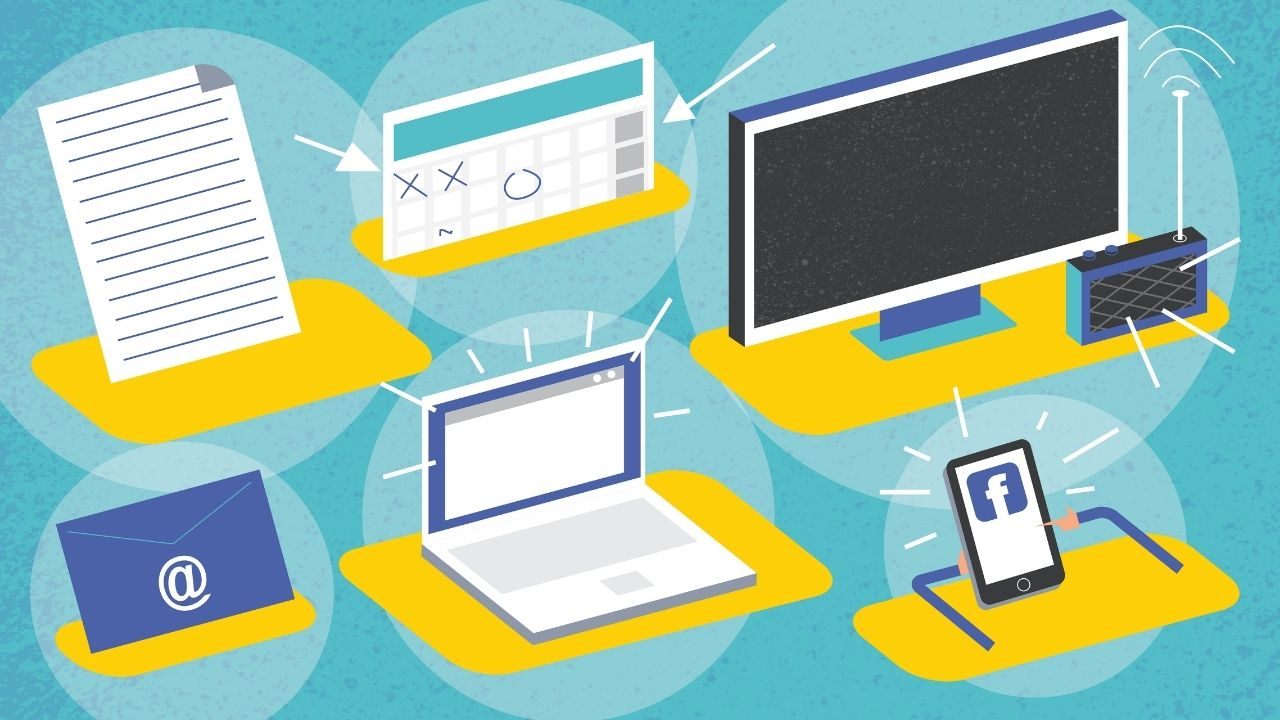
A repeatable weekly organization habit helps you find documents quickly and maintain order automatically.
Use a few main folders, short file names, and one cloud sync option. Once this structure is in place, your digital life feels manageable and clear.
Use A Three-Folder Layout That Stays Simple
Create three main folders named Active, Personal, and Archive. Place ongoing work or school files in Active, personal records in Personal, and finished items in Archive.
A small number of folders increases efficiency because you always know where new files go. Keep the same structure across devices for muscle memory. It also helps when you back up or share specific files without confusion.
Name Files So Search Works Instantly
File search becomes powerful when names follow a clear pattern. Start with the date format (YYYY-MM-DD) followed by a short label, like “2026-01-15 Invoice.” Avoid spaces and symbols that break links.
Structured naming eliminates searching frustration when you need to locate something quickly. Apply this habit consistently to notes, PDFs, and photos. Soon, your folders will sort themselves automatically without manual reorganization.
Sync One “Important” Folder Across Devices
Using cloud services ensures your files stay safe even if a device fails. Apps like MEGA or iCloud Drive work well for beginners. Pick one “Important” folder to sync instead of your entire storage.
Limited syncing saves space and bandwidth while keeping essential items available everywhere. Test access on your phone and laptop after setup. Once stable, you can expand syncing gradually as your workflow grows.
Handle Common Documents Without Stress
Every beginner struggles with document management at some point. Scanning, converting, and signing files look difficult, but are quite simple once you learn the right sequence.

The goal is to process documents without breaking format or losing quality. Free tools handle these tasks easily when used correctly. Practice with harmless sample files first to gain confidence before dealing with important documents.
Scan Papers With Your Phone
Modern smartphone cameras can double as high-quality scanners. Apps like Microsoft Lens or Adobe Scan automatically crop edges and adjust brightness. Use them for receipts, contracts, or IDs.
Digital scanning saves space and prevents paper loss. Export your scans as PDFs and rename them immediately using your date rule. Always check the preview for clarity before saving to avoid missing important text.
Merge Or Compress PDFs In Minutes
If you handle multiple files or need smaller versions, use PDFsam Basic or Smallpdf. Both are free and simple for beginners. Upload your files, drag them into order, and click merge or compress.
Compact PDFs send faster via email and load more quickly on mobile devices. Always keep an uncompressed version for printing. Test opening both to ensure nothing became unreadable after compression.
Sign And Send Documents Cleanly
You no longer need to print and scan a document to sign it. DocuSign allows you to add a signature directly to a PDF. Upload the file, place your signature, and send it securely.
Digital signing saves hours when you handle official paperwork or job applications. Save both the signed version and the original for records. Always verify the sender’s email when signing shared links to avoid phishing scams.
Share Links And Files In A Way People Understand
Good file sharing avoids confusion, broken links, and repeated requests. Beginners often forget that clear naming and short instructions make the difference.

A clean sharing routine makes collaboration smooth, even for simple personal tasks. You can control what others see and download, ensuring privacy and professionalism. Follow-up messages complete the process and prevent misunderstandings.
Share A Folder With The Right Permissions
Platforms like pCloud and OneDrive allow precise sharing options. You can grant view-only or full editing rights depending on your goal. Proper permissions prevent accidental edits and maintain version control.
Always review the link before sending to confirm what access it provides. Include a short note explaining what the file contains and when a response is needed. This approach makes recipients more likely to reply quickly.
Send A Large File Without Email Issues
Email attachments often fail when files exceed size limits. Filemail and WeTransfer solve this by creating temporary download links. Upload your file, copy the link, and send it in a message. Temporary sharing keeps your inbox light and secure.
Links usually expire after a few days, which protects your privacy. Always mention the expiry time so recipients can act before it disappears.
Confirm Receipt With A Simple Checklist
After sharing files, check that they were received and opened. Keep a small checklist noting file names, dates sent, and replies. Tracking sent items avoids confusion about who has what.
Follow up politely if you don’t receive a response within a day or two. Once confirmed, move the sent file to your Archive folder. This method builds accountability without extra tools or complex systems.
Conclusion
Starting with a beginner-friendly digital tutorial helps you avoid frustration later. You now have a reliable process for organizing files, creating secure logins, managing documents, and sharing them safely.
Review your setup monthly and remove clutter that slows you down. The tools and habits you build today will keep your work smooth and safe for years. When technology feels simple, you use it with confidence instead of hesitation.