You do not need tech skills to build a useful tool kit. This guide covers online tools for everyday needs that make tasks easier.
If you are new, start small so choices stay manageable. You will learn tools for communication, organization, documents, and safety. You will also learn how to download and set them up without mistakes.
Each section stays practical and beginner-friendly, with next steps. Pick one tool per job and test it for a full week.
How to Choose the Right Online Tools for Everyday Needs
Choose tools by starting with one weekly problem you want solved. A good tool saves time, reduces mistakes, and feels simple and fast.
Beginners often install duplicates and then stop using all of them. Limit yourself to one tool per category, like notes or storage.

Use it daily for 7 days before adding anything else. After a week, keep what helps and remove what adds friction.
Your 3-Point Check: Safety, Simplicity, and Repeat Use
Check safety first by looking for clear privacy settings and recovery options. Enable two-factor authentication when the tool offers it. Next, test simplicity by doing one basic task in under 5 minutes.
If you need a long tutorial, it will not fit everyday use. Then check the repeat value by asking if you will use it weekly. Tools that match your routine build confidence and reduce stress.
Free vs Paid: When It Is Worth Paying
Start with the free plan because it teaches you what you actually need. Upgrade only when the same limit blocks you several times. Paid plans can help with extra storage or stronger PDF features.
Avoid paying for overlapping tools that do the same job. If you upgrade, pick one core subscription you use often. Reliability and support matter more than flashy extras over time overall.
What to Avoid: Duplicate Tools and Sketchy Downloads
Avoid tool overload by removing duplicates that compete for your attention. Too many apps create more logins, more alerts, and more confusion. Be cautious with apps that ask for odd permissions they do not need.
Skip websites that push unknown installers or “premium for free” claims. Use official app stores and official company websites instead. If anything feels pushy or unclear, choose a safer alternative.
The Essential Tool List for Daily Communication and Information
Communication tools keep daily life running because they handle messages and updates. Start with one email service and one messaging app you will check daily.
Then choose a modern browser because most tasks begin there. The goal is to stay reachable without being interrupted all day.
Reduce noisy notifications so you can focus when you need to. When communication feels stable, other tools are easier to learn.
Email and Messaging Tools You Will Use Daily
Gmail and Outlook are strong email options with search and spam filtering. WhatsApp, Telegram, and Messenger handle group chats, calls, and quick sharing. Set notifications so only direct messages and priority contacts can interrupt you.
Use labels, folders, or pinned chats to keep important threads visible daily. Unsubscribe from junk lists so your inbox stays readable. Clear communication habits save time and lower daily stress.
Browsers, Search, and Reading Tools
Use a browser like Chrome, Edge, Safari, or Firefox for reliable everyday browsing. Turn on sync so bookmarks and saved logins follow you across devices. Bookmark your most used sites, like school portals or bill payments.
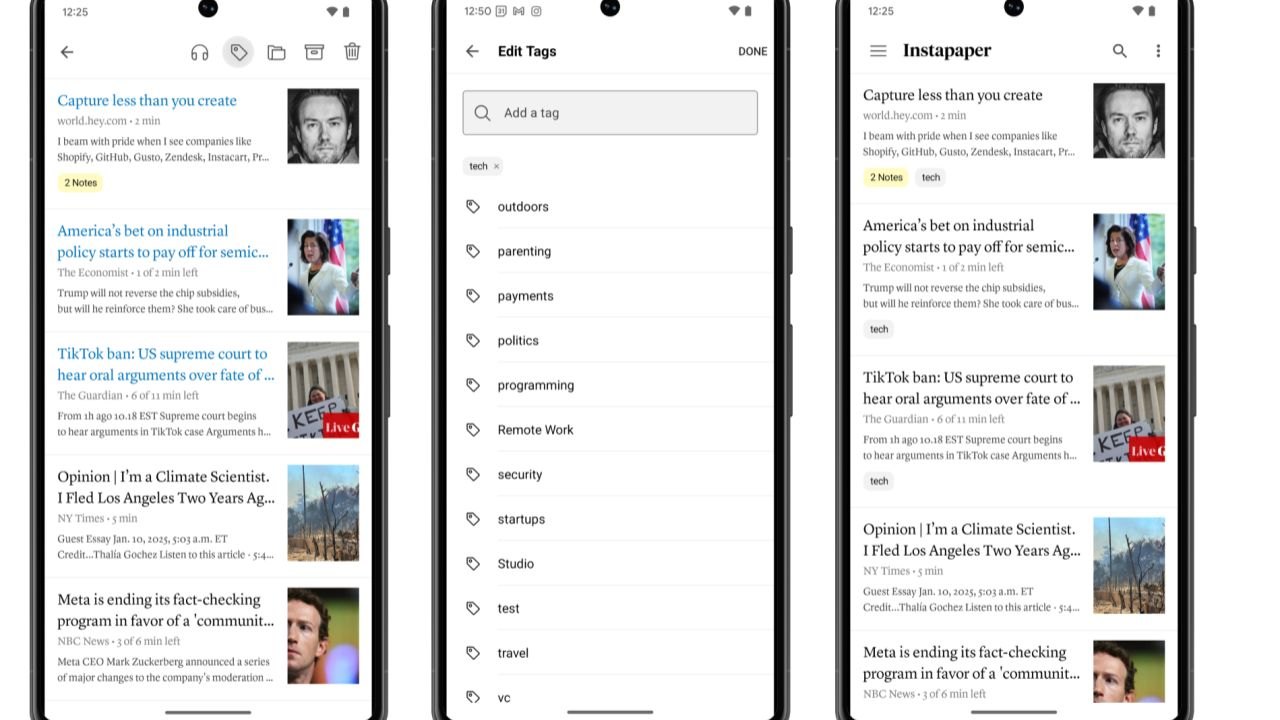
Use reader mode to make long pages easier to focus on. If you save articles, try Pocket or Instapaper and read later. Keep the browser updated so security fixes stay current.
The Essential Tool List for Organization and Productivity
Organization tools reduce mental clutter by capturing tasks outside your head. A simple system usually needs notes, tasks, and a calendar.
Choose tools that feel easy even on busy days and low-energy days. Use the same short routine each day so it becomes automatic.
Keep lists small, so they stay motivating, not overwhelming. When your system is consistent, your focus and mood improve steadily.
Notes and Checklists for Quick Capture
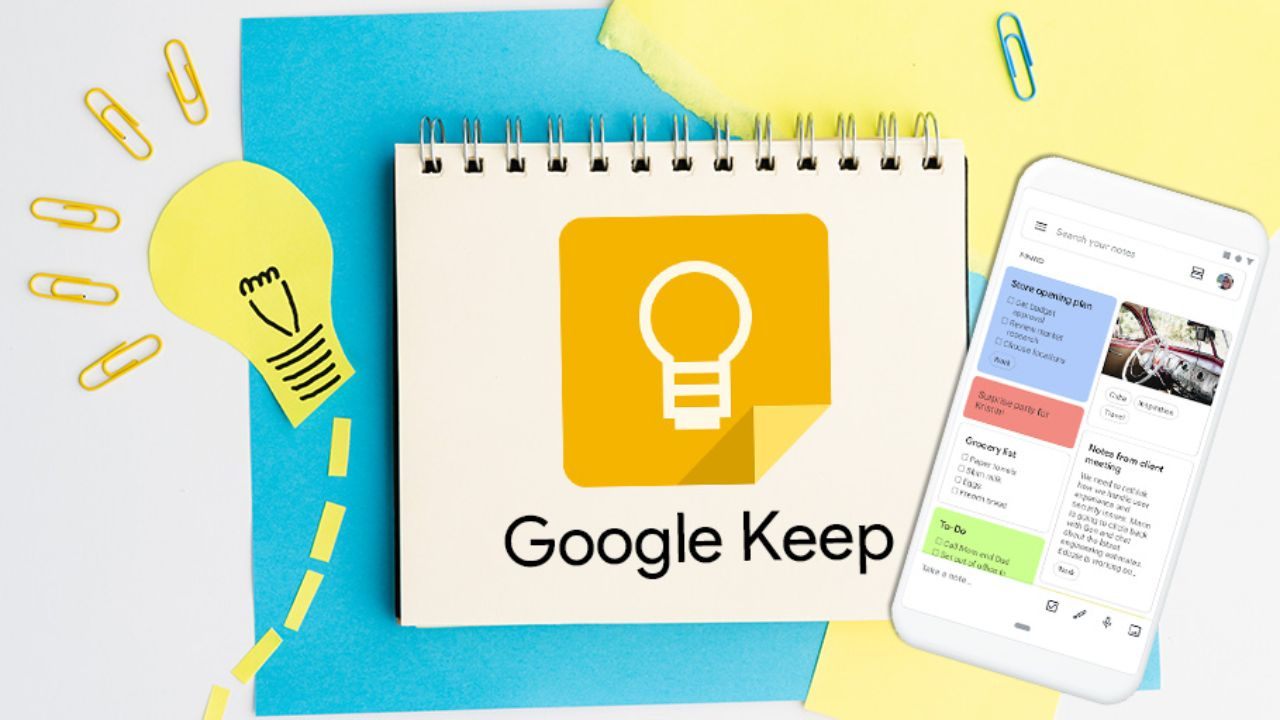
A notes app captures ideas, lists, and drafts before they disappear. Google Keep, Apple Notes, OneNote, and Notion are common options. Keep one inbox note for quick capture, then sort later at a set time.
Turn key items into checklists with action words you can complete. Use clear titles so the search works when you are in a hurry. Easy notes reduce anxiety because nothing gets lost.
Calendars, Reminders, and Scheduling Tools
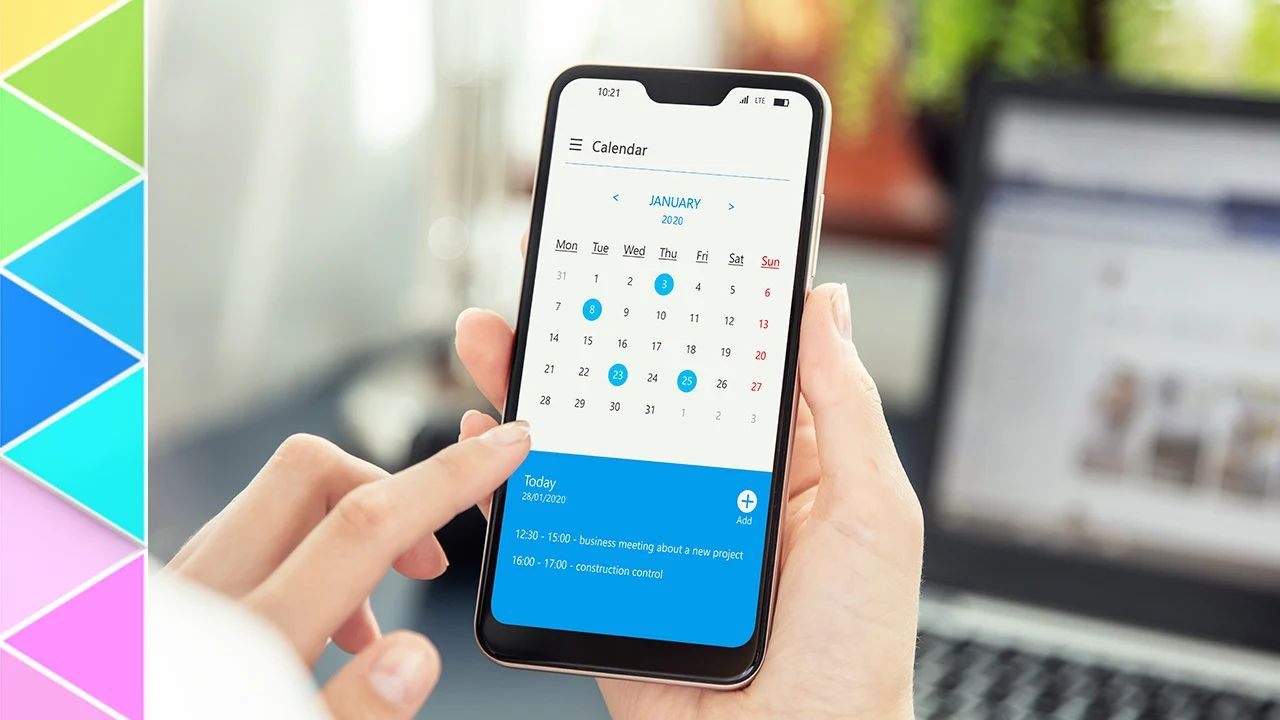
A calendar makes deadlines visible so they do not surprise you. Google Calendar and Apple Calendar sync well across devices.
Add reminders for bills, school tasks, and personal routines you care about. Use 10 to 15-minute buffers between events to reduce rushing.
For planning with others, Calendly can cut down scheduling messages fast. A clean calendar supports calm because your day feels predictable.
Cloud Storage and File Access Anywhere
Cloud storage keeps files safe and easy to share from any device. Google Drive, Dropbox, and OneDrive are popular choices with folders and search. Create a simple structure like School, Work, Personal, and Photos.
Name files with dates and clear titles so you can find them fast. Avoid saving the same file in multiple places to prevent duplicates. Stable storage makes everyday tasks smoother and less stressful.
The Essential Tool List for Documents and Everyday Files
Document tools help you write, edit, sign, and convert files for daily needs. Start with one online document editor you can use anywhere.
Add a PDF tool if you often fill out forms or submit applications. Keep a scanner app for times you must send paper documents. Use converters only when a website demands a specific format. A small file toolkit prevents frustration and saves time.
Document Editors and Templates
Google Docs and Microsoft Word Online are easy editors with autosave. Autosave protects you when the connection drops or a device restarts.
Use templates for resumes, letters, and reports to avoid formatting issues. Learn basics like headings, comments, and exporting to PDF for clean sharing.
Keep drafts in one folder and finished files in another. Good document habits make writing faster, clearer, and more confident.
PDF Tools and E-Sign Tools
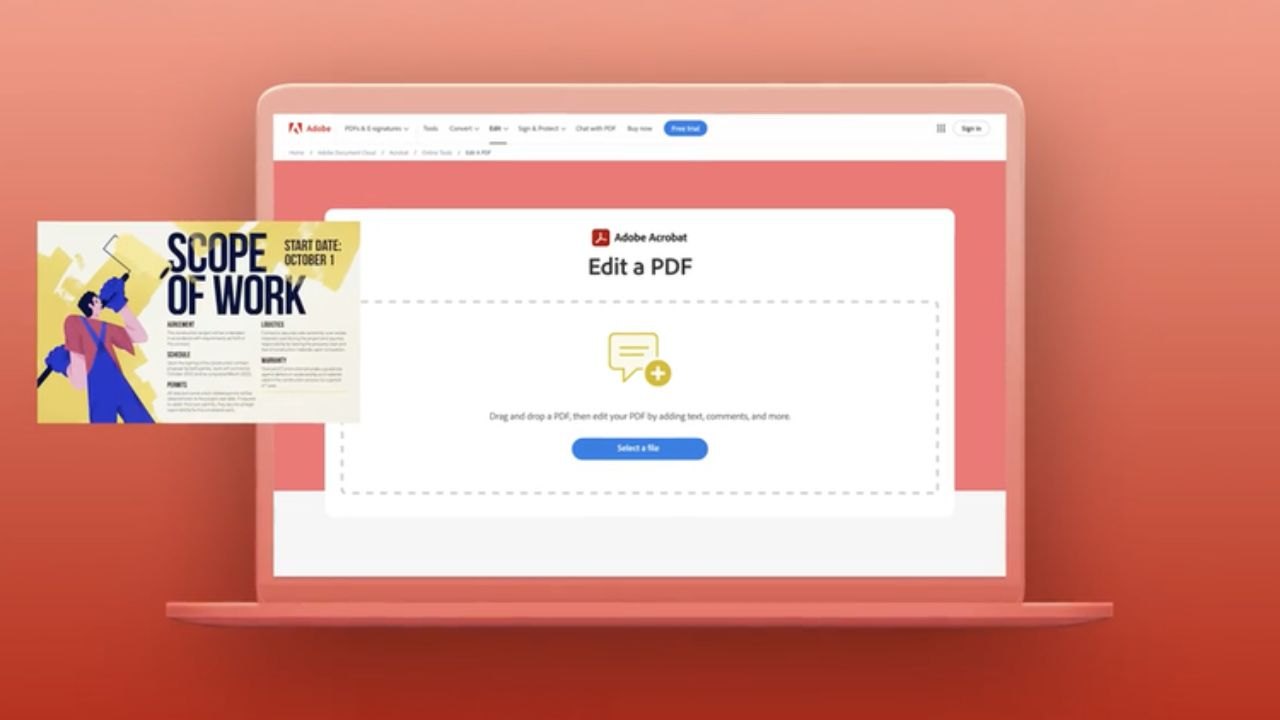
PDF tools help you merge pages, compress files, and fill forms. Adobe Acrobat online, Smallpdf, iLovePDF, and PDF24 cover common tasks. Choose tools with clear previews so you can confirm changes before saving.
Use trusted e-sign features and avoid unknown upload sites for sensitive files. Log out on shared devices and keep strong passwords on key accounts. When PDFs are manageable, paperwork feels far less intimidating.
Scanners, Converters, and File Compressors
Scanner apps turn paper into clean files you can submit online. Adobe Scan and Microsoft Lens can crop, enhance, and export to PDF quickly. Compressors help when uploads fail because a portal has size limits.
Converters help when you need PDF, JPG, or DOCX for a form. Keep these tools for occasional needs so your phone stays uncluttered. With them ready, small file problems become quick fixes.
How to Download, Set Up, and Use Tools Safely
Safe downloads start with using official sources and avoiding random links. Use the App Store or Google Play on phones and official websites on laptops.
Check the developer name, recent reviews, and the app description before installing. After installation, sign in once and turn on sync where it matters. Keep permissions minimal and remove access you do not need. A careful setup prevents most beginner problems.
Download Steps for Phone and Laptop
On a phone, search for the tool in the store and confirm the real developer. Install, open, and test one action, like saving a note or sending a file. On a laptop, download from the company website and avoid third-party installers.
During setup, decline extra bundled software you did not request. Bookmark the web version if it exists for quick access anywhere. Clean installs reduce bugs, ads, and unwanted pop-ups.
First-Time Setup: Accounts, Sync, and Backups
Use strong passwords and a recovery email you can access easily. Turn on two-factor authentication for email, storage, and key accounts. Enable sync so edits on phone and laptop match without manual uploads.
Choose a default downloads folder, then move important files into cloud storage. Set a weekly reminder to confirm files are still open and sync correctly. Small setup steps protect your work and reduce long-term stress.
Daily Use Habits: Shortcuts, Notifications, and Privacy
Keep notifications limited to essentials like calendar alerts and direct messages. Use shortcuts like pinned notes, starred folders, and saved bookmarks for speed.
Check your task list once in the morning and once in the evening. Avoid constant refreshing because it trains your attention to scatter.
Review privacy and permission settings monthly, especially after updates. Simple habits make tools feel supportive instead of demanding long-term.
Conclusion
A small toolkit can cover most everyday digital needs without overwhelming you. Start with email, messaging, a browser, notes, a calendar, and cloud storage. Add document, PDF, and scanning tools only when real tasks require them.
Download from official sources and keep permissions limited and purposeful. Use strong passwords and two-factor authentication to protect your accounts. With consistent use, online tools for everyday needs save time and reduce stress.