Online tools are easiest to learn when they support a few real tasks instead of becoming another source of clutter.
This online tools guide explains how beginners can use browser services and simple apps for communication, planning, file storage, documents, safety, and daily routines.
It is useful for students, remote workers, freelancers, and everyday users who want to feel organized without downloading every popular app. The goal is to start small, practice consistently, and build a setup that stays calm when your day gets busy.

Understand What Online Tools Should Do
An online tool is a website or connected app that helps you finish a specific digital task. It might help you write a document, send a file, join a meeting, save notes, protect passwords, or track deadlines.
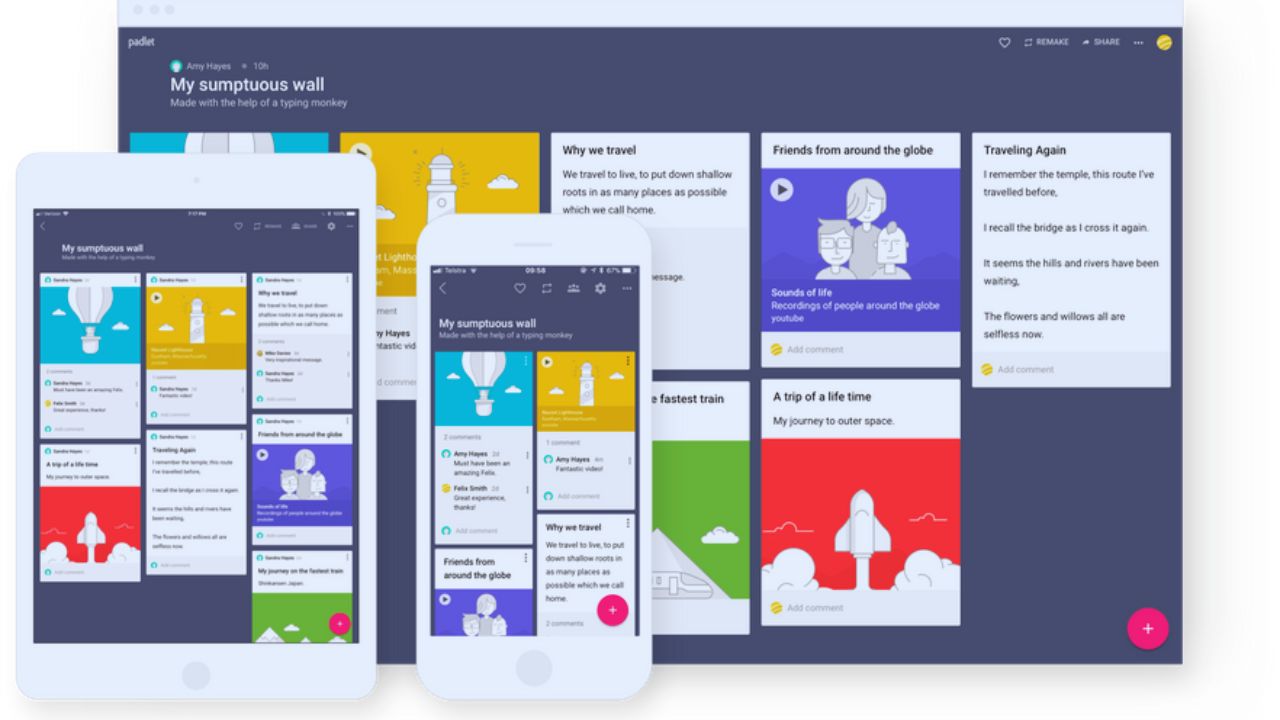
A clear tool purpose matters because beginners often collect apps before knowing what problem they need to solve. Start by asking what task repeats most often in your day. If the answer is unclear, wait before creating another account.
Use Websites and Apps for Different Jobs
A website works well when you are using a laptop, shared computer, or school device. A mobile app is often better for reminders, scanning, quick notes, and messages you need to check fast.
A practical device choice depends on where the task happens most often. Many tools offer both versions, so you can write on a computer and review on a phone later. Test one simple action on each device before trusting the tool for important work.
Pick a Small Starter Stack First
A beginner setup should cover communication, planning, and storage before anything else. Email can handle accounts and formal messages, a notes or task tool can hold reminders, and one cloud drive can become the main home for files.
A focused starter stack keeps learning manageable because each tool has a clear place in your routine. Use those tools for a full week before adding more. That short trial shows what feels natural and what causes confusion.
This also helps you notice whether the tool supports your real rhythm, not just a clean demo. A tool that feels easy during a quiet moment may still be frustrating when deadlines, weak internet, or phone storage limits appear during ordinary busy weeks too.
Keep One Tool Per Category
Using three note apps or two cloud drives usually creates more work, not more control. Pick one option for email, one for tasks, one for storage, and one for passwords. A simple tool category rule prevents duplicate files, missed messages, and scattered reminders.
If one tool does not fit after testing, replace it instead of keeping both. Beginners learn faster when the system is small enough to remember without checking instructions.
Also Read: Online Tools for Everyday Needs
Set Up Accounts With Safety in Mind
Downloading and signing in should be done carefully, even for basic tools. Install phone apps from the App Store or Google Play, and use official company websites on a computer.
A safer account setup includes checking the developer name, creating a strong password, adding a recovery method, and turning on sync only when it helps.
Avoid random download pages that bundle unwanted software. Safe setup prevents problems before you depend on the tool.
Review Permissions Before Saying Yes
Many apps ask for camera, microphone, contacts, photos, location, or file access. Some permissions make sense, such as camera access for scanning or microphone access for video calls.
A careful permission check means allowing only what the tool needs for the task. If a simple note app asks for unrelated access, pause before approving it. Minimal permissions keep your setup cleaner and reduce privacy risks.
Use Communication Tools With Clear Rules
Communication tools can help or distract, depending on how you use them. Gmail, Outlook, WhatsApp, Telegram, Messenger, Zoom, and Google Meet are useful when each one has a clear role.
A calm communication routine might use email for formal messages, chat for quick updates, and video calls for discussions that need real-time explanation.
Keep notifications limited to important contacts, calendar alerts, and active projects. This keeps tools helpful without turning every message into an interruption.
Share Files Through Links Carefully
File sharing is easier when everyone opens the same version instead of passing attachments around. Google Drive, OneDrive, Dropbox, and similar tools let you share files through links with view, comment, or edit access.
A smart sharing setting prevents accidental edits and keeps private files from spreading too widely. Check the file name and permission before sending the link. Remove access later when the project, class task, or personal request is finished.
Make Files and Documents Easy to Find
Cloud storage should become the predictable home for your important files. Create broad folders such as School, Work, Personal, Documents, and Completed, then save files there instead of leaving them in downloads.
A clean file habit includes clear names with dates and short descriptions, such as “2026 Resume Draft” or “Rent Receipt January.” This makes search faster when you are tired or in a hurry. A simple folder system is better than a detailed one you avoid using.
Handle Docs, PDFs, and Scans With Care
Documents and PDFs are common in school, job applications, bills, and personal records. Google Docs and Microsoft Word Online help with writing and sharing, while PDF and scanning tools help with forms, compression, signatures, and paper files.
A practical document check means opening the final file before sending it. Confirm that text is readable, pages are complete, and the correct version was saved. This small step prevents avoidable mistakes during submissions.
Protect Focus With Routines and Notifications
Online tools should reduce stress, not create constant checking. In the morning, review your calendar and choose two priority tasks; during the day, save notes where they belong; in the evening, confirm tomorrow’s first action.
A steady daily routine keeps your system active without requiring attention every hour. Turn off low-value alerts and keep reminders that support deadlines or important messages. Focus improves when tools stop competing for every spare minute.
Keep the Setup Easy to Maintain
Online tools stay useful when you review them before clutter returns. Once a week, clear downloads, move files to the right folders, check pending tasks, and close tabs you no longer need.
A simple weekly cleanup keeps your system reliable without turning maintenance into another big project.
Keep only tools that solve real tasks, protect accounts with strong passwords, and remove duplicates that make decisions harder. Start small, repeat the same habits, and let the setup grow only when your routine truly needs it.