Online life is full of apps that promise shortcuts. How to use online tools without overcomplication starts with choosing tools that reduce steps. This guide ranks options that solve common tasks fast.
You will see simple starter workflows, not deep feature tours. The goal is fewer accounts, fewer tabs, and fewer mistakes.
Quick wins you can repeat matter more than advanced settings. Use this list to build a practical toolkit. Then keep only what you use weekly.

A Simple System For Picking Tools That Stay Easy
Overcomplication usually starts with trying to do everything in one app. The better approach is one tool per task, with one repeatable workflow.
Start by defining the output you need, like a converted file or a meeting link. Then pick the tool that gets you there with the fewest clicks.

A clear success path matters more than extra features you will ignore. If setup feels heavy, it is not your tool.
Use The Two Minute Setup Test Before You Commit
Before you migrate anything, test the tool with one real task. Create an account, run one workflow, and export a result. If you cannot get value quickly, you will not use it later. Keep a note of what confused you during setup.
The friction you feel early usually becomes daily frustration. Choose tools that feel obvious on the first run.
Keep One Primary Use For Each Tool
Tools become messy when you assign them multiple roles. Decide one job, like file conversion, and avoid expanding beyond it. This keeps settings minimal and your habits consistent.
If a tool is used for many jobs, you will spend time reorganizing. One tool, one job is how you keep digital work calm. You can always add a second tool later if needed.
Build A Weekly Cleanup That Prevents Tool Sprawl
Set a weekly five-minute cleanup, so your stack stays manageable. Delete unused accounts, remove unused browser extensions, and archive old files. Keep a short list of your core tools in one place.
If you do not use a tool for two weeks, pause it. A small reset ritual stops clutter before it grows. This is the easiest way to stay organized long term.
Top Choice For Passwords And Secure Logins: 1Password
Passwords are where people lose time, especially when logins are scattered. 1Password ranks high because it reduces friction while improving security.
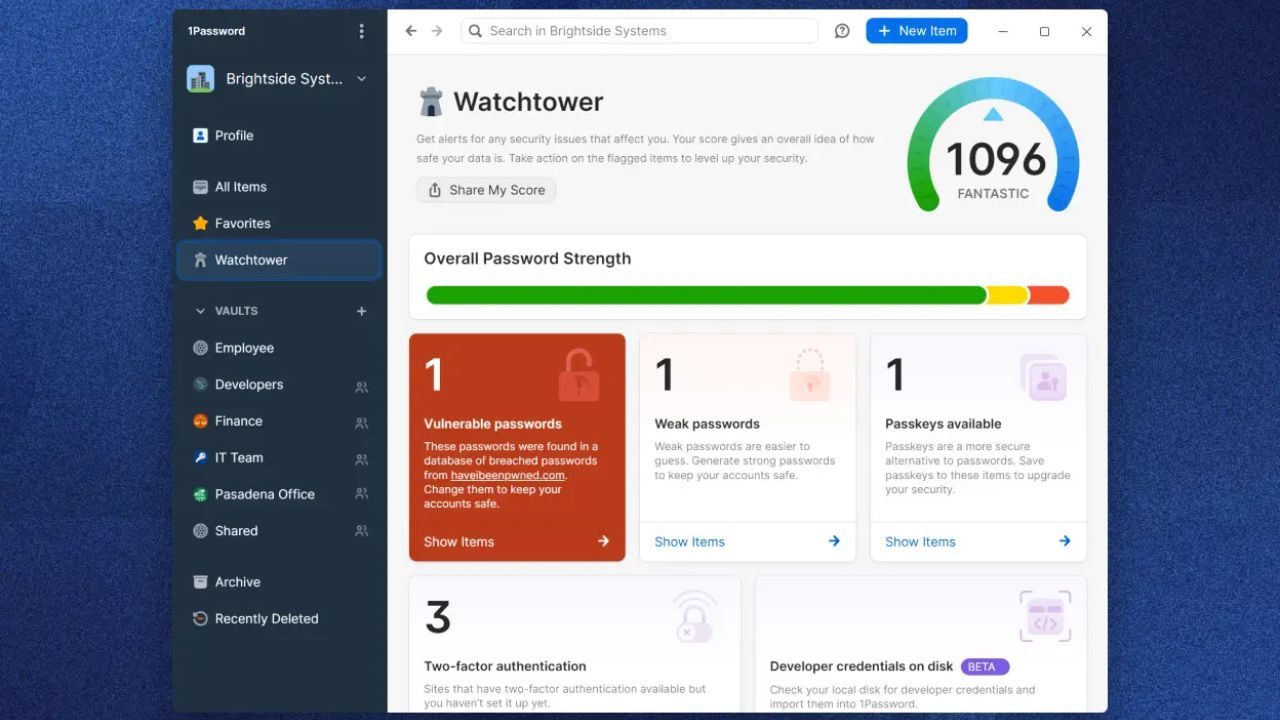
You save logins once, then fill them quickly across devices. The interface is clear enough that most people stick with it. This tool also helps you avoid password reuse without extra effort. Faster logins with fewer errors is the benefit you notice immediately.
A Five-Minute Setup That Prevents Future Headaches
Start by creating your vault and saving three important logins first. Install the browser extension only after the vault is working. Then add your email, bank, and main work account to build momentum.
Turn on autofill and test it on a site you use daily. A small first batch makes the habit feel simple, not overwhelming. Once it works, expand gradually instead of importing everything.
A Daily Login Routine That Stays Simple
Use the tool as a launcher, not just a storage box. Search the vault, open the site, and let autofill handle the rest. Save new logins only when you create them, not days later. Keep item names consistent so search stays reliable.
One consistent naming rule prevents confusion when your vault grows. If you share accounts, use shared vaults instead of sending passwords in chat.
High Value Tool For File Conversion Without Tool Hopping: Zamzar
File conversion should not require installing random software. Zamzar ranks high because the workflow is direct and predictable.
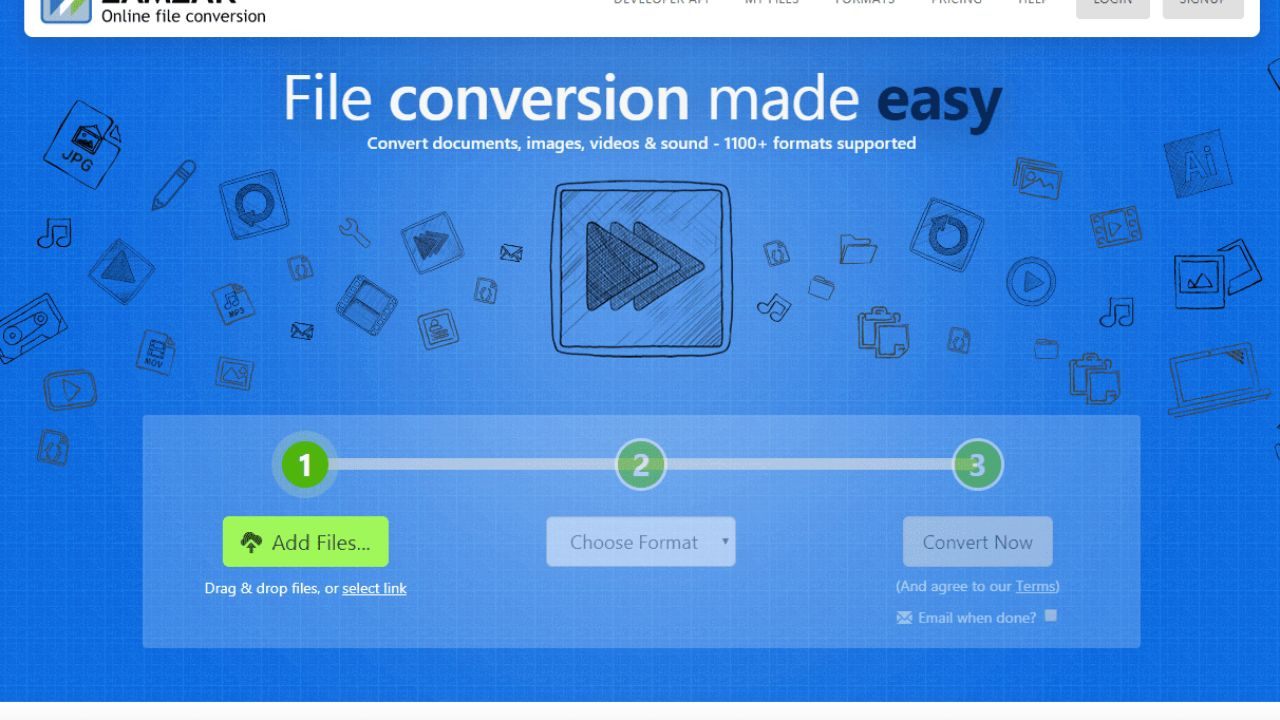
You upload a file, choose an output format, and download the result. This solves common tasks like converting documents, images, and media formats.
It is most useful when you need a quick result for school or work. A conversion you can finish quickly is what keeps this tool practical.
A Three-Step Conversion Flow You Can Repeat
Start with a single file and confirm the output format you need. Upload the file, pick the target format, and run the conversion. Download the result and rename it immediately for clarity.
Keep a simple folder called Converted Files so outputs do not scatter. Repeatable steps reduce mistakes when you are handling multiple files. If quality matters, do a quick check before you send or publish.
File Naming Rules That Prevent Rework
Most conversion stress comes from losing track of versions. Add the date and format to the file name so it stays clear. For example, keep a pattern like Report 2026 01 PDF. Store the original and converted file in the same project folder.
Version confusion is avoidable when your naming is consistent. If you convert often, create a small checklist to confirm format, size, and final use.
Best Lightweight Image Editing For Everyday Needs: Pixlr
Many image editors overwhelm beginners with dense menus. Pixlr ranks high because it supports quick edits without the heavy learning curve.
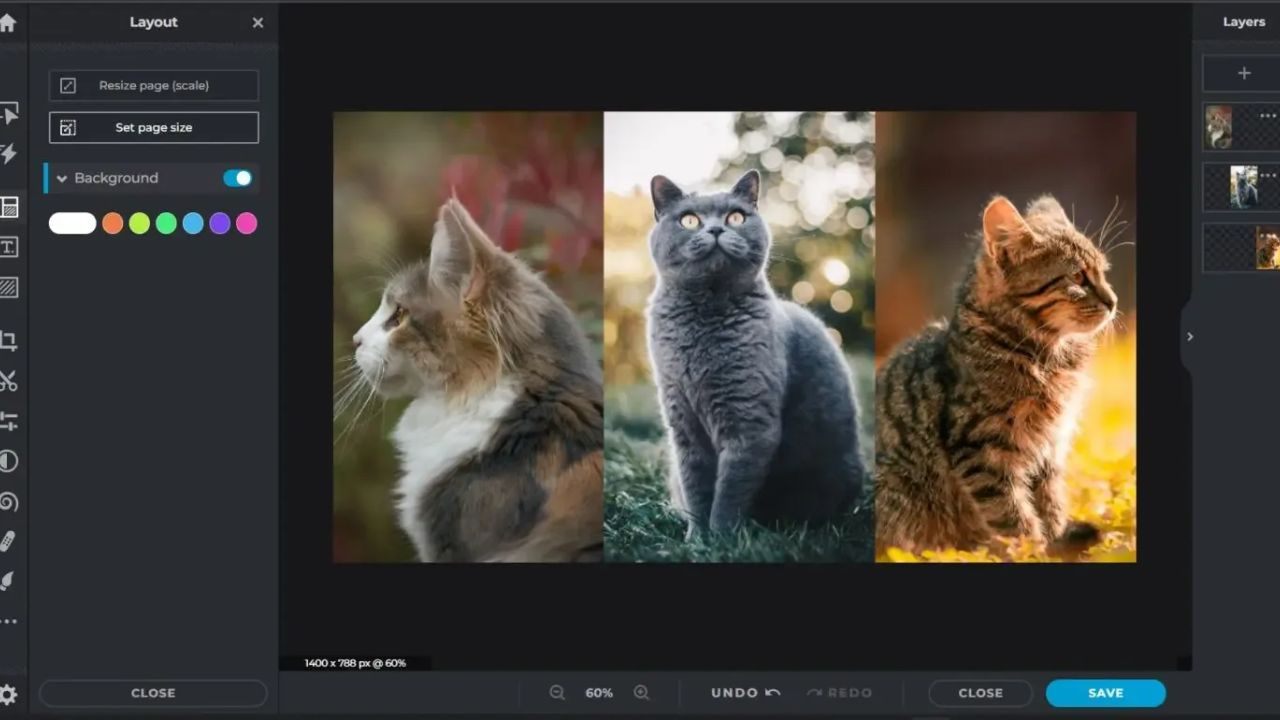
You can crop, resize, adjust brightness, and export fast. It is useful for thumbnails, blog images, and simple social posts.
This tool fits people who want results without becoming designers. Clean edits in minutes is the reason it earns a strong rank.
A Fast Edit Workflow For Crops And Resizes
Start by opening one image and setting the target size first. Crop to the right framing, then resize to your final dimensions. Make small adjustments to brightness and contrast only if needed.
Export in PNG for graphics and JPG for photos in most cases. Small edits beat overediting when you want speed and consistency. Save the edited file with a clear name so it does not replace your original.
Export Choices That Keep Your Images Consistent
Overcomplication often happens at export because people chase perfect settings. Use a standard quality level and stick with it across projects. Keep one folder for final images that are ready to upload.
If you publish online, check the file size so pages load quickly. Consistency improves your workflow more than endless tweaking. When in doubt, choose clarity and speed over complex compression experiments.
Most Useful For Meetings And Screen Sharing: Zoom
Online meetings are only helpful when joining is simple. Zoom ranks high because it reduces join problems and supports clear screen sharing.
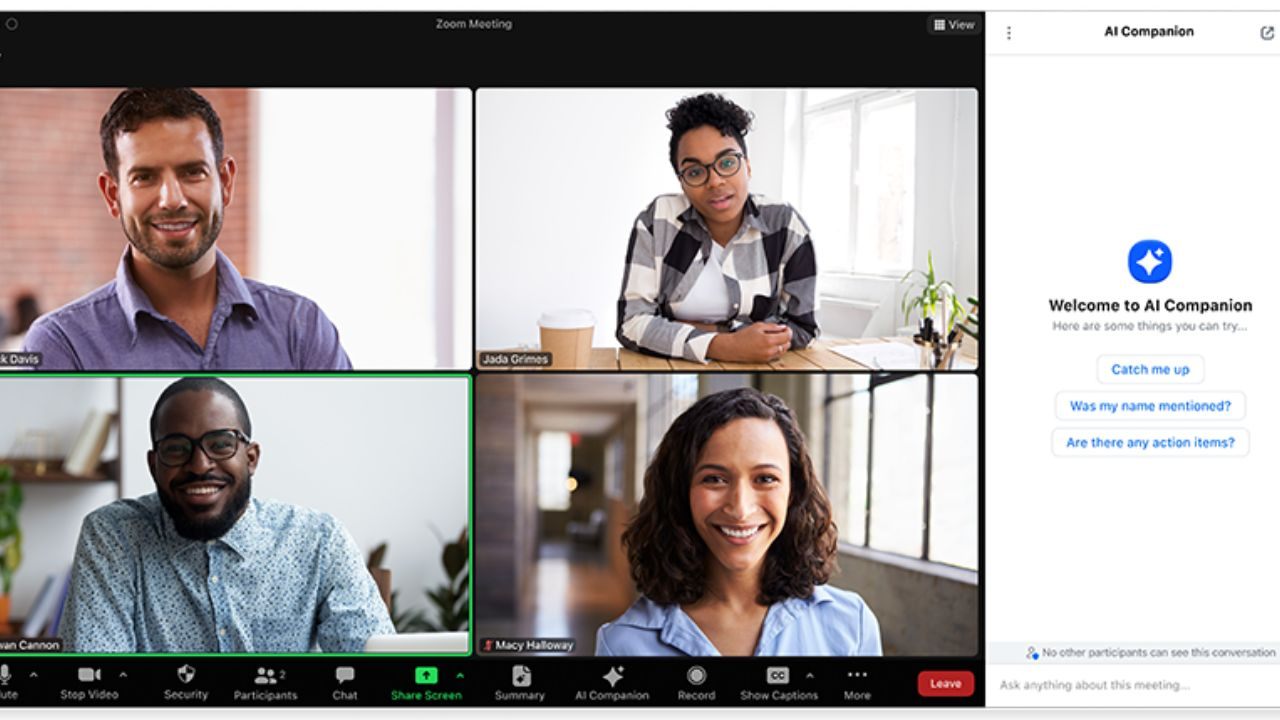
Most people already recognize the interface, which lowers friction. It works for quick calls, training sessions, and small team check-ins.
This tool is ranked highly because it saves time during coordination. Meetings that start on time are the real productivity win.
Settings That Reduce Join Problems For Everyone
Keep your display name consistent so people know who joined. Test your microphone and camera once, then avoid changing settings daily. Use the same meeting link for recurring sessions when possible.
Turn on the waiting room only if you manage external guests. Fewer last-minute fixes make calls feel smoother for you and others. If you host, join two minutes early to confirm audio and share options.
Screen Sharing Basics That Stay Clear And Focused
Share only the window you need, not your entire desktop. Close extra tabs and notifications before you start sharing. Use the built-in annotation tools only when they add clarity.
If you record, name the recording file immediately and store it in one place. A focused share keeps attention and reduces confusion during demos. End with a quick recap so people know the next step.
Best Simple Notes And Clip Saving Tool: Evernote
A notes tool becomes complicated when it turns into endless folders. Evernote ranks high because it supports fast capture and reliable search.
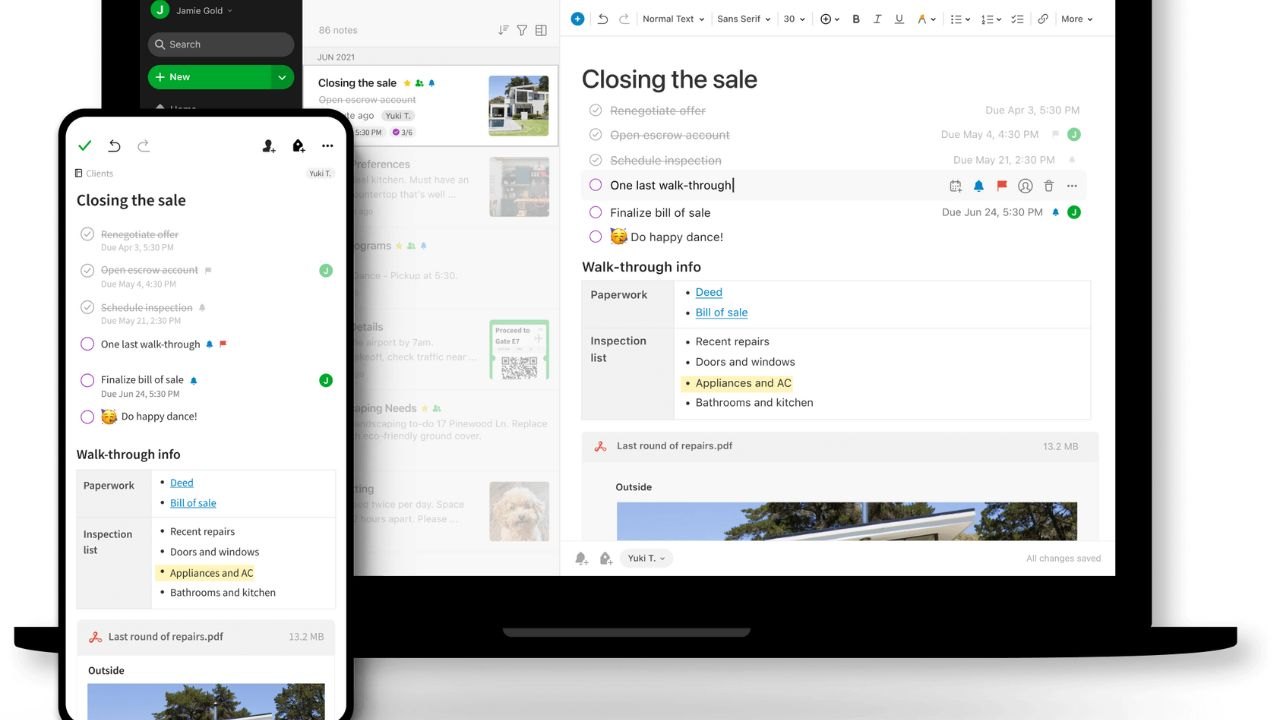
You can save notes, web clips, images, and checklists in one place. It is useful for research, meeting notes, and personal organization.
This tool is ranked high because it reduces scattered information. A searchable personal archive is the benefit that saves you time later.
A Notebook Structure You Will Actually Maintain
Start with three notebooks only: Work, Personal, and Inbox. Put everything into the inbox first, then sort once a week. Use tags sparingly, only for topics you search often. Write note titles that describe the content in plain language.
Minimal structure stays usable even when life gets busy. If you add too many notebooks, you will stop filing, and the search becomes noisy.
Web Clipping Without Bookmark Hoarding
Clip only the pages you will reference again, not everything interesting. Add one sentence at the top of the note explaining why you saved it. This turns a clip into a usable resource instead of a pile.
Save the source link inside the note so context stays intact. Intentional clipping prevents overload and keeps your archive valuable. Review clips monthly and delete items that no longer matter.
Conclusion
The best online tools are the ones you keep using without friction. How to use online tools without overcomplicating is mostly about limiting choices and repeating workflows.
Start with one password manager, one file converter, one image editor, one meeting tool, and one notes hub. Choose the option that reduces errors, not the one with the longest feature list. Your time is the real budget.