Manual digital work slows you down when you repeat the same clicks, typing, and file handling every day.
The right online tools replace these steps with automated, template-based, or one-click actions you can control.
This guide shows you practical tools to finish common digital tasks faster and with fewer errors.
Quick Checklist Before You Choose a Tool
You need a tool that fits your workflow, not a tool that adds more steps. Use these main keywords with a short description to make a quick decision.
- Repeat task — Name the one job you keep doing.
- Step list — Write the steps from start to finish.
- Start trigger — Define what starts the process.
- Done result — Define what “finished” looks like.
- Needed inputs — List the data or files it must receive.
- Expected outputs — List what it should create or update.
- Where you work — Confirm web, mobile, or desktop requirements.
- Apps to connect — List the tools it must integrate with.
- Access rules — Decide who can view, edit, and approve.
- Budget limit — Set a monthly amount you can sustain.
- Setup effort — Estimate how much effort setup and testing will take.
- Failure check — Decide how you will catch errors fast.
Automation Tools (Connect Apps and Run Workflows)
Automation tools connect your apps and run actions automatically, eliminating manual steps. You use them to move data, send updates, and trigger tasks automatically.
They work best when you repeat the same process across multiple tools.
- App connections — Link two or more tools so data moves automatically.
- Triggers — Start a workflow when an event occurs, such as a new form submission or an email.
- Actions — Define what should happen next, such as creating a task or file.
- Multi-step workflows — Run several actions in a fixed order.
- Conditional logic — Change actions based on simple rules.
- Scheduled runs — Execute workflows at set times.
- Error handling — Get alerts when a step fails.

Data Entry and Form Tools (Stop Re-typing)
Data entry and form tools replace manual typing with structured input. You use them to collect clean data and automatically send it where it belongs.
They reduce errors and save time on repetitive entry.
- Online forms — Collect standardized information in one place.
- Required fields — Prevent missing or incomplete data.
- Auto-validation — Catch errors before submission.
- Direct integrations — Send entries to sheets, databases, or apps.
- File uploads — Attach documents without email back-and-forth.
- Templates — Reuse the same form for repeated tasks.
- Access controls — Limit who can view or submit data.
Writing, Summarizing, and Drafting Tools (Speed Up Text Work)
Writing, summarizing, and drafting tools reduce the time you spend creating and reviewing text.
You use them to speed up routine writing while maintaining a consistent structure. They are useful for emails, notes, and short documents.
- Draft generation — Create first versions of common texts fast.
- Rewriting tools — Adjust tone, length, or clarity.
- Summarization — Reduce long content into key points.
- Templates — Reuse standard writing formats.
- Grammar checks — Catch basic errors before sending.
- Consistency control — Keep wording aligned across documents.
- Export options — Move text into emails, docs, or tools easily.
Scheduling and Inbox Tools (Replace Back-and-Forth)
Scheduling and inbox tools remove repeated messages and manual coordination. You use them to set availability, route messages, and respond faster.
They reduce delays caused by back-and-forth communication.
- Scheduling links — Let others book time without email exchanges.
- Availability rules — Control working hours and buffers.
- Meeting types — Set different durations and purposes.
- Inbox filters — Sort messages automatically.
- Quick replies — Reuse common responses.
- Shared inboxes — Manage team messages in one place.
- Notifications control — Reduce unnecessary alerts.
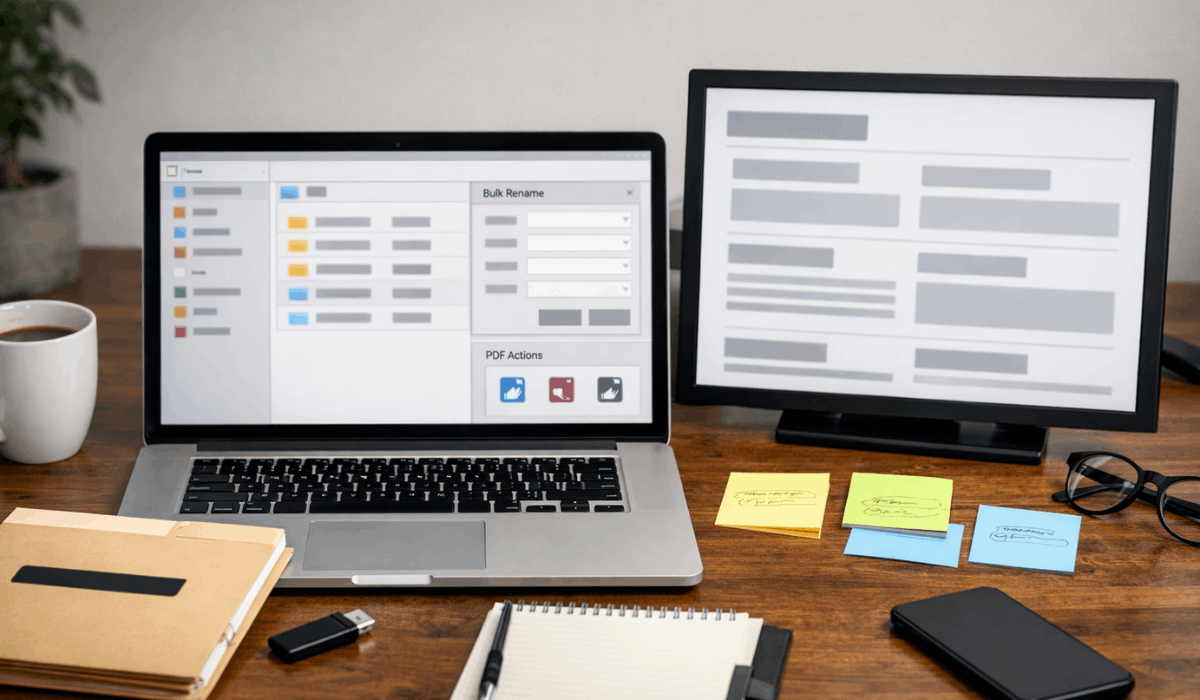
File and Document Tools (Stop Manual Formatting and Organizing)
File and document tools remove the need for manual formatting, renaming, and sorting.
You use them to standardize documents and automatically organize files. They are essential for repeated document work.
- PDF actions — Merge, split, convert, and compress files.
- Auto-formatting — Apply consistent styles and layouts.
- Templates — Reuse standard documents without rebuilding them.
- Bulk renaming — Rename many files in one action.
- Folder rules — Sort files into folders automatically.
- Version control — Track changes and restore older versions.
- Search and tags — Find files quickly without manual browsing.
Task and Project Tools (Replace Manual Follow-Ups)
Task and project tools replace manual follow-ups and status checks. You use them to track work, set reminders, and see progress in one place.
They help you avoid missed tasks and delayed responses.
- Task capture — Turn messages and notes into tasks.
- Due dates — Set clear deadlines for each task.
- Reminders — Get alerts before work is due.
- Recurring tasks — Automate repeat work.
- Status tracking — See what is pending, active, or done.
- Assignments — Clarify who owns each task.
- Progress views — Use lists or boards to monitor work.
Visual and Content Tools (Replace Repetitive Design Steps)
Visual and content tools reduce the need for repeated design work and manual edits. You use them to create consistent visuals without having to start from scratch.
They help you produce content faster with fewer steps.
- Design templates — Reuse layouts for common visuals.
- Brand styles — Keep colors, fonts, and spacing consistent.
- Batch creation — Produce multiple assets at once.
- Resize tools — Adapt designs to different formats quickly.
- Asset libraries — Store and reuse images and elements.
- Simple editors — Make quick changes without complex software.
- Export presets — Save files in the right format automatically.
“Best Tool for the Job” Mini-Comparisons
You need quick recommendations so you don’t waste time choosing. These comparisons align with common needs using simple options.
Use them to pick one tool category first.
- Best for Beginners — Easiest to set up and learn.
- Best for Teams — Works well with multiple people.
- Best for Tight Budgets — Low-cost or free options.
- Best for Heavy Automation — Handles complex workflows.
- Best for Data Entry — Makes forms and captures simple.
- Best for File Management — Organizes and formats files fast.
- Best for Writing & Summaries — Helps create and shorten text.
- Best for Scheduling — Reduces back-and-forth bookings.
- Best for Task Tracking — Keeps work visible and on time.
- Best for Design & Visuals — Speeds up graphic creation.
Step-by-Step Starter Setups
Step-by-step starter setups help you replace manual work without guessing. Each setup shows a simple workflow you can copy and adjust.
Start with one and expand later.
- Form to spreadsheet — Send form entries directly into a sheet.
- Form to email reply — Confirm submissions automatically.
- Email attachment to folder — Save files without manual downloads.
- Auto file rename — Apply consistent naming rules.
- Notes to task list — Turn ideas into actionable tasks.
- Recurring task setup — Automate routine reminders.
- Calendar booking flow — Let others schedule their own time.
- Weekly report send — Share updates on a fixed schedule.
How to Maintain Your System
Maintaining your system keeps automation reliable and useful over time. Simple checks prevent errors and outdated setups. A small routine is enough.
- Monthly review — Check workflows and remove unused ones.
- Test runs — Re-run key automations to confirm they work.
- Update permissions — Remove access that is no longer needed.
- Rename and clean — Keep folders and files organized.
- Error alerts — Review failures and fix them fast.
- Backup exports — Save copies of critical data.
- Simple documentation — Keep a short note on how each setup works.
Final Takeaway
Replacing manual digital work helps you save time and reduce mistakes in everyday tasks.
The right tools let you automate, organize, and repeat workflows with less effort.
Pick one manual task you deal with often and set up a simple tool today.