You use online tools to write, organize, convert files, and automate simple tasks.
Many tools feel confusing because explanations add unnecessary steps and terms.
This article breaks them down so you understand what each tool does and how to use it without complexity.
What Online Tools Are and Why You Use Them
Online tools are browser-based services that help you complete digital tasks without installing software.
You use them to work faster, stay organized, and avoid manual steps.
- Browser-based — You open it in a web browser, not an installed app.
- No-install — You start using it right away without downloads.
- Multi-device — It works on laptops, tablets, and phones.
- Task-focused — It solves one clear job, like editing, converting, or organizing.
- Time-saving — It reduces steps, so you finish faster.
- Automation — It runs repeated actions for you after setup.
- Cloud access — Your files or settings can be available across devices.
- Quick updates — The tool updates automatically.
Categories of Useful Online Tools
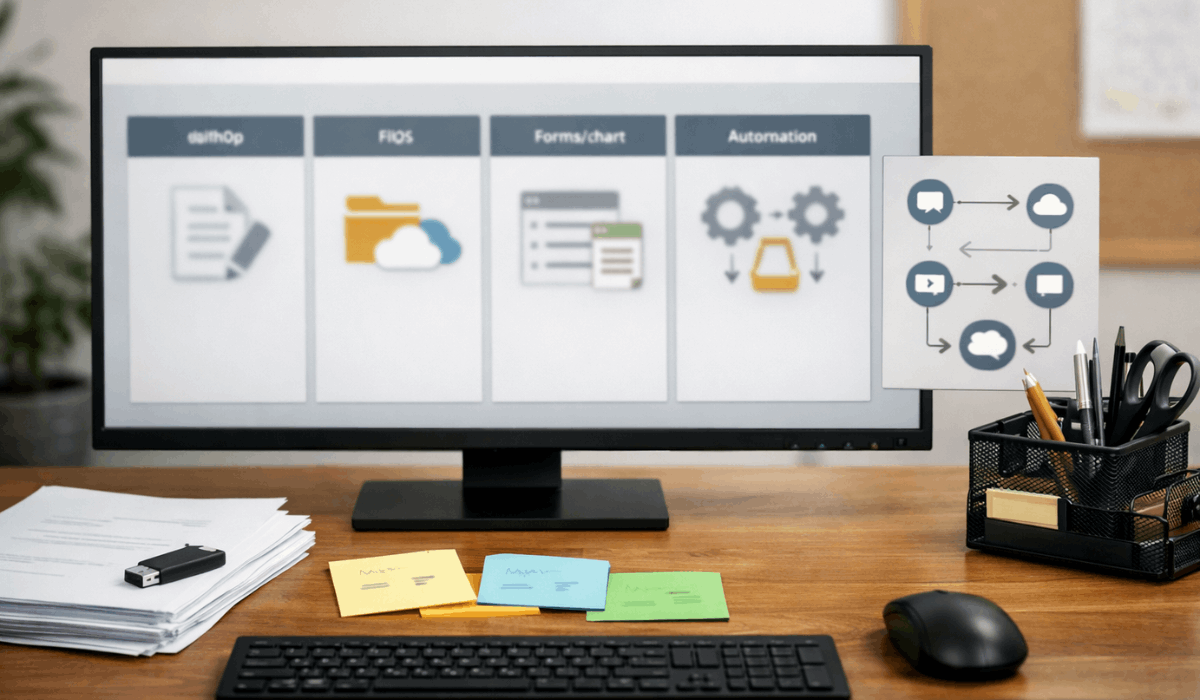
Online tools are easier to understand when you group them by purpose. Each category solves a specific type of task you handle every day.
- Productivity tools — Help you plan tasks, manage time, and stay organized.
- Writing and text tools — Support drafting, editing, summarizing, and proofreading.
- File and document tools — Convert, compress, and organize files.
- Forms and data tools — Collect information and store it in structured formats.
- Automation tools — Run repeated actions without manual effort.
- Design and visual tools — Create simple visuals and layouts without advanced skills.
- Communication tools — Manage messages, inboxes, and scheduling.
Tool Learning Curve and Time Investment
Every tool takes some time to learn. You should know when learning time is worth it.
- Learning time — Some tools need minutes, others need days.
- Setup effort — Initial configuration affects long-term speed.
- Daily usage — Tools used often justify more learning time.
- Short-term tasks — Avoid complex tools for brief needs.
- Documentation quality — Clear guides reduce frustration.
- Trial period — Test before committing fully.
- Return on time — Keep tools that save more time than they cost.
Integration and Compatibility Between Tools
Tools work better when they connect smoothly. Compatibility reduces manual steps.
- Data flow — Check how files or data move between tools.
- Export formats — Common formats prevent lock-in.
- Browser support — Ensure it works on your main browser.
- Device syncing — Confirm access across devices.
- Automation links — Some tools connect without coding.
- Manual fallback — Always have a simple backup process.
- Long-term access — Avoid tools that lock you into their data.
Simple Starter Setup for Beginners
You don’t need a big stack to get results. A small set covers most daily work.
- Writing tool — Draft, rewrite, and clean up text.
- File tool — Convert, compress, and organize documents.
- Form tool — Collect inputs without re-typing.
- Automation tool — Connect repeated steps into one workflow.
- Cloud storage — Keep files synced across devices.
- Password manager — Store logins safely and avoid repeats.
- One routine — Use the same tools daily until it feels easy.
How to Keep Tools Useful Over Time
Tools stay helpful when you maintain them lightly. Small check-ins prevent clutter.
- Quarterly review — Check what you still use every few months.
- Remove unused — Delete accounts you don’t need.
- Update settings — Adjust templates, shortcuts, and defaults.
- Clean storage — Archive or delete old files regularly.
- Refresh workflows — Replace broken steps with simpler ones.
- Track your go-to tools — Keep a short list you trust.
- Backup exports — Save important files offline or in a second location.
Privacy, Security, and Data Awareness
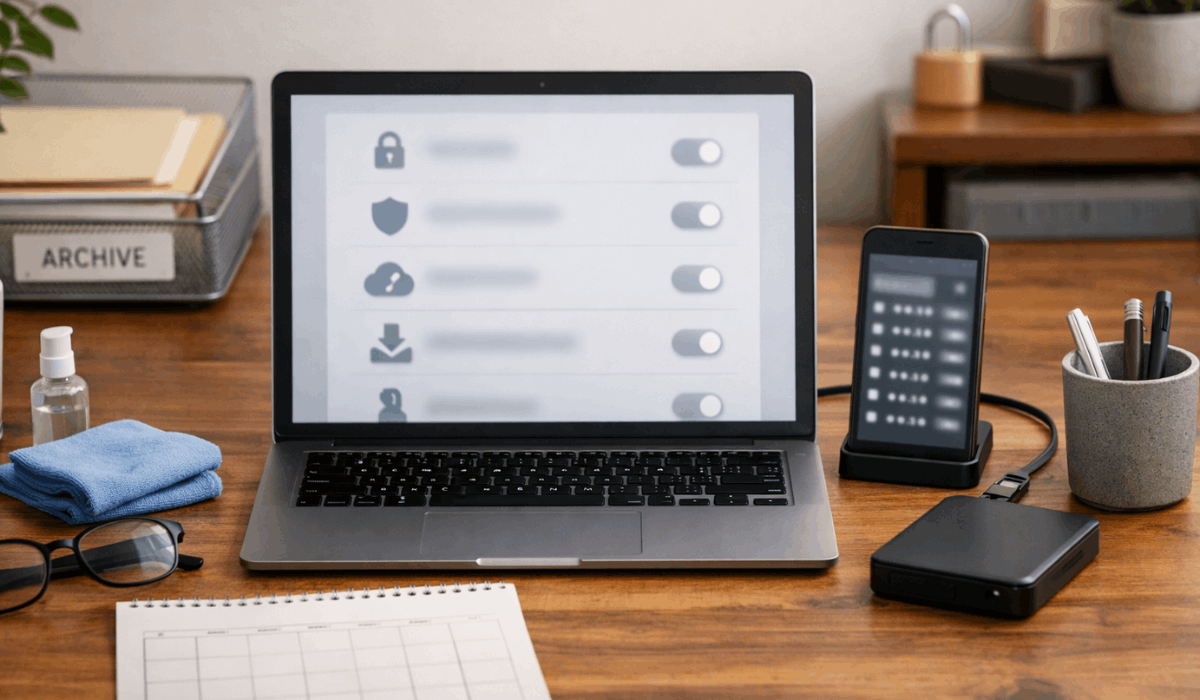
Online tools handle your files and information. Basic habits reduce risk without adding stress.
- Upload awareness — Know what personal data is inside your files.
- Storage clarity — Check if files are stored or only processed.
- Sharing controls — Review link settings before sending anything.
- Account security — Use strong passwords and unique logins.
- Two-step login — Turn on extra verification when available.
- Device sign-out — Log out on shared or public devices.
- Permission checks — Avoid tools that ask for access you don’t need.
Free vs Paid Tools — What Actually Matters
Free tools work for most basics. Paid plans make sense only when they remove real bottlenecks.
- Free basics — Writing, conversion, and simple workflows are often covered.
- Usage limits — Watch for caps on files, runs, or storage.
- Time savings — Paid plans matter when they reduce repeated steps.
- Better exports — Paid tiers may unlock higher-quality formats.
- Team features — Collaboration tools are often paid-only.
- Support access — Paid users may get faster help.
- Upgrade trigger — Pay only when limits slow your work consistently.
How to Choose the Right Tool
You choose faster when you match the tool to your exact task. Clear criteria keep you from wasting time.
- Exact task — Define the one outcome you need.
- Must-have features — List only what you truly need.
- Skip extras — Avoid tools built for complex workflows you won’t use.
- Clear interface — Pick a layout you understand quickly.
- Simple setup — Prefer tools that work in a few steps.
- Device fit — Confirm it works well on your phone or laptop.
- Export options — Ensure you can easily download or move your work.
Common Mistakes When Using Online Tools
Most problems come from overcomplicating your workflow. Avoid these, and tools stay simple.
- Too many tools — You switch apps too often and lose focus.
- No clear goal — You try tools without a specific task in mind.
- Skipping setup — Defaults can cause errors or messy results.
- Over-automation — You automate tasks that take seconds by hand.
- Poor file habits — You save files without a system and can’t find them later.
- Not testing — You rely on a tool without a quick trial run.
- Ignoring limits — You hit free-plan caps and your workflow breaks.
When Online Tools Are Not the Right Choice
Some tasks stay faster without a tool. You stay efficient by avoiding unnecessary setup.
- One-time tasks — A quick manual fix can be faster than setup.
- Tiny edits — Simple changes don’t need a full platform.
- Slow interfaces — Heavy tools can add delays and clicks.
- Privacy-sensitive work — Some files should stay offline.
- Unstable connections — Web tools fail when your internet drops.
- Learning cost — New tools can slow you down at first.
- Manual wins — If it takes less than a minute, do it manually.
The Bototmline
Online tools work best when you choose them with purpose and keep your setup simple.
When you focus on clarity, limits, and real use cases, you avoid unnecessary complexity.
Start with one tool that solves your main task today and build from there.