If you are new to tech, the fastest wins come from online tools that are easy to learn. These tools help you write, plan, communicate, and manage files with fewer steps. You do not need a huge app collection to feel organized and capable.
You need a small toolkit that feels predictable and calm. This guide explains what makes a tool beginner-friendly, then shares examples you can try today. You will also learn simple setup habits that keep your digital life clear.
What Online Tools That Are Easy to Learn Mean
Online tools are websites and apps that help you complete specific tasks through the internet. The easiest tools feel simple on day 1 and still make sense on day 7.

They reduce stress by saving your work, keeping things searchable, and minimizing mistakes. You can use them for school, work, and personal tasks without special skills.
A good beginner tool feels stable, not complicated. When a tool is easy, you use it more consistently.
Online Tools vs Apps vs Websites for Beginners
A website is any page you visit, while an online tool helps you do a job like writing or scanning. An app is often the phone version of the same tool, built for quick actions. Many services offer both, so you can switch between phone and laptop.
For beginners, the best choice is the version you will open most often. Web versions are helpful on shared devices because you can sign out easily. Apps are helpful for notes, scanning, and reminders.
Clear Layout and Simple Navigation in Beginner Tools
Easy tools use clear labels, familiar icons, and simple menus that do not hide key actions. You can usually find “New,” “Save,” “Share,” and “Search” without digging. Good tools also guide you with prompts, like choosing a template or naming a file.
If a tool needs a long tutorial for basic use, it is not beginner-friendly. Clean design reduces decision fatigue and helps you stay calm. Simple navigation makes practice feel easier every day.
Help, Templates, and Guided Steps That Speed Learning
Beginner-friendly tools offer templates, tips, and built-in help that is easy to follow. Templates reduce pressure because you start with a structure instead of a blank page.
Guided steps are useful for tasks like scanning a document or sharing a file link. Look for help pages that use screenshots and short instructions.
If support is clear, you recover faster when you make mistakes. That recovery speed is a big part of learning confidence.
Sync and Safe Defaults That Make Tools Feel Reliable
Tools feel easy when they sync across devices and automatically protect your work. Autosave prevents panic when your device crashes or your connection drops.
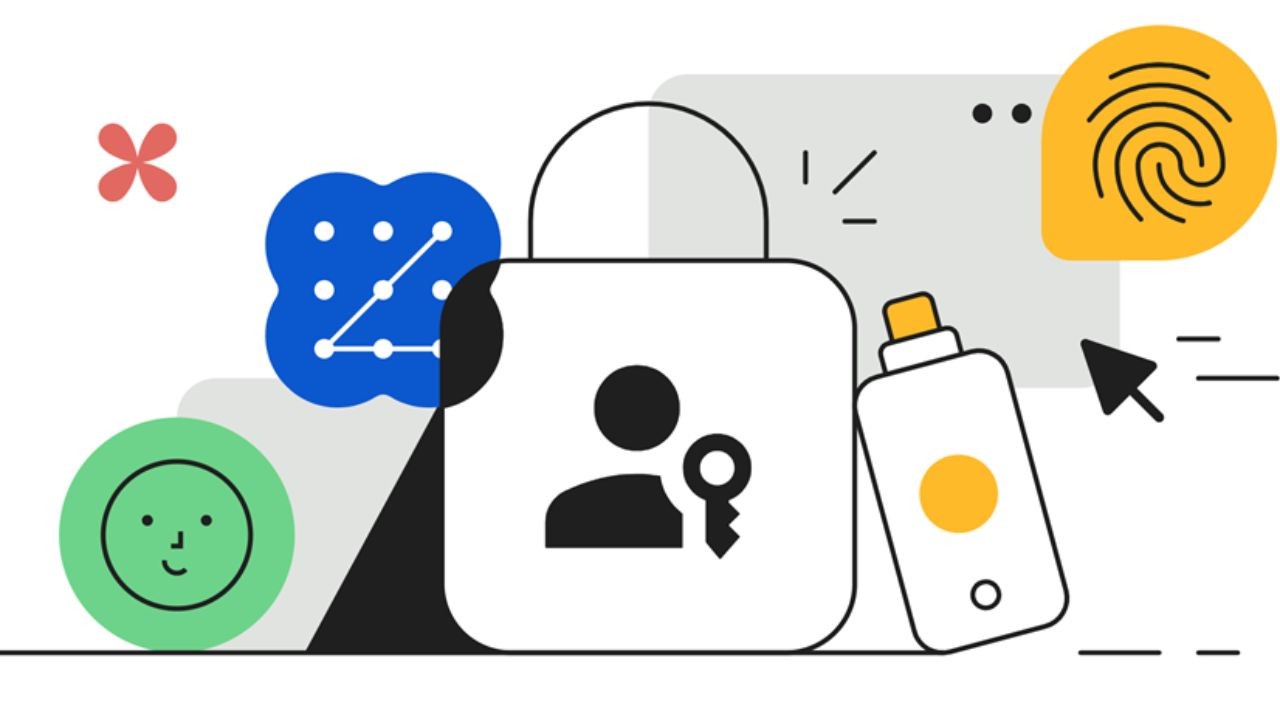
Safe defaults include privacy settings, clear sharing options, and account recovery steps. When a tool offers two-factor authentication, it adds trust and stability.
Reliable tools reduce the need to “double-check everything” in your head. That calm reliability helps beginners stick with the tool.
Easy Online Writing and Content Tools for Beginners
Writing and content tools are often the first place beginners feel real progress. The best tools autosave, work in a browser, and share with one link.

They help you write documents, create simple visuals, and polish your text. Start with one writing tool, then learn a few basic features well.
You will waste less time formatting and more time finishing tasks. These examples are popular because they feel familiar and predictable.
Easy Online Document Editors: Google Docs and Word Online
Google Docs and Microsoft Word Online are beginner-friendly because they look clean and save automatically. You can create a document, type, and trust that it will not vanish.
Headings and styles help you organize longer writing without confusion. Sharing by link avoids messy attachments and version mistakes.
Comments make collaboration simple and less stressful for beginners. These editors are easy because the basics work the same way every time.
Easy Presentation Tools: Google Slides and PowerPoint Online
Google Slides and PowerPoint Online help you create presentations with simple layouts and clear controls.
You can pick a theme, add text, and insert images without advanced design skills. Templates reduce effort because spacing and fonts are already set. Sharing is straightforward, and collaborators can comment or edit with permission.
For beginners, the best habit is to use one template style repeatedly. Consistent structure makes your work look polished without extra time.
Easy Design Tools With Templates: Canva
Canva is popular because templates guide you through posters, social graphics, and simple flyers. You choose a template, replace text, and adjust images with drag and drop controls.
This reduces the stress of starting from scratch and guessing layout rules. Beginners learn faster when they reuse a few favorite templates.
Keep designs simple so you do not get stuck perfecting details. Canva feels easy because small edits look good quickly.
Easy Grammar and Clarity Tools: Grammarly
Grammarly is beginner-friendly because it highlights issues directly inside many writing spaces. It can catch typos, confusing sentences, and repeated words in a clear way.
The key is to treat suggestions as options, not rules you must follow. Read the revised sentence to confirm it still matches your meaning and tone.
Over time, you notice patterns and improve naturally. This tool feels easy because feedback is immediate and practical.
Easy Online Organization and Planning Tools
Organization tools are easiest when they reduce mental clutter right away. Beginners usually need a notes tool, a task list, a calendar, and a storage space.

These tools help you stop relying on memory for deadlines and important details. They also help you find information quickly when you are busy. A simple routine makes them feel calm instead of demanding. Start with one tool per category and practice daily.
Easy Note Apps: Google Keep, Apple Notes, OneNote
Google Keep, Apple Notes, and OneNote are easy because you can open them and capture a thought in seconds.
They support search, folders, and simple checklists, which help you stay organized. A good beginner habit is keeping one “inbox note” for quick capture.
Then you review once daily and move items into a checklist or folder. This prevents notes from becoming a messy pile. These apps feel easy because they are fast and forgiving.
Easy Task List Tools: Microsoft To Do and Todoist
Microsoft To Do and Todoist help you turn plans into actions you can complete and track. They feel beginner-friendly because lists are simple and reminders are clear. Start with two lists, Today and This Week, and keep Today to 3 priorities.
Write tasks as verbs, like “Send email” or “Upload file,” for clarity. Checking tasks twice a day is enough for most beginners. These tools feel easy because progress is visible and motivating.
Easy Calendar Tools: Google Calendar and Apple Calendar
Google Calendar and Apple Calendar help beginners by showing time, deadlines, and routines in one place. You can add appointments, set reminders, and create repeating events for habits.
A helpful habit is adding buffer time so you do not feel rushed. Review tomorrow’s calendar in the evening to reduce morning stress.
Keep your calendar clean by avoiding too many overlapping alerts. Calendars feel easy when they reduce surprises and support routine.
Easy Cloud Storage Tools: Google Drive, OneDrive, Dropbox
Google Drive, OneDrive, and Dropbox keep your files accessible from any device you use. They are easy because they support folders, search, and link sharing with simple permissions.
Start with a basic structure like Work, School, Personal, and Documents. Name files with a date and a clear title so you can find them fast later.
Save to one main location to prevent duplicates and confusion. Cloud storage feels easy when it becomes your default home for files.
Easy Online Communication, Sharing, and Safety Tools
Communication tools help you connect, share, and coordinate without constant back and forth.
Easy tools let you search messages, mute noise, and join meetings quickly. Sharing tools help you send large files safely using links instead of attachments.
Safety tools help you avoid lockouts and reduce worry about accounts. Beginners do best when they choose one tool for each job and keep it consistent. These examples are popular because they are widely used and simple to learn.
Easy Email and Messaging Tools: Gmail, WhatsApp, Telegram
Gmail and Outlook are common email tools because their search and spam filtering are strong and easy to use. WhatsApp, Telegram, and Messenger are easy for chats, calls, and group messages.
Pin important conversations so they stay visible when you are busy. Mute noisy groups and keep alerts for direct messages and key contacts.
Use the search to find details instead of scrolling for minutes. Communication feels easier when you control notifications and keep threads organized.
Easy Video Meetings and File Sharing Tools: Google Meet, Zoom, Drive Links
Google Meet and Zoom are easy because joining usually takes one link and a few clicks. A quick check of the microphone and camera prevents last-minute stress before calls.
Use headphones if possible to keep audio clear and reduce echo. Share one window instead of your whole screen to protect privacy.
For file sharing, Drive, OneDrive, and Dropbox links reduce attachment problems and version confusion. These tools feel easy because the steps stay predictable.
Easy Security Tools: Bitwarden, 1Password, Two Factor Authentication
Password managers like Bitwarden and 1Password make security easier by creating and saving strong passwords.
This reduces the risk of reusing the same password across many sites. Turn on two-factor authentication for email and cloud storage first, since they protect everything else.
Save recovery codes in a safe place outside your email inbox. Keep devices updated because updates fix bugs and security issues. Safety tools feel easy when they prevent problems before they happen.
Conclusion
Beginner progress comes from choosing tools that feel calm, clear, and repeatable. Online tools that are easy to learn usually have simple menus, autosave, and strong templates.
Practice the same small actions daily until they feel automatic. Replace tools that confuse you instead of adding duplicates that increase stress. With steady use, these tools make everyday tasks smoother and more manageable.