Online tools make everyday digital tasks faster, but they also require basic safety awareness.
When you use web-based software, you share files, data, and access in ways that are not always visible.
This guide shows you how to use online tools safely without overcomplicating your setup.
Understand What Data You Are Sharing
Before you use any online tool, you should know exactly what information you are giving it. Most risks come from sharing data without realizing it.
- Uploaded files — Documents, images, and PDFs are often stored on external servers.
- Typed information — Forms, notes, and inputs may be saved automatically.
- Account details — Email addresses, usernames, and profile data are commonly collected.
- Usage data — Tools may track how and when you use their features.
- Shared links — Public links can expose files beyond your control.
- Connected services — Linked apps may exchange data in the background.
- Deleted content — Removal from your view does not always mean full deletion.
Choose Tools From Trusted Sources
Where a tool comes from matters as much as what it does. Using trusted sources reduces the risk of malware, data misuse, and broken software.
- Official websites only — Download or sign up directly from the tool’s main site.
- Avoid third-party mirrors — These can bundle unwanted or unsafe files.
- Clear ownership — The company or developer should be easily identifiable.
- Active updates — Recent updates show the tool is maintained.
- Basic documentation — Legitimate tools explain what they do and how they work.
- Visible policies — Privacy and terms pages should be easy to find.
- Secure connections — The site should use HTTPS before you enter any data.
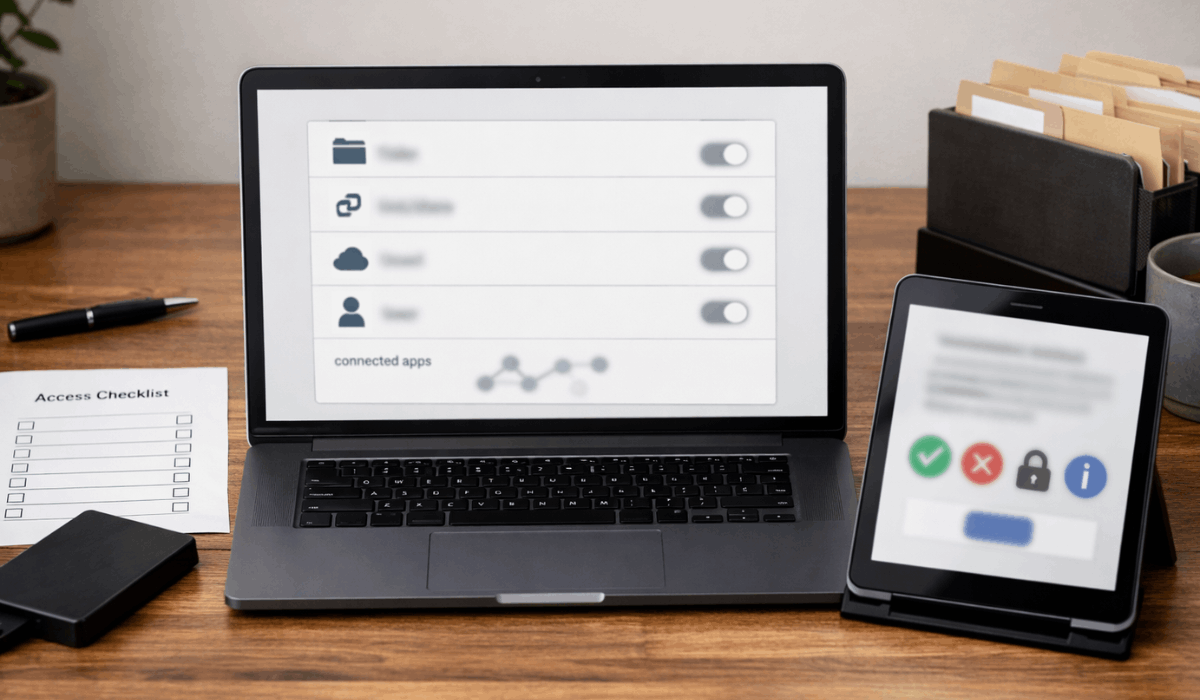
Read Permissions and Settings First
Before you start using a tool, you should check what it can access and control. Most tools enable sharing and tracking by default unless you change it.
- Account permissions — See what the tool can do with your profile and login.
- File access — Check which folders or documents the tool can read or edit.
- Sharing defaults — Files may be set to share automatically.
- Connected apps — Linked services may exchange data without reminders.
- Email access — Some tools scan or send emails on your behalf.
- Tracking options — Usage and activity tracking are often enabled.
- Change controls — Make sure settings can be adjusted or revoked later.
Be Careful With Free Tools
Free tools can be useful, but you should understand what you trade for access. The goal is to avoid tools that profit from your data more than they help your work.
- Plan limits — Free tiers may block exports, backups, or storage.
- Hidden data usage — Some services collect extra data to monetize usage.
- Ads vs privacy — Ad-supported tools may track behavior more aggressively.
- Restricted security — Some free plans limit advanced security options.
- File retention — Uploaded files may be stored longer than you expect.
- Support quality — Free tools often offer limited support when issues arise.
- When paid is safer — Pay when you need better control, privacy, or exports.
Watch for Common Warning Signs
Unsafe tools often show obvious signals if you look closely. If a tool feels suspicious, you should stop before you upload anything.
- Forced sign-ups — Demanding an account for a simple task is a red flag.
- Too many permissions — Access requests should match the tool’s purpose.
- No privacy page — If policies are missing, you cannot verify data handling.
- Broken pages — Poor maintenance can mean weak security.
- Spammy pop-ups — Aggressive pop-ups can signal unsafe monetization.
- Fake download buttons — These often lead to unwanted software.
- Pressure tactics — “Urgent” warnings or countdowns are common scam patterns.
Keep Your Tools Organized Over Time
Safety is not a one-time setup. If you clean up your tool list, you reduce exposure and stay in control.
- Remove unused tools — Fewer accounts mean fewer risks.
- Review permissions — Re-check access settings every few months.
- Update passwords — Change passwords after alerts, leaks, or major changes.
- Delete stored data — Clear old files, drafts, and uploads you no longer need.
- Export backups — Keep copies of important work in a safe location.
- Disable old integrations — Unlink apps you no longer use.
- Close accounts properly — Use account deletion options, not just uninstalling.
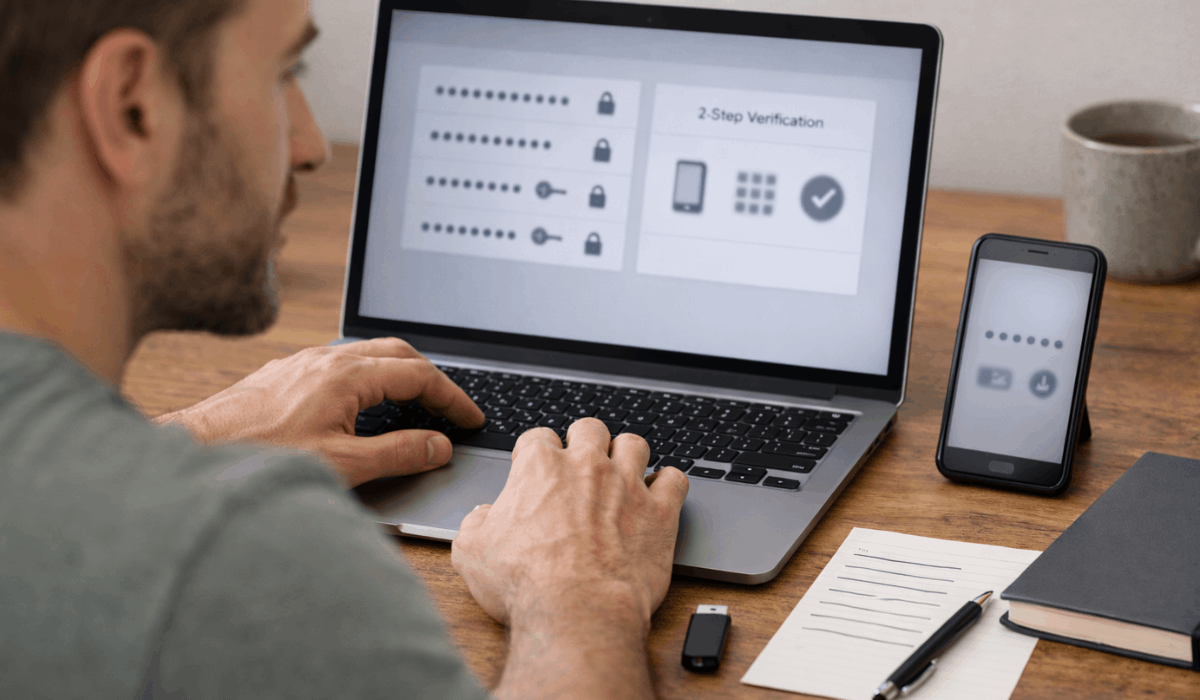
Use Strong and Separate Passwords
Your login is the first thing attackers target. If you keep your passwords strong and separated, you reduce the damage from any single leak.
- One password per tool — A breach in one account should not open your other tools.
- Use long passwords — Aim for length and randomness, not clever patterns.
- Password managers — Let a manager generate and store strong passwords for you.
- Avoid reused logins — Do not recycle the same email-password combo across sites.
- Two-step verification — Turn on 2FA whenever it is available.
- Recovery options — Use a secure recovery email and update it when needed.
- Check for breaches — Change passwords quickly if you see unusual login alerts.
Use Separate Accounts for Personal and Work Tools
Separate accounts help you control what mixes together. This keeps your personal data out of work systems and reduces your risk if one side is compromised.
- Reduce data overlap — Keep work and personal files in separate accounts.
- Limit exposure — If one account is hacked, the other stays safer.
- Easier cleanup later — You can delete or change access without affecting everything.
- Better organization — You spend less time searching and fixing mistakes.
- Different recovery methods — Use separate recovery emails and 2FA methods if possible.
- Separate shared links — Work sharing stays with work, personal stays private.
- Control integrations — You avoid connecting personal apps to work accounts by accident.
Know When Not to Use an Online Tool
Some tasks are safer offline, even if online tools feel faster. If you cannot confirm control, ownership, or exports, you should stop.
- One-time tasks — Do not create new accounts for tasks you will never repeat.
- Highly private files — Legal, financial, medical, and identity documents belong offline.
- Unclear ownership — If you cannot tell who runs the tool, do not upload anything.
- No export options — If you cannot download your work, you lose control.
- No deletion controls — If you cannot remove data, you may leave a permanent trail.
- Weak security signals — Missing 2FA or unclear settings increase risk.
- Better offline alternatives — If a local tool can do the job, use it.
Safe Starter Setup for Beginners
You do not need a big stack of tools. Start small, stay consistent, and expand only when you have a clear reason.
- One writing tool — Use it for notes, drafts, and simple planning.
- One file tool — Choose one tool for conversions, PDFs, and file cleanup.
- One automation or form tool — Use it only for repeated tasks you actually do.
- Keep it simple — Avoid overlap and extra features you will not use.
- Use one login method — Make account management easier from day one.
- Turn on 2FA early — Make security part of your setup, not an upgrade later.
- Track what you use — Write a short list of tools and what each one does.
Final Takeaway
You can use online tools safely when you control what you share, limit permissions, and protect your accounts.
If you stick to trusted sources, use strong logins, and clean up unused tools, you reduce risk without adding complexity.
Use this guide today, tighten your settings, and keep only the tools you actually need.