Google Keep Explained for Beginners starts with one goal: capture ideas fast and find them again without friction. Notes, checklists, images, audio, and reminders sync across phone and computer through Google Drive, so nothing gets stranded.
Simple tools handle quick thoughts, while labels, colors, and collaboration scale to projects. Expect a lightweight surface that stays responsive, even as the board grows.
Getting Started With Google Keep
Access happens through a web browser on a desktop and through the Android or iOS app on mobile. Individual accounts use Keep for free, and Google Workspace customers get it as part of their subscription.

Sign in, open keep.google.com, and the empty board appears, ready for that first note. Sync runs continuously behind the scenes so edits on one device appear on the other.
Meet The Interface: Home Page and Layout
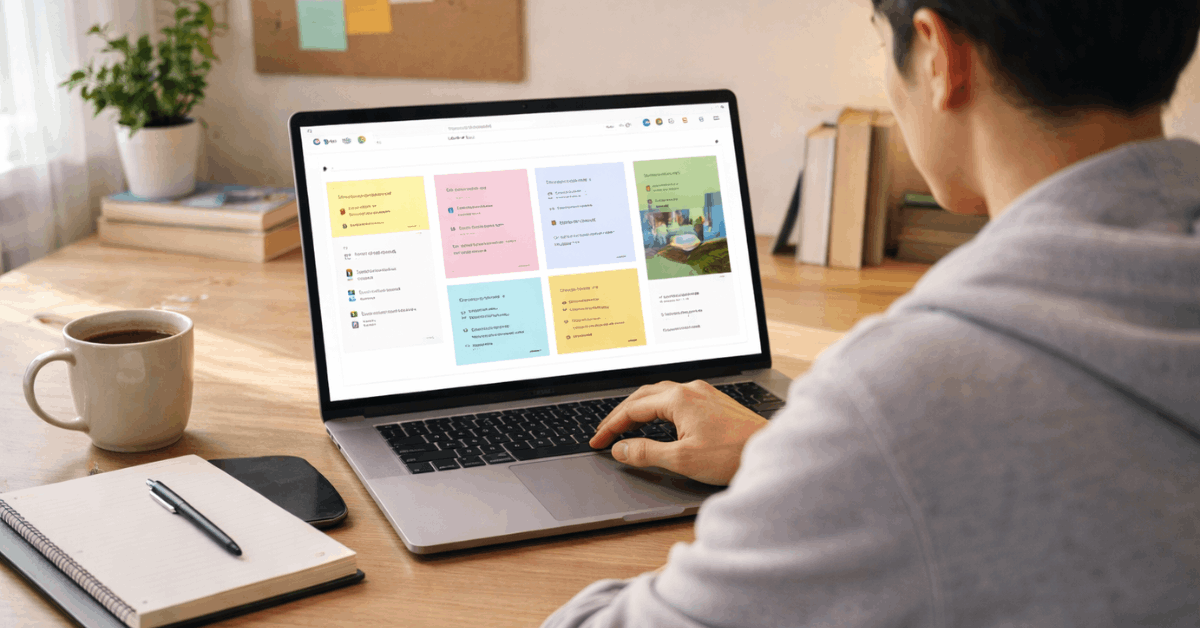
The main board holds notes as cards. A white bar labeled Take a note sits centered; click it and start typing to create a new card. Add a title on the top line, paste text into the body, and click the pushpin icon to keep an important item near the top.
Link previews appear automatically for many URLs and can be removed through the three dots menu on the preview thumbnail. Numbered lists begin the moment a line starts with 1, and continue as new lines are added. A search box spans the top and filters notes by text, labels, media type, or collaborators.
Tapping a shortcut under the search field narrows results to drawings, images, or voice memos quickly. Grid view appears by default; List view expands each card in a single column for more on-screen detail. A gear icon opens Settings for reminder defaults, link previews, and sharing controls.
Create Notes Fast
Short capture windows call for speed, then small upgrades later. Keeping the flow smooth matters more than picking the perfect format at the start. These quick patterns cover the basics before moving to enhancements.
Text, Titles, and Pinning
Type into the Take a note bar to expand a new card. Add a concise title for scanning later and click the pushpin to prioritize it. Pinned notes float above the rest and can be dragged to reorder.
Links and Numbered Lists
Paste a URL to generate a preview with a thumbnail and snippet; remove previews from the three dots on the thumbnail when clutter builds. Start a numbered list with 1. and press Enter to continue the sequence on the next line.
Voice and Images
Mobile capture allows voice memos that Keep transcribes to text while saving the original audio. Image uploads land at the top of a note; multiple uploads line up side-by-side and open in a viewer when tapped.
Five Ways To Add Notes Quickly
Short projects benefit from multiple capture routes that keep momentum high.
- Click the checkbox icon on the home bar to start a to-do, then type items line-by-line.
- Click the paintbrush to sketch a drawing in supported Chromium browsers and the mobile app.
- Click the image icon to upload photos; on mobile, take a picture directly.
- Tap the microphone in the mobile toolbar to record a voice memo with live transcription.
- Use the Google Keep Chrome extension to create a new blank note, save a page, highlight text into a note, or save an image into Keep.
Enhance, Share, and Schedule
Most notes become more useful after a small round of upgrades. Color and labels add scanability, reminders surface the card when it matters, and collaboration turns a personal note into a shared plan. The toolbar at the bottom of each card handles everything.
Set A Reminder
Click the bell, choose a suggested time, or Pick date & time, and Keep will notify across signed-in devices. Location alerts fire when entering a selected place, which works well for errands and travel checkpoints. Google Keep reminders suit quick follow-ups and lightweight appointments.
Invite Collaborators
Click the headshot icon to add people by contact or email address. Collaborators can edit content, colors, labels, images, and lists; only the owner can delete the note. Shared notes update live so teams and families stay aligned.
Change Colors and Add Images
Click the palette to assign one of twelve backgrounds. Color coding signals categories or urgency and makes scanning faster. Click the image icon to attach photos at the top of a note, then remove any image using the small trash can overlay.
Archive, Labels, and Drawings
Archive stows a finished or paused note out of sight without deleting it. Labels group related notes; add them through the three dots menu and reuse across the board. Add a drawing for quick sketches; the doodle saves as an image at the top of the note.
Turn A Note Into A To-Do
Choose Show checkboxes from the three dots menu to convert lines into a checklist. Drag items using the six dots to reorder or indent for subsections. Checking an item crosses it out and moves it below active items; unchecking returns it to the main list.
Extract Text Or Send To Docs
Grab image text, extracts words from photos, and inserts them into the note. Copy to Google Docs sends a clean version to Google Drive for longer writing, formatting, or sharing through Docs.
Finish and Reopen
Click Close to collapse the card back onto the board. Reopen any note later to refine text, change color, add labels, or adjust reminders without friction.
Organize and Find Notes At Scale
Small stacks become large archives quickly, so a minimal system prevents hunting. Pin for priority, label for retrieval, and filter through the sidebar or search box for speed. A few habits keep the board clean and predictable.
Pinned, Drag, and Drop
Pin moves a note to the top cluster. Drag cards to reorder; new pins take the first spots, but manual drag places a card exactly where it should sit. Unpinned notes flow below and auto-arrange as the grid fills.
Search Smarter
The top search field indexes text, transcribed audio, and text inside images. Shortcut chips under the field filter for drawings, images, links, labels, or shared notes. Results display as cards on the main board for quick action.
Grid Or List
Grid view compresses more cards on screen. List view stretches cards across the width for longer text and faster scanning on narrow displays. The toggle sits to the right of the search next to the Refresh icon.
Sidebar Filters
Reminders show only notes with scheduled alerts. Labels appear as a quick filter list and can be edited to add, rename, or delete. Archive and Trash round out the board views; deleted notes stay in Trash for seven days before permanent removal.
Practical Setups For Beginners
Standard patterns help new users see value within a day. These examples map everyday needs to the right Keep features without complexity.
| Use Case | Feature To Use | Quick Steps |
| Grocery run with a partner | Google Keep checklist | Create a checklist, share with a collaborator, check items live in store. |
| Trip packing and errands | Google Keep reminders | Add a checklist, set a time reminder for packing and a location alert for the pharmacy. |
| Meeting notes on the go | Image text + Copy to Docs | Snap a whiteboard, grab image text, then copy the note to Docs for formatting. |
| Class or talk capture | Voice memo transcription | Record in the mobile app; the transcript stays searchable alongside the audio. |
| Project buckets | Google Keep labels | Apply consistent labels like Work, Home, or Q2 so search filters snap to scope. |
Tips That Save Time
Small efficiencies compound across a week. These habits keep notes tidy and easy to find later without heavy maintenance.
Create short, descriptive titles for every note to improve scan speed on mobile. Assign a limited set of colors and stick to the scheme so priority stands out at a glance. Use one or two labels per note rather than many, then rely on search for specifics. Convert long notes into Google Docs before they grow unwieldy on the board.
Press the question mark key on the desktop to open the overlay that lists Google Keep keyboard shortcuts. Learning a handful of actions accelerates capture and navigation significantly. The overlay organizes commands by action, which makes practice straightforward.
Workspace and Account Notes
Google Workspace customers use the same core features with additional admin controls around sharing and retention. Collaboration requires a Google account for each participant.
Location reminders depend on device permissions; grant location access on mobile for consistent alerts. According to Google’s product help materials, notes and attachments sync through Google Drive services, and deleted notes remain recoverable for seven days through Trash.
When To Use Keep Versus Other Google Tools
Task-heavy teams sometimes ask about Google Keep vs Google Tasks. Keep works best for flexible notes, shared checklists, quick media capture, and reminders tied to rich content.
Tasks integrates directly with Gmail and Google Calendar for dated tasks that need calendar placement and email linkage. Many people combine both: Keep for context and brainstorming, Tasks for scheduled follow-through.
Troubleshooting Basics
Missing previews usually trace back to disabled link thumbnails in Settings. Location alerts fail when device permissions are limited or the device is offline.
Collaboration problems often relate to invitees using a different email than expected or attempting access without a Google account. Keyboard shortcut issues clear up once the desktop focus is on the Keep tab rather than another window.
Bottom Line
Google Keep Explained for Beginners centers on fast capture, simple structure, and reliable sync. Treat the board as a flexible surface, then layer colors, labels, reminders, and sharing as notes evolve.
A few consistent habits keep everything findable in seconds, which is the whole point of a note-taking tool.