Starting design work without formal training can feel heavy, especially under deadlines and platform quirks. Most beginners need fast results, not a semester of theory.
Using Canva Without Experience targets that reality: an interface that behaves like common office tools, templates that remove blank-page anxiety, and AI helpers that shorten routine edits.
What Makes Canva Beginner-Friendly
A lightweight tool works when the layout makes sense immediately, and Canva leans into that goal. Expect clear menus, responsive controls, and guardrails that prevent easy mistakes like exporting at the wrong size.
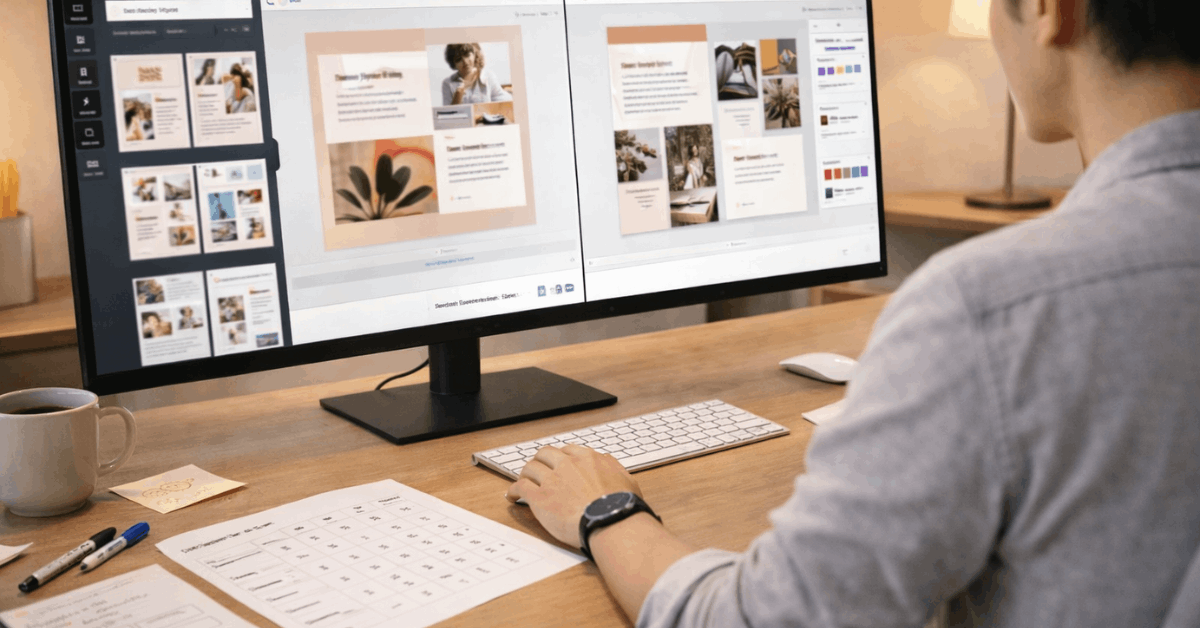
Templates cover typical use cases while staying easy to customize. The sections below outline the pieces that matter most on day one.
Drag and Drop Editor
Moving elements where they belong takes ordinary mouse skills. Text boxes, images, icons, and shapes respond predictably, snapping to smart guides for clean alignment.
Many users describe the experience as Canva drag and drop, which tracks because element handles, rotation controls, and right-click menus mirror familiar office software.
Templates and Layouts
Template selection reduces heavy decision-making. Search by goal, then test a few looks without worrying about layout math.
Social channels, presentations, flyers, documents, and websites appear as ready-to-edit designs, and Canva templates for social media streamline repetitive work such as weekly posts or story sets.
Pre-Set Dimensions
Design sizes change across platforms, and guessing rarely ends well. Pre-set dimensions handle common needs for Instagram, Facebook, LinkedIn, YouTube, and print. The built-in size guide and template filters remove most guesswork around aspect ratios and resolution.
AI Shortcuts
Beginners gain the most from one-click helpers. Magic Resize repurposes a single layout into multiple sizes, then opens copies so tweaks don’t overwrite the original.
Background Remover isolates a subject cleanly for product cards, profile photos, or thumbnails without manual erasing. Magic Edit, Magic Write, and Magic Design support quick object swaps, draft copy generation, and auto-generated layouts when the brief feels vague.
Cross-Platform Access
Work shifts between devices without friction because projects live in the cloud. Autosave protects progress as changes happen. Mobile apps handle quick edits or approvals when away from a desk, while desktop remains the better space for longer sessions.
Learning Curve: First Hour To First Project
A clear first hour builds confidence. Start on the Home screen, type a design type into the search bar, and open a template that fits the goal. Replace placeholder text, drop in images through Uploads, and use the color picker to match brand tones or campaign colors.
The sidebar organizes most actions logically: Templates, Elements, Uploads, Text, Projects, and Apps. A short Canva tutorial for beginners helps if menu labels feel new, although most people progress smoothly by experimenting. Typography edits sit in the top toolbar, including font, size, spacing, effects, and quick alignment.
Frames make photo placement effortless because dragging an image over a frame snaps it into the masked shape. Groups, lock, and position controls keep pieces aligned while experimenting. The result feels closer to slide-making than traditional image editing, keeping attention on the message rather than the mechanics of the tool.
Where Beginners Hit Limits
A few constraints appear once projects become more advanced or brand-sensitive.
- Originality beyond templates requires deliberate changes to layout, type pairings, and imagery rather than surface recolors.
- Exporting layered files to other professional suites remains limited, which complicates handoffs to specialists using different tools.
- Stable internet helps, since the editor runs online, and large assets can stall on weak connections.
- Color-critical print work requires careful attention to bleeds, margins, and CMYK settings; default settings are intended for general use.
- Licenses vary for Pro vs free assets, so commercial projects should confirm allowed uses before publication.

Free Vs Pro: What Changes and What Stays
Feature gaps matter when building repeatable workflows. Plans evolve by region and time, yet the functional split has stayed consistent for several years. The quick table below focuses on practical differences beginners notice first.
| Feature | Free | Pro |
| Template & Asset Access | Large free library for common tasks | Much broader premium library for faster variety |
| Canva Brand Kit | Basic brand colors and limited options | Full brand kits, fonts, logos, and brand templates |
| Magic Resize | Not included on most free accounts | Included for rapid multi-format outputs |
| Background Remover | Limited access or watermarked | Included, one click with no watermarks |
| Storage & Publishing | Core storage and standard exports | Expanded storage, richer export controls, and advanced publishing options |
Budget planning sometimes lands on Canva free vs Pro comparisons. According to the Canva pricing pages, Pro remains a paid plan for individuals, while Teams pricing bills per user.
The Verge reported significant Teams price changes during 2024, while Pro and Enterprise were not affected at that time. Regional prices vary, so checking the current comparison table avoids surprises.
Core Workflow: How A Design Comes Together Fast
This workflow keeps momentum high while protecting quality.
- Pick a design type, then open two promising templates to compare visual direction side-by-side.
- Choose the stronger template, duplicate the page, and rename the file using a clear project label.
- Drop in brand colors, fonts, and logos through Canva Brand Kit, then save those settings for reuse.
- Adjust layout using position, spacing, and alignment; swap photos and icons with search filters to maintain style.
- Export to the required format, test in context, and store the file inside Projects or a shared folder for review.
Collaboration and Brand Control
Comments, sharing, and permissions reduce scattered feedback. Invite collaborators with view, comment, or edit access, then use threaded comments for targeted notes on specific elements.
Teams benefit from shared folders and brand templates that lock key components while leaving copy or image slots editable. Canva for teams supports structured roles, approvals, and asset governance so campaigns stay consistent across multiple designers and stakeholders.
Brand Kits deserve extra emphasis. Saving logos, palettes, and type choices stops one-off color drift and makes new staff productive quickly. Publishing a design as a brand template lets others replicate the format safely without rearranging core elements each time.
AI Tools: Speed Without Complexity
Generative and assistive features remove common roadblocks rather than replacing design choices. Magic Design suggests layouts after receiving a topic or assets, which helps when the brief lacks a concrete direction.
Magic Write produces draft copy for headlines or captions that you can refine with tone and length controls.
Magic Edit replaces objects inside photos using a brush and a short prompt, cutting tedious retouching. These features are documented throughout the Canva Help Center and are positioned as accelerators for beginners and pros alike.
Mobile App Convenience
Phone and tablet apps are useful for approvals, light edits, and quick posts. Swapping a thumbnail, fixing a typo, or triggering a resize fits well on mobile.
Longer tasks still favor a keyboard and larger canvas, especially when managing multiple pages, fine alignment, or export settings. Projects stay synced, and autosave preserves work across devices without manual versioning.
Practical Menu Orientation
A short mental map reduces menu hunting. Home returns to the dashboard and search. Projects houses designs, uploads, and folders. Templates open the full gallery. Elements aggregates graphics, photos, videos, audio, charts, and stickers.
Text controls headlines, subheads, and body presets while exposing deeper typography settings under the three-dot menu.
Apps connect integrations and add-ons that extend imports, exports, and automation. Share manages collaborators, presentation tools, and publishing to social channels or printing.
Printing and File Prep Basics
Clean exports require the correct settings. PNG suits transparent logos and web images that need sharp edges. JPG keeps file sizes small for web posts without transparency. PDF works for documents and print; include crop marks and bleed when the printer requests them.
SVG preserves vector properties for simple illustrations and icons. When output matters for a vendor, follow their spec sheet precisely rather than relying on generic defaults.
Verdict: Is Canva The Right Starting Point?
A friendly interface, deep templates, and one-click AI helpers make Canva a strong first stop for non-designers. Beginners produce credible work quickly, then improve quality through brand kits, layout discipline, and measured use of premium assets.
Teams gain shared structure and review workflows that beat email chains. Advanced customization has limits compared with specialist suites, yet most everyday marketing, classroom, and small-business outputs fit comfortably inside Canva’s toolset.
For quick, consistent, and collaborative visuals, the platform remains an easy recommendation.