Online tools are websites and apps for everyday digital tasks. If you want to learn how to get started with online tools, start small. A few tools can save time and reduce stress. You will learn what online tools are and why people use them.
You will see popular options for messaging, planning, and file storage. You will follow safe steps to download, sign in, and sync. You will also build habits that keep tools helpful, not distracting.
What Online Tools Are and Why People Use Them
Online tools are services you use through a browser or a connected app. They often save your data online, so it follows you across devices.

For beginners, the goal is less friction in common daily tasks. The best tools are simple, trusted, and easy to repeat.
A small set reduces time spent searching and redoing work. That steadier workflow supports focus and lowers digital stress.
Online Tools vs Apps vs Websites
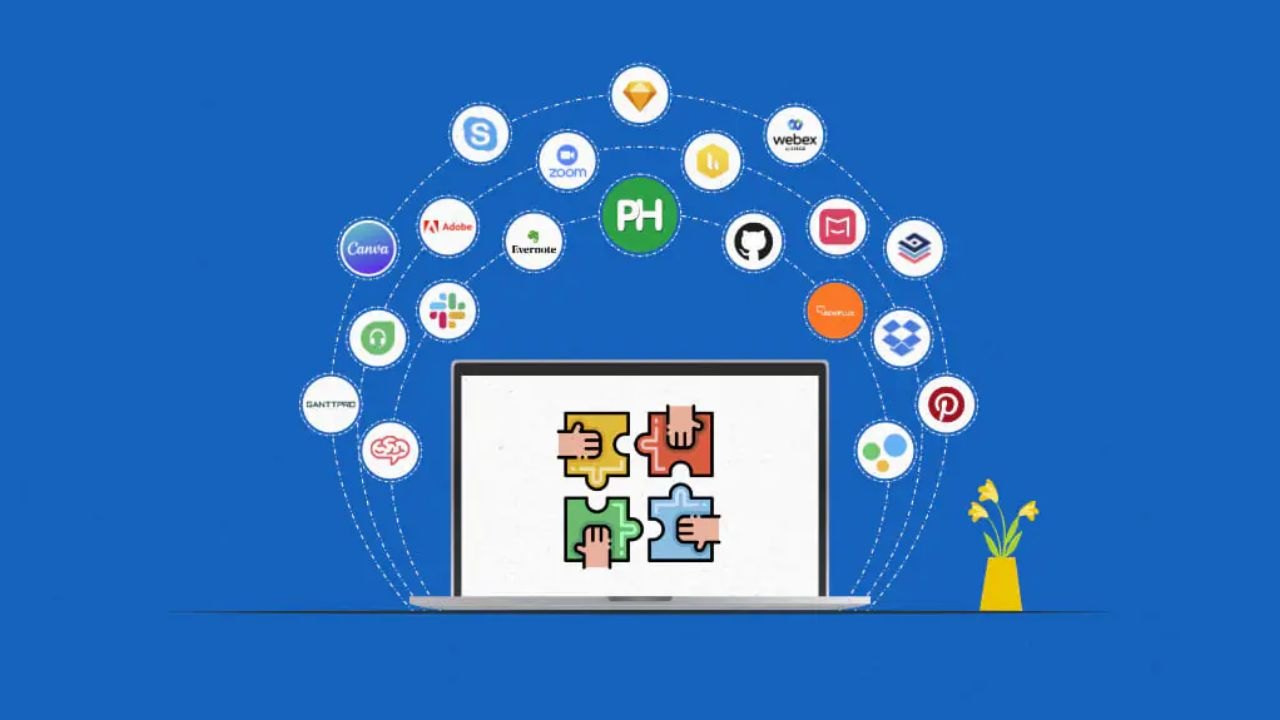
A website is anything you visit, while an online tool helps you do a specific job. An app is often the mobile version of that same service. Many tools offer both, so you can switch devices easily.
Browser versions work well on shared computers because you can sign out. Apps work well for notes, scans, and reminders. Pick one format that fits your routine and use it for seven days.
The Everyday Benefits: Time, Clarity, and Less Stress
Online tools save time by cutting repeated steps in everyday work. They add clarity because notes, tasks, and files become searchable. That reduces stress when you are busy, distracted, or tired.
One reliable home for information stops constant checking and second-guessing. Good tools also support follow-through with reminders, sharing, and autosave. Over time, you feel more control because your simple system stays consistent.
The Most Common Tasks Online Tools Solve
Most beginners use tools for communication, planning, and handling documents. You might email, message, or join a video call in a week. You might track errands and deadlines with a checklist and a calendar.
You might scan an ID, fill a form, or sign a PDF for an application. These tasks are common and do not require advanced skills. Choose tools that match these needs, and you will learn faster.
The Starter List of Popular Online Tools You Can Use Today
A starter list works best when it matches what you need to do. Pick one tool per category so you build familiarity without duplicates.

Choose widely used options with clear help pages and regular security updates. Skip trend chasing because stability matters more than novelty.
Your goal is a calm toolkit that supports daily life. The categories below cover what most beginners use each week.
Communication Tools: Email, Messaging, Video Calls
Email is often your main account hub, so start with Gmail or Outlook. For everyday messaging, WhatsApp, Telegram, and Messenger handle chats and calls well. For meetings, Zoom and Google Meet make joining and screen sharing straightforward.
Set notifications so only important contacts and calendar alerts can interrupt you. Use the same tool for the same purpose to avoid missing messages. Clear communication reduces confusion and protects your time.
Browsers and Search Tools: Your Daily Starting Point
A browser is where most online tasks begin, so choose one you can trust. Chrome, Edge, Safari, and Firefox are common options with regular updates. Turn on sync so bookmarks and saved logins follow you across devices.
Use reader mode for long pages so you can focus better. Bookmark your most used sites, like school portals, bills, and learning pages. Keeping one main browser reduces clutter and saves time.
Productivity Tools: Notes, Tasks, Calendars, Storage
For notes, Google Keep, Apple Notes, OneNote, and Notion capture ideas quickly. For tasks, Todoist and Microsoft To Do turn plans into checklists you can finish.
For scheduling, Google Calendar and Apple Calendar keep deadlines visible and repeatable.
For storage, Google Drive, OneDrive, and Dropbox keep files available and shareable. Start with the simplest option you understand in minutes. These tools reduce mental clutter when you use them consistently.
File Sharing and Transfer Tools: Sending Files Without Stress
Sharing gets easier when you use links instead of attachments. Google Drive, OneDrive, and Dropbox all let you share files with permission settings. If you need quick transfers, WeTransfer is a common option for large files.
Always check sharing settings so only the right people can access your link. Use expiration settings when available for extra safety. A simple sharing routine prevents lost files and repeated follow-ups.
Document and File Tools: Docs, PDFs, Scanners
For writing, Google Docs and Microsoft Word Online autosave and share by link. For PDFs, Adobe Acrobat, iLovePDF, and Smallpdf merge, compress, and convert files. For scanning, Adobe Scan and Microsoft Lens turn paper into clean PDFs.
Use file tools only when they solve a problem you face often. Avoid uploading sensitive documents to unknown sites. When file tools are reliable, paperwork feels less stressful.
Password Managers and Account Protection Tools
Passwords are a common beginner pain point, so start with one manager. 1Password, Bitwarden, and Dashlane are popular options for safely storing logins. Use it to create strong passwords so you do not reuse the same one everywhere.
Turn on two-factor authentication for your email and cloud storage first. Save recovery codes somewhere safe, outside your email. This reduces lockouts and lowers daily worry.
Simple Design and Visual Tools for Everyday Posts
Design tools help when you need a clean resume, poster, or social graphic. Canva is a common beginner choice because templates reduce guesswork.
Google Slides and PowerPoint can also work for simple visuals and presentations. Keep designs simple so you do not waste time adjusting details.
Save templates you like so you can reuse them quickly. Visual tools are most helpful when they speed up formatting and clarity.
Learning and Reference Tools: Quick Help When You Are Stuck
Learning tools help you solve problems without getting overwhelmed. YouTube, Coursera, and Khan Academy can support skills, but start with one platform.
For reference, Google Translate helps with quick translations and pronunciation. Dictionary apps and note-taking tools can also support study and writing.
Save reliable pages and courses so you do not search from scratch every time. A small learning stack keeps your progress steady and calm.
How to Get Started Safely Without Feeling Overwhelmed
Getting started is easier when you separate choosing tools from learning them. Many beginners download too much, then get stuck in logins and alerts.

A calmer approach is to start with a small stack and practice daily. Safety matters because tools can hold messages and important files. You do not need to fear; just clear steps and good defaults. The next tips help you start safely and keep momentum.
Pick 3 Tools First, Not 30
Start with three tools that cover communication, organization, and storage. For many people, that is email, notes, or tasks, and a cloud drive. Use only these tools for seven days before adding anything else.
Notice what feels easy, and where you lose time or patience. If a tool does not fit, replace it instead of adding a second one. A small stack is easier to remember and easier to maintain.
Download and Account Setup Basics
On a phone, install apps only from the App Store or Google Play. Check the developer name to avoid copycat apps. On a laptop, download from the official company site, not random bundles.
Sign in, turn on sync, and test it on a second device. Set a strong password and add a recovery email or number you can reach. Bookmark the web version for quick access.
Permissions, Privacy, and Two Factor Security
Permissions control access to contacts, photos, camera, and location. Allow only what the tool needs for its purpose. Turn on two-factor authentication for email and cloud storage first.
Save recovery codes in a safe place separate from your email inbox. Use sharing settings to limit who can view links to your files. Simple security reduces worry and helps you learn with confidence each day.
How to Use Online Tools for Everyday Life
Tools help most when they fit into routines, not when they sit unused. Without routines, you collect apps, miss files, and feel scattered.

A simple daily rhythm helps you trust your system and lower mental load. Keep routines short so they still work on busy days. Your goal is steady progress, not constant checking and reacting. The habits below show how to use tools in a calm way.
Daily Routines: Morning Check, Midday Update, Evening Close
In the morning, check your calendar and pick your top two tasks. Midday, save important notes and move tasks to the next clear step. In the evening, clear your inbox, confirm tomorrow’s first task, and quiet alerts.
This routine reduces anxiety because you know when updates will happen. It also protects focus because you are not switching attention all day. Over time, tools feel like support instead of pressure.
Simple File and Folder Habits
Create folders that match your life, such as School, Work, Personal, and Documents. Save files to one cloud drive to avoid duplicates and lost versions. Name files with a date and short title, like 2026 01 Resume Draft.
Keep one folder for items you submit often, like forms and IDs. When a task is done, move the file to Completed. These habits make searching fast and reduce last-minute stress.
Notification Rules That Protect Focus
Notifications should help you act, not pull you into constant scrolling. Turn off alerts for apps you do not use and keep only essentials. Allow calendar reminders and priority messages, then silence everything else.
Use Do Not Disturb at night so rest is protected without missing emergencies. Schedule set times to check social and news apps instead of reacting all day. With fewer interruptions, your mood and focus stay steadier.
Conclusion
Online tools work best when they solve daily tasks with less effort. Learning how to get started with online tools is easier with a small stack. Pick one tool for communication, one for tasks, and one for storage.
Download from official sources, turn on sync, and keep permissions minimal. Use strong passwords and two-factor authentication. With short routines and weekly cleanup, tools stay calm and reliable.