Home Blog

The Ultimate Final Tutorial Guide: Step-by-Step Instructions for Using Canva Like a Pro

0

Canva is one of those tools everyone hears about, but maybe not everyone really understands its full potential. Whether you’re new to graphic design or just want to create visuals faster, this guide walks through exactly how to use Canva—right from creating your first project, to finishing a polished design you can share anywhere.

Why Choose Canva for Your Projects?

Canva stands out for its user-friendliness and versatility. It’s also web-based, so there’s no big software to download. The best part? Even the free plan offers plenty of features, including templates, icons, and fonts.

Getting Started: Setting Up Your Canva Account

To jump in, head over to the Canva website . If you already have a Google or Facebook account, you can sign up in one click. Otherwise, register with your email. The signup process really couldn’t be much simpler.
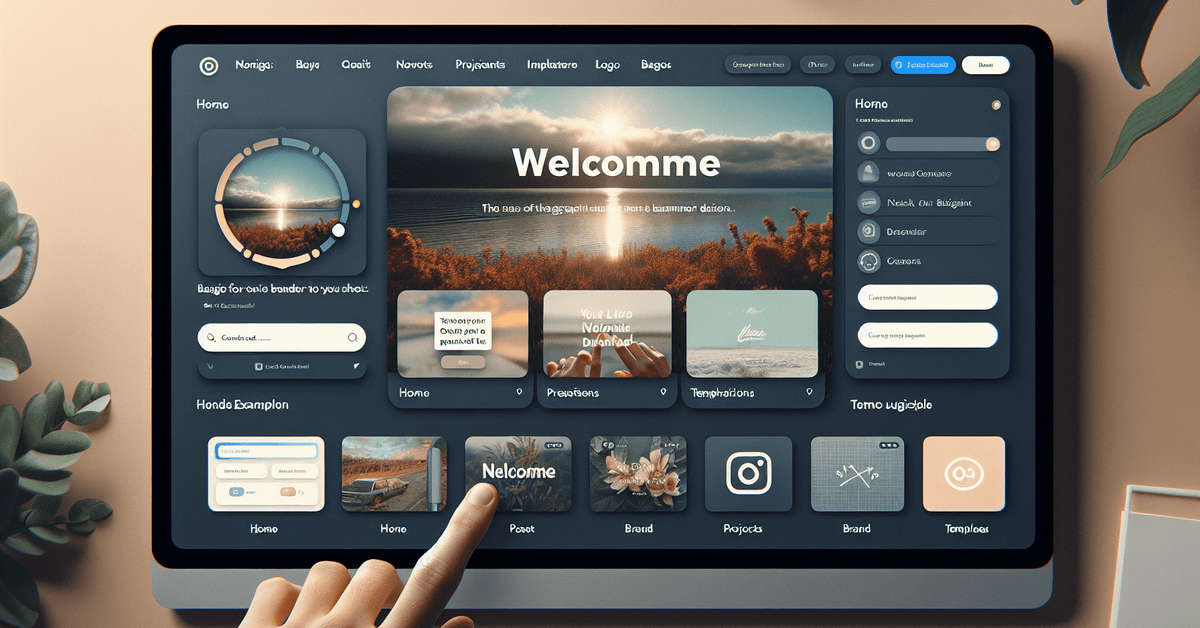
Image 2
  • Visit the site and hit “Sign up”.
  • Confirm your email if prompted.
  • That’s it—you’re in.

Understanding the Canva Dashboard

Once you’re inside, the dashboard feels welcoming. There’s a search bar at the top, and you’ll see template suggestions for presentations, social media posts, flyers, or logos right up front.

Main Navigation

  • Home: Where you find all templates and design types.
  • Projects: Stores your drafts and finished designs.
  • Brand: For adding logos, colors, and fonts (mainly for Pro users).
  • Templates: Search or browse thousands of ready-made layouts.

Creating Your First Design: A Simple Social Media Post

Let’s walk through a concrete example. Suppose you want to design an Instagram quote post. Here’s how:
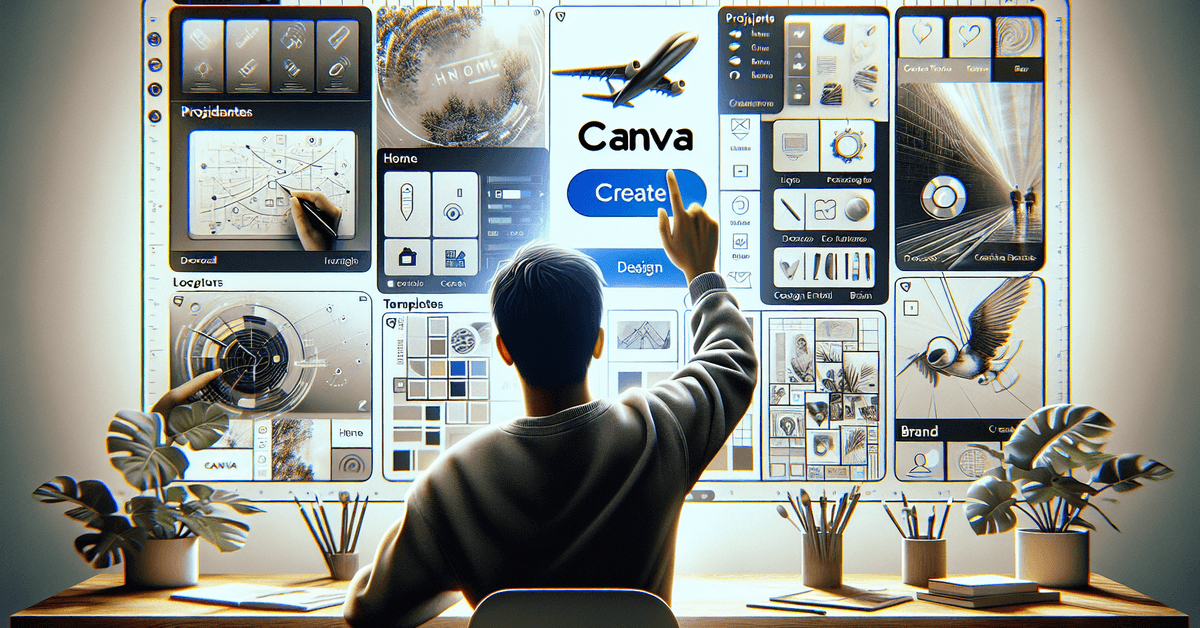
Image 1
  1. Click “Create a Design” at the top right.
  2. Choose “Instagram Post” from the dropdown menu.
  3. You’ll land in the editor with the correct canvas size.

If you ever get lost, remember Canva’s search bar helps you find templates by purpose—just type “Instagram Quote” and see plenty of options.

The Essentials: Editing Your Design

Inside the Canva editor, you’ll see a blank template (or your chosen one). Here’s an overview of what’s available:

Adding Text

  • Click the “Text” tab on the left.
  • Pick from “Add a heading”, “subheading”, or “body text”.
  • Customize fonts, sizes, and colors using the top menu.

Inserting Images

  • Press “Elements” for photos and graphics, or upload your own images from your device.
  • Drag images onto the canvas and resize as needed.

Applying Backgrounds and Colors

  • Select the background by clicking the empty canvas area.
  • Choose a color from the toolbar or upload a pattern.

Tips for Making Your Canva Designs Stand Out

Sometimes, the difference between an amateur and a polished design is subtle. Here are quick tips:

  • Use consistent fonts (try not to mix too many).
  • Allow for white space, so your content breathes.
  • Leverage Canva’s grid tool for alignment.
  • Don’t be afraid to play with bold colors, but keep them balanced.
  • Test different layouts—the template browser is a goldmine for inspiration.

Saving and Downloading Your Project

Once finished, click the “Share” or “Download” button in the upper right. Choose your file type: PNG or JPG for images, PDF for print, or MP4 for animated designs. Canva does most of the work for you—file sizes and formats are explained right in the dialog box.

Publish Directly or Schedule

Some users (especially on Canva Pro) can publish designs straight to social media or even schedule them for post timing. For most, downloading is the usual option, but if you prefer tools to automate your workflow, it might be worth upgrading.

Platform Comparison Table

Feature  Canva  Adobe Express  Piktochart 
Ease of Use  Very easy  Moderate  Beginner-friendly 
Templates  10,000+  1,000+  500+ 
Free Tier  Generous  Limited  Limited 
Export Options  PNG, JPG, PDF, MP4  PNG, JPG, PDF  PNG, JPG, PDF 

If you’re curious about the alternatives, Adobe Express and Piktochart both offer solid features—though Canva’s free tier arguably goes further for casual users. For more, check our in-depth guide on Canva vs. Piktochart .

Frequent Issues and Simple Fixes

Like with any platform, a few things can trip you up. Maybe your image won’t upload, or you’re having trouble with exports:

  • If uploads fail, try a different browser or clear your cache.
  • If downloads don’t work, make sure pop-ups aren’t blocked.
  • Slow performance? Closing unused tabs or restarting your browser can really help.

Internal Resources and Advanced Tips

If you want to get more out of Canva, explore their official tutorials . You might also find our guides on how to remove backgrounds in Canva or using Canva for educational projects helpful.

Visual Prompt: Suggested Images

  • [Placeholder for screenshot of Canva dashboard]
  • [Placeholder for step-by-step sequence: creating a design, editing text, exporting]

Conclusion & Final Checklist

Canva really does make design accessible to anyone. Start with a simple project, experiment, and don’t worry about being perfect—sometimes the best results come from play. Ready to up your visual game?

Download your first Canva creation and share it today. And for more practical tutorials, check out our guide on the best free online tools for digital creators .


Software Tools Explained Clearly

0

If you’re overwhelmed by modern digital tools, you’re not alone. Many people are searching for software tools explained clearly so they can get started fast without the learning curve.

This guide walks you through useful software that helps with work, study, and daily routines. Each section keeps it simple, giving you the essentials only.

Choose the Right Software for Daily Tasks

With so many tools available, it’s easy to feel lost in options. Focus on platforms that solve real problems without adding complexity.

Software Tools Explained Clearly

Understand What You Need

Your tasks determine the kind of tool you should choose. If you mostly write, a good word processor is essential. 

If you manage projects, you’ll need something visual like Trello. The right match makes the work easier and faster.

Avoid Feature Overload

Too many features can slow you down. Choose software that’s simple but powerful enough to meet your needs. 

Extra functions sound goo,d but often go unused. Prioritize usability over buzzwords.

Go for Cross-Platform Support

You’ll want tools that work on both desktop and mobile. That way, you can pick up where you left off from anywhere. 

Apps like Google Drive and Notion sync automatically. This gives you flexibility and saves time.

Look for a Fast Learning Curve

The best software helps you start working right away. Look for tools with built-in tips or video tutorials. 

Avoid apps that require too much setup or training. Speed to use matters more than extra features.

What to Consider When Picking a Tool?

Start by checking if the software is free or has a free tier. Look at compatibility: does it work on mobile, desktop, or both? Read real user reviews to spot problems early.

Go for tools with quick setup and built-in tutorials. Avoid apps that ask for too much data or setup time.

Google Drive: Store, Share, and Work in the Cloud

Google Drive is ideal for people who need secure file storage and online collaboration. It works across all devices and integrates with Gmail and Google Docs.

You can create a free Google account to start. Upload files, create folders, and share documents with others using a simple link. Docs, Sheets, and Slides are part of the suite and support live editing.

You control access by setting view or edit permissions. This tool works well for group projects, cloud backups, or online paperwork.

Zoom: Reliable Video Meetings in a Few Clicks

Zoom remains the go-to tool for meetings, classes, and virtual events. It’s simple to use even if you’re not tech-savvy.

Download Zoom on your computer or phone and create an account. You can schedule or join a meeting with a meeting link or code. Key features include screen sharing, virtual backgrounds, and breakout rooms.

It works best with a stable internet connection and a quiet space. Many users also rely on it for family calls, job interviews, or team check-ins.

Notion, Canva, Trello – When to Use What?

Each of these tools has a different purpose. Use them to manage tasks, design graphics, or organize ideas visually.

Notion: Organize Notes and Projects in One Place

Notion combines docs, databases, and task lists into one workspace. It’s good for students, freelancers, and remote teams. You can build pages for anything, like personal goals or content calendars.

It also includes pre-made templates to get started faster. Collaboration features allow others to view or edit your space.

Canva: Create Designs Without Needing a Designer

Canva is perfect for quick visuals. It offers templates for social posts, flyers, resumes, and more. You drag and drop elements to create custom layouts.

Free users still get access to many designs and fonts. It’s often used for school, social media, or business branding.

Trello: Task Management with Drag-and-Drop Ease

Trello uses boards and cards to track progress visually. Each task is a card that you can move across workflow stages. It’s flexible; you can use it alone or with a team.

Use it for to-do lists, content planning, or customer pipelines. Labels, deadlines, and comments help streamline collaboration.

ChatGPT: Everyday Uses for AI Writing Help

ChatGPT helps with writing tasks, answers questions, and gives fast summaries. It saves time when you need quick explanations or drafts.

To get started, go to chat.openai.com and sign up. You can ask it to write emails, fix grammar, or suggest headlines. If you’re stuck on a topic, it helps generate ideas.

Be specific in your prompt for better results. Just don’t use it for confidential info or official documents without checking the output.

Microsoft 365: Online Access to Word, Excel, and More

Microsoft offers a free version of Word, Excel, and PowerPoint through your browser. This is great if you don’t want to install anything.

Use your Microsoft account to log in to Office.com. The layout feels like the desktop versions you’re used to. You can save files directly to OneDrive and access them anywhere.

It works well for reports, schoolwork, or small business documents. Features are slightly limited compared to paid plans, but still powerful.

Summary: What to Use and When?

Knowing when to use each software helps you stay productive. Use this simple breakdown as a quick reference.

  • Google Drive → For storage, sharing, and real-time editing
  • Zoom → For online meetings and calls
  • Notion → For personal and team organization
  • Canva → For making visuals quickly
  • Trello → For visual task management
  • ChatGPT → For writing, summaries, and answers
  • Microsoft 365 → For traditional documents and spreadsheets

Stay Safe When Using Cloud Tools

Even simple tools can pose risks if you’re careless. Here’s how to avoid problems.

Set strong passwords and enable two-factor authentication. Don’t share documents publicly without checking access settings. Keep your apps updated to fix security flaws.

Use a secure internet connection when working with sensitive files. Finally, don’t store confidential info on free tools unless you trust their privacy policies.

Software Tools Explained Clearly

Don’t Make These Software Mistakes

Mistakes slow you down and cause confusion. Avoid these common ones.

  • Skipping tutorials – Many apps offer beginner walkthroughs. Take five minutes to go through them.
  • Ignoring updates – Updates fix bugs and improve features. Don’t delay them.
  • Overloading your workflow – Stick to a few tools you’ll actually use. Too many apps cause burnout.
  • Using one account for everything – Separate personal and work logins to stay organized.
  • Not setting permissions – Always check if someone has the right access before sharing files.

Quick Learning Tips for New Users

If you’re new to these tools, don’t stress. You can pick them up fast by following a few basic tips.

Start with just one app and explore its features for 10–15 minutes daily. Use the help center or YouTube for beginner tutorials. Try using templates whenever possible; they speed up setup.

Practice using real tasks, such as writing, designing, or planning your week. Finally, don’t be afraid to experiment or ask for help.

Begin Here, Improve Every Day

You now have a clear list of the best tools to use and why they matter. This guide provides software tools explained clearly to help you decide which platform suits your needs.

From document editing to project planning, each tool plays a practical role. You can now approach each one with confidence and clarity.

How to Avoid Common Software Mistakes

0

Getting started with popular tools like Trello, Notion, and Zoom should be simple, but mistakes happen fast. How to avoid common software mistakes is the key to staying efficient and avoiding frustration. 

Many new users overlook basic setup, misuse features, or miss updates that could improve their workflow. This guide breaks down the most common errors and shows how to fix them before they become costly.

Why Beginners Struggle with Digital Tools?

Many users skip foundational learning when using new tools. How to avoid common software mistakes becomes essential when they rush in without reading tutorials, leading to confusion. 

Beginners also rely on trial and error instead of structured guidance. This creates bad habits that are hard to fix later.

Misconception: Skipping Onboarding or Help Centers

Most platforms offer beginner-friendly tutorials and walkthroughs. Ignoring them leads to slower progress and missed features. 

Beginners often assume they can figure things out alone, but that wastes time. Always use the official onboarding guide before using any tool.

How to Avoid Common Software Mistakes

Error: Using Too Many Features Too Soon

It’s tempting to try every feature, especially on apps like Notion and Trello. But this clutters your setup and makes things harder to manage.

Stick to core functions first. Once you’re confident, explore advanced options.

Mistake: Poor Desktop/Mobile Sync Use

Many users don’t test features across platforms. For instance, Trello cards look different on mobile vs desktop.

Without syncing and testing both, you miss design issues or usability bugs. Always verify that key features work on both versions.

Trello: Task Management Errors That Add Up

Trello is visual and easy to use, but many users don’t fully understand how to set up boards. Small setup mistakes compound over time. Here are common beginner issues and how to fix them.

Misusing Lists Without a Workflow

Many create lists randomly without structure. Use standard flows like To Do, Doing, and Done

Without a clear flow, cards get lost and productivity drops. Set board rules to keep things organized.

Ignoring Labels and Due Dates

Labels and due dates aren’t just cosmetic. They help track priority and prevent missed deadlines. 

Beginners often forget them and end up overwhelmed. Get into the habit of tagging everything.

Forgetting to Archive Instead of Deleting

Deleting a card is permanent. If you remove a task by mistake, it’s gone. 

Archiving lets you hide cards without losing data. Use archive instead of delete unless absolutely sure.

Notion: Structure Issues That Confuse Users

Notion can do almost anything, but flexibility causes problems if you don’t plan ahead. Beginners often create a mess of pages without logic. The key is to know when to use databases, pages, or linked views.

Creating Pages Instead of Databases

Pages are for content. Databases are for data tracking. Beginners often mix them up, which creates limitations. If you want filtering, sorting, or rollups, always choose a database.

Nesting Pages Too Deeply

It’s easy to create pages within pages endlessly. But deep nesting makes navigation painful.

Limit your hierarchy to two or three levels. Use linked pages for easier access instead of digging deep.

Over-customizing Templates

Beginners love using covers, emojis, and complex templates. But that often adds noise without value. 

Keep layouts clean and functional. Function should always come before style.

Zoom: Meeting Setup Errors That Hurt Productivity

Zoom seems easy, but a poor setup leads to major disruptions. Small mistakes can derail important calls. These are the biggest issues and quick ways to avoid them.

Not Testing Audio and Video

You must test your camera and mic before a meeting. Don’t wait until you’re live to find out something’s broken. 

Zoom offers a test meeting link—use it. Always check settings at least five minutes early.

Using Default Meeting Settings

Default settings leave meetings open to issues. Always require a passcode or a waiting room

Never reuse meeting IDs for different sessions. Take time to secure your calls properly.

Failing to Record Important Meetings

Sometimes key details are forgotten after a call. Use Zoom’s record function for future reference. 

Just make sure participants are aware. Also, store recordings in a shared folder.

Build Better Habits With Software

Some mistakes happen repeatedly due to poor habits. You can fix this with simple process changes. Good habits make every tool easier to use long-term.

How to Avoid Common Software Mistakes

Use Templates and Weekly Reviews

Templates prevent starting from scratch. Use pre-built templates in Notion or Trello to save time. 

Review your setup weekly to fix inefficiencies. Don’t wait for errors to build up.

Test Everything Across Devices

Features can work differently on mobile and desktop. Always check critical actions on both. 

That includes links, buttons, or sharing options. Avoid surprises by syncing often.

Stick to Core Tools First

Master the essentials before adding extras. Don’t install third-party plug-ins early. Focus on speed and clarity with built-in tools. Add complexity only when needed.

Avoiding Mistakes in Each Platform

Below are practical reminders for staying efficient on Trello, Notion, and Zoom. Use this to avoid basic but costly errors.

Trello Mistake Reminders

Trello mistakes often start small but can lead to cluttered boards and missed tasks. Here are the most common issues beginners face and how to avoid them effectively.

  • Don’t let boards become cluttered—archive often.
  • Use color-coded labels for easy visual tracking.
  • Set reminders and due dates on time-sensitive tasks.
  • Assign clear roles to prevent overlap.

Notion Mistake Reminders

New Notion users often misunderstand how to manage structure and features. These tips will help you avoid common errors and streamline your workspace.

  • Use databases for anything that involves tracking.
  • Use icons and emojis only if they add value.
  • Always test formulas before depending on them.
  • Backup workspaces monthly via export.

Zoom Mistake Reminders

Poor meeting setups lead to interruptions and delays. Use these suggestions to maintain control and clarity in your Zoom sessions.

  • Lock meetings once everyone joins.
  • Use calendar integration to avoid time zone issues.
  • Save chat logs if they contain action items.
  • Disable participant screen sharing by default.

Tools That Help You Learn Faster

Some tools can help you skip common software errors. These resources guide users step by step. They’re useful, especially if you want deeper control or want to teach others.

Trello Support Tools

Use Trello’s official help center and YouTube playlist for walkthroughs. Power-Up tutorials explain each feature. Use backup extensions to secure your board data.

Notion Learning Resources

Notion’s Help Center includes beginner templates. Follow Notion Ambassadors for real-use case studies. Use Zapier for automated Notion backups.

Zoom Training Materials

Zoom’s own test room helps check settings early. Its blog offers security tips. Use Zoom’s webinar series for advanced scheduling tricks.

Final Thoughts to Keep You on Track

Small software mistakes can block productivity or lead to lost data. Learning how to avoid common software mistakes puts you ahead. 

Trello, Notion, and Zoom each have specific traps you can sidestep with simple habits. Avoid rushing, test your setup, and fix errors early for smoother use.

How This Software Fits Into Daily Tasks

0

You manage daily tasks using digital tools that help you stay organized and focused.

This guide examines how modern task management software supports planning, tracking, and routine work without adding unnecessary complexity.

ClickUp is introduced gradually as one option that can meet these everyday needs when used simply and practically.

How This Software Fits Into Daily Tasks

You use the software to handle routine responsibilities without extra effort. Below are the main phrases that describe how it supports everyday work.

  • Daily task planning – Helps you outline what needs to be done each day
  • Progress tracking – Lets you quickly see what is finished and what remains
  • Task organization – Keeps related activities grouped and easy to find
  • Quick task updates – Allows fast edits when priorities change
  • Daily review flow – Supports short check-ins to stay on track
How This Software Fits Into Daily Tasks

What Types of Daily Work Do These Tools Handle Well

Daily digital work often requires structure without added complexity. This section outlines the types of routine tasks these tools are best suited to handle.

  • Personal task management – Handling individual to-do lists and reminders
  • Work task tracking – Managing assignments, deadlines, and follow-ups
  • Study and learning tasks – Organizing coursework, reading lists, and schedules
  • Content and notes organization – Keeping related information easy to access
  • Recurring routines – Managing repeated tasks without rebuilding systems

Ease of Use for Everyday, Repeated Actions

Ease of use matters most when the same actions are repeated every day. The points below explain how the tool supports quick, low-effort interactions for routine tasks.

  • Fast task creation – Tasks can be added in seconds without extra steps
  • Quick status updates – Progress can be changed with minimal clicks
  • Clear visual layout – Information stays easy to scan and understand
  • Simple navigation flow – Common actions remain easy to find
  • Consistent daily interaction – Repeated use feels predictable and manageable

Flexibility Across Personal and Work Scenarios

The tool is designed to support various daily activities with the same setup.

It allows tasks to stay organized across personal responsibilities and work-related needs.

  • Personal task organization – Handles daily to-do lists and reminders
  • Work-related task tracking – Supports assignments, deadlines, and follow-ups
  • Shared and solo use – Works for individual use or small team collaboration
  • Simple structure options – Allows light organization without rigid rules
  • Gradual scaling – Adapts as needs grow without requiring a new system

Time Investment and Learning Curve

Time commitment stays low when only core features are used, allowing quick adoption and steady daily use without extra setup.

  • Fast initial setup – Core functions are available without long configuration
  • Easy early learning – Main features are understandable within a short time
  • Minimal daily effort – Routine task updates stay quick and simple
  • Optional feature depth – More advanced options can be learned gradually
  • Stable everyday use – The tool works well without constant adjustments

Building a Simple Daily Routine With the Software

Consistency matters when using a tool every day. A repeatable flow helps tasks stay organized without extra planning.

  • Daily task check-in – Review active tasks at the start or end of the day
  • Priority setting habit – Mark the most important items before working
  • Progress updates – Make small updates as tasks move forward
  • End-of-day review – Close completed tasks and note what carries over
  • Routine reuse – Follow the same flow each day to avoid re-planning

Managing Notifications Without Distractions

Notifications work best when they stay limited and purposeful. Adjusting alert behavior helps maintain focus while still staying informed.

  • Essential alerts only – Keep notifications limited to task updates that matter
  • Priority-based notifications – Focus on deadlines and assigned tasks
  • Reduced real-time interruptions – Avoid constant pop-ups during work
  • Scheduled review habit – Check updates at set times instead of instantly
  • Cleaner daily focus – Maintain awareness without ongoing distractions

Using the Software Across Multiple Devices

Daily tasks often move between different screens throughout the day. Using the same tool across devices helps keep work consistent and accessible.

  • Desktop use for planning – Manage and organize tasks on a larger screen
  • Mobile access for quick updates – Add or update tasks while away from the desk
  • Synced task information – Changes stay updated across all devices
  • Consistent interface – Navigation remains familiar on each platform
  • Flexible daily access – Work continues smoothly regardless of device used
How This Software Fits Into Daily Tasks

Keeping the Workspace Organized Over Time

An organized workspace makes daily use easier and more sustainable. Simple habits help prevent clutter as tasks and information accumulate.

  • Regular task cleanup – Close or archive completed tasks consistently
  • Clear naming habits – Use simple, recognizable task titles
  • Limited list creation – Avoid creating too many separate lists
  • Occasional structure review – Adjust organization only when necessary
  • Consistent organization flow – Follow the same structure to avoid confusion

How to Get Started Without Overcomplicating Setup

Starting with ClickUp works best when the focus stays on the basics. Keep the initial setup light so tasks can be added and managed right away.

  1. Create a single workspace – Keep everything in one place at the beginning
  2. Set up one basic task list – Focus on current priorities instead of full project structures
  3. Use default views – Start with the standard list view before customizing
  4. Add only essential due dates – Apply deadlines only to tasks that truly need them
  5. Skip advanced features for now – Leave automations, dashboards, and integrations for later stages

Who These Tools Are Best For

Some users benefit more from practical, structured tools than others. The list below highlights the profiles that align best with this type of software.

  • Individuals managing daily tasks – People who need a simple structure for personal responsibilities
  • Remote and hybrid workers – Users who track work tasks digitally
  • Students and learners – Those organizing assignments, deadlines, and study plans
  • Small teams – Groups needing light coordination without complex systems
  • Users seeking consistency – People who prefer repeatable, easy-to-maintain workflows

When These Tools May Not Be the Right Fit

ClickUp may feel unnecessary for highly specialized workflows, very large organizations, or users who prefer unstructured task management.

  • Highly complex workflows – Processes that depend on advanced automation or custom logic
  • Large enterprise environments – Teams requiring strict permissions and governance
  • Specialized industry tools – Workflows that rely on niche, purpose-built software
  • Minimal digital usage – Tasks that do not require ongoing digital tracking
  • Users avoiding structured systems – Preferences for unstructured or ad-hoc methods

How This Software Holds Up Over Long-Term Daily Use

Long-term use depends on reliability and ease of maintenance.

Regular interaction stays manageable when the tool supports stable routines without forcing frequent changes.

  • Consistent performance – Daily tasks remain predictable and stable
  • Routine-friendly use – Supports habits without constant adjustments
  • Low maintenance needs – Works without repeated setup or reorganization
  • Optional feature growth – New features can be adopted gradually
  • Ongoing relevance – Continues to fit daily needs as they evolve

To Wrap Up

ClickUp can support daily task management when used with a simple, consistent approach.

Focusing on core features helps keep work organized without adding unnecessary complexity over time.

Review your daily workflow, try a basic setup, and decide whether ClickUp aligns with how you work each day.

Software Limitations You Should Be Aware Of

0

Most users start with free plans, expecting full access to features. However, there are software limitations you should be aware of before you commit to free versions of popular tools.

These limits can affect productivity, creativity, and collaboration. This article explores what’s missing in Canva, Grammarly, and Zoom’s free plans.

Feature Gaps That Affect Workflow

Many users face obstacles when relying on free versions for professional use. These tools limit core functions and reduce efficiency.

Software Limitations You Should Be Aware Of

Limited Branding Features in Canva Free

Canva’s free version excludes several essential branding tools. You can’t save brand kits, upload custom fonts, or lock in brand colours. This makes design consistency harder to maintain.

Teams must manually apply styles every time. It slows down output and increases errors. It’s not built for professional branding needs.

Lack of Tone Adjustments in Grammarly Free

Grammarly Free focuses on grammar and spelling but lacks advanced feedback. You won’t get tone suggestions or clarity edits. This creates problems in professional communication.

Messages can sound blunt or vague. It limits flexibility when writing for different audiences. Tone tools are exclusive to paid plans.

Short Group Calls in Zoom Free

Zoom Free restricts group meetings to 40 minutes. When time runs out, the session ends and needs to be restarted. This disrupts flow during discussions or lessons.

It’s inconvenient for recurring group calls. While one-on-one meetings are unlimited, teams will feel this limit fast. Only paid tiers remove the cap.

Missing Export Options in Canva Free

You can’t export designs with transparent backgrounds or in SVG format. This affects projects like logos or overlays. High-resolution PDFs are also unavailable.

These missing export formats reduce professional output. You may need extra tools to convert files. File format limits make publishing harder.

Where the Free Plans Still Deliver?

Despite limits, these tools offer practical value for basic users. Personal projects and one-on-one tasks are still well-supported.

Canva Works for Simple Visuals

Canva Free works well for simple, creative needs. It’s a great tool for non-professional users.

The plan supports casual content like posts or invitations. You can access basic templates and use drag-and-drop tools with ease.

While it lacks Pro features, it handles quick tasks. It’s good enough for non-commercial use and learning.

Grammarly Handles Grammar Corrections

Grammarly Free is ideal for short or informal writing. It covers the basics without paid upgrades.

You’ll get help with spelling and grammar errors, which works well for emails or casual writing. The browser tool is responsive and easy to use.

It also integrates with email platforms and online forms. Still, it won’t fix tone or clarity. Style refinements are only in the premium version.

Zoom Supports One-on-One Calls

Zoom Free supports direct calls without time caps. It’s good for regular personal meetings.

You get unlimited one-on-one calls with no time restriction at all. Useful features like screen sharing and recording are also available.

It’s reliable for everyday virtual chats. Larger groups are still limited. For brief private discussions, this version is more than enough.

Grammarly Browser Extension Adds Quick Fixes

The browser extension helps with fast, casual writing. It’s best for real-time grammar support.

You’ll see mistakes in real time while typing on websites. It helps clean up basic writing mistakes like typos. Suggestions appear in Gmail, documents, or comments.

You’ll write better with less effort. Advanced fixes and sentence rewrites need Premium access.

What Do You Unlock With Paid Versions?

Upgrading removes the most frustrating limits. These features improve performance, branding, and collaboration.

Canva Pro Unblocks Brand Tools

Canva Pro offers more flexibility and control over your designs. It also helps improve team collaboration and content consistency.

You gain access to brand kits, premium content, and advanced exports that aren’t available in the free version.

Features like magic resize and background remover save time by eliminating repetitive design work.

Shared folders and permission controls streamline team workflows.

This tier is best for marketing teams and small businesses that need efficiency and brand consistency.

Grammarly Premium Boosts Clarity

Grammarly Premium unlocks higher-level editing tools. These features enhance writing quality, tone, and originality.

  • You get access to advanced rewrites, tone suggestions, and vocabulary tips that improve clarity and flow.
  • The built-in plagiarism detector helps ensure content originality, especially for professional or academic work.
  • Goal-setting features allow Grammarly to adapt to your writing context and target audience.
  • Paid access offers a complete upgrade over the basic grammar checks in the free version.

Zoom Pro Removes Time Restrictions

Zoom Pro removes key limitations that interrupt meetings. It also adds features that support large teams and content storage.

  • Meetings can go beyond 40 minutes with no interruptions or auto-disconnects.
  • You gain access to cloud recording and admin settings for easier tracking and organisation.
  • Team management tools support structured user control and access roles.
  • You also receive priority support, which is helpful for resolving issues quickly.

Canva Enhancements Save Time

Canva Pro includes tools that help you work faster. These features reduce repetitive tasks and increase output quality.

  • Pro users can skip repetitive work by reusing saved templates, styles, and layouts.
  • They can export files in more formats and with better resolution, suitable for print and digital use.
  • Automated tools streamline editing, resizing, and branding processes.
  • These enhancements are ideal for busy creators who work with volume and speed.
Software Limitations You Should Be Aware Of

Additional Tip: Watch Out for Support Limitations

Many users forget to check what kind of help is available on free plans. Limited support access can affect productivity when issues arise.

Support Restrictions in Free Plans

Most free software plans offer little to no direct support. You’re usually limited to forums, FAQ pages, or chatbots. 

Tools like Canva, Grammarly, and Zoom only offer email or live support on paid plans. This becomes a problem when urgent issues or time-sensitive tasks arise. 

You may spend hours looking for a fix on your own. Direct support is often a key benefit of upgrading.

Let’s Recap: Know the Tradeoffs Before You Commit

You now understand the software limitations you should be aware of when using Canva, Grammarly, and Zoom for free. These tools offer strong value, but critical features are locked behind paid tiers.

Knowing what you can’t do helps set realistic expectations and avoid workflow issues. Always assess whether your daily tasks require more than a free plan can offer.

How This Software Improves Productivity

0

Choosing the right project management tool can affect how your team communicates and meets deadlines. Many teams explore how this software improves productivity when deciding between Trello and Asana. 

Both platforms offer strong features, but they serve different work styles. This guide will help you understand which one fits your team better.

Quick Overview of Trello and Asana

Both tools offer task management, collaboration, and tracking. But their structures and strengths differ. Trello uses boards and cards for visual workflow. 

The other platform uses lists, timelines, and task dependencies for structured planning.

Trello

Trello is known for its Kanban-style layout and simple drag-and-drop cards. You can create lists for project stages and move tasks between them. 

Each card includes due dates, comments, and attachments. It’s quick to learn and works well for simple workflows.

How This Software Improves Productivity

Asana

Asana offers multiple project views: list, board, calendar, and timeline. It allows you to set priorities, dependencies, and subtasks

Teams with complex processes will benefit from its structure. It’s designed to manage larger projects from different departments.

Features That Help or Hurt Productivity

Some features save time and reduce confusion. Others may overwhelm new users or slow small teams. Let’s compare the core productivity functions.

Task Management and Tracking

Trello keeps things simple with cards, checklists, and deadlines. The other tool adds layers like dependencies, subtasks, and recurring tasks

Trello is great for personal use or small teams. Its counterpart fits teams that need more clarity on sequence and progress.

Communication and Collaboration

Trello allows comments and team tagging within each card. You can also integrate with Slack or Gmail

The other system centralizes team updates through the project inbox and task conversations. This helps reduce scattered feedback and improves visibility.

Workflow Automation

Trello uses Butler to automate actions like moving cards or sending reminders. The other platform has a visual rule builder to automate assignments, deadlines, or status updates

Both are effective, but the second tool’s automation scales better. For growing teams, this saves time across projects.

Tools That Support Different Team Sizes

Each platform serves different team structures. Here’s how they adapt depending on how large or small your team is.

For Small or Freelance Teams

Trello is ideal for freelancers and small teams managing basic task lists. It’s fast to set up and easy to share with collaborators. 

There’s little friction for onboarding. If your work doesn’t require cross-functional tracking, Trello keeps it lean.

For Growing or Cross-Functional Teams

Asana offers more structure for teams working across departments. Dependencies and timelines are useful when managing multiple contributors. 

It keeps tasks from overlapping and tracks who’s doing what. Mid-size teams benefit most from this clarity.

Usability: Learning Curve and Speed

A team’s ability to quickly adopt a tool influences how effective it is. Both platforms differ in simplicity and depth.

Trello’s Simplicity

Trello is beginner-friendly and quick to use. Its interface focuses on dragging cards across columns. 

There’s no steep learning curve. Anyone can get started in minutes without formal training.

Asana’s Advanced Controls

The other tool takes more time to learn due to its advanced options. Task templates, reporting dashboards, and workload tracking require tutorials. 

However, once mastered, these features offer serious control. It rewards users who invest in understanding the platform.

Two Key Areas That Directly Influence Productivity

Now let’s focus on mobile performance and notification systems. These play a large role in keeping your team aligned and responsive.

Mobile Usability

Trello’s mobile app mirrors its desktop functionality. You can move cards and update checklists easily on the go. 

Its competitor’s mobile version also performs well, but has more tabs and details. Trello feels faster for basic changes, while the other is better for checking dependencies.

Real-Time Notifications

Trello sends updates via email or mobile notifications when a card changes. The other software offers a centralized inbox to view all changes in one place. 

This reduces alert fatigue and keeps context intact. For busy teams, the inbox setup is more efficient.

Pricing and Plan Comparison

Free plans matter when you’re starting. But you’ll hit limits as your needs grow. Here’s what both platforms offer.

Free Version Breakdown

Trello’s free plan includes unlimited cards, boards, and basic integrations. You’re limited to one Power-Up per board. 

Asana’s free plan supports up to 15 users and includes basic tasks and project views. Both are usable for solo workers or small teams.

Paid Plans and ROI

Trello’s Business Class unlocks more Power-Ups and advanced automation. It suits teams that want to build their own systems. 

Asana’s Premium and Business plans add timeline view, admin controls, and reporting tools. For structured teams, the return on investment can be greater.

How This Software Improves Productivity

Security and Support Options

Platform reliability and support channels affect team trust. Here’s how Trello and the other platforms compare.

Account Security and Admin Controls

Both tools use 2FA and secure encryption. Trello offers limited admin permissions unless upgraded. 

The other offers detailed control over users, roles, and data access. Larger teams will prefer these admin features.

Access to Support

Trello provides email support and community forums. Its competitor includes onboarding guides, priority support (for paid tiers), and knowledge bases

If you need faster resolutions, this tool is more responsive. Trello works well for users who prefer to figure things out independently.

Where These Tools Excel in Real Use?

Real-world use matters more than specs. These examples show where each tool performs best.

Trello for Content Teams

Marketing and editorial teams love Trello for its board layout. It helps visualize weekly schedules and ongoing campaigns

Creative teams can attach drafts, checklists, and timelines easily. The flexibility works great for fast-changing work.

Asana for Tech and Product Teams

Asana fits best for software teams, product launches, and dev sprints. Dependencies and sprint planning keep everyone aligned. 

It’s also better for deadline-driven work. Reporting features offer leadership more visibility.

Expert Tips for Making the Right Choice

Don’t just choose based on popularity. Match the tool to your actual needs. Here’s how to decide practically.

  • List your daily workflow. Visual teams with simple needs should try Trello first.
  • Check how often your tasks overlap. If there are lots of cross-function, the other platform helps more.
  • Test both tools for a week. Most teams know which one feels better after real use.

Final Thoughts on the Right Tool for Your Team

You’re not just picking a tool, you’re deciding how your team works. Many teams start by asking how this software improves productivity, and Trello and Asana answer that in different ways. Trello boosts speed and clarity in simple projects. 

The other platform brings structure and visibility to growing teams with more moving parts. Choose based on what keeps your team focused, not what looks impressive on paper.

How to Set Up This Software Correctly

0

Trello is a practical tool used by individuals and teams to manage tasks visually. Many new users ask how to set up this software correctly to avoid confusion later.

This article gives you a complete setup guide to ensure your board is clean, functional, and easy to maintain. By the end, you’ll be able to create and manage a fully working Trello system.

Core Concepts: Boards, Lists, and Cards

Understanding Trello’s structure is key to using it efficiently. This section introduces the three main building blocks.

How to Set Up This Software Correctly

Boards Represent Projects or Systems

Boards are the top-level containers in Trello. Each board represents a full project, workspace, or team workflow. You should create one board per goal or system.

Use clear naming to make navigation easier. For example, “Marketing Plan Q1” or “Freelance Clients” keeps things organized.

Lists: Define Your Workflow Stages

Lists divide your board into phases or sections. Common examples include “To Do,” “Doing,” and “Done.” You can also use lists for categories like “Ideas” or “Blocked.”

Make sure the order of the lists follows your work process. Stick with 4–6 lists to keep your board simple and readable.

Cards Are Actionable Tasks

Cards are where the work happens. Each card represents a task, idea, or item to complete. You can add details like checklists, due dates, attachments, and comments.

Cards move from one list to another as they progress. Try to keep card titles short but specific.

Start with a Clean Setup

Starting with a clean setup avoids confusion and keeps your workspace structured. These steps will help you build your first Trello board the right way.

  • Create your Trello account and log in to access your dashboard. Click “Create” to start a new board and give it a short, descriptive title.
  • Choose a background color that helps distinguish this board from others. Set the board visibility to “Private” by default and change it later as needed.
  • Add 3–4 base lists to define your workflow stages, such as “Backlog,” “In Progress,” “Review,” and “Completed.” Keep the number of lists manageable to avoid clutter.
  • Insert a sample card into each list to test the flow and move cards through each phase to simulate progress. Customize cards with labels to indicate status or priority.
  • Use features like due dates, descriptions, checklists, and attachments to make tasks clear and actionable. Assign cards to team members and enable watchers to stay informed of updates.
  • Open each card and explore additional customization options available in the card menu. This ensures tasks are fully detailed and ready for execution.

Use Trello Features to Stay Organized

Beyond setup, Trello includes features that help you stay productive. These should be activated early.

Labels Keep Things Visually Organized

Labels allow you to tag cards with color-coded categories. Create labels for priority levels like “High,” “Medium,” and “Low.” Use labels for departments or workflows such as “Design,” “Dev,” or “QA.”

Apply multiple labels to one card for cross-filtering. You can rename or delete unused labels anytime.

Due Dates and Reminders: Add Structure

Set deadlines for each task using the card’s due date. Trello sends email reminders as the date approaches. Use these dates to plan weekly work cycles.

Combine with the Calendar Power-Up for full scheduling. Keep all due dates realistic and staggered.

Team Members and Roles Keep Things Clear

Add collaborators by clicking “Share” on the board. Assign team members to cards directly. Use mentions in comments to update teammates. Clarify ownership by assigning one main person per task. Remove inactive members to reduce clutter.

Customize for Your Workflow

Trello allows flexible setups to match your exact workflow. You can personalize your board to fit repeatable tasks or complex projects.

Use templates to create consistent card structures for repeatable work like bug reports, social media posts, or onboarding checklists. These save time by reusing formats across your team.

Add default checklists inside each card template to ensure tasks are never missed. You can also duplicate entire boards for similar recurring workflows.

Apply card covers or images to highlight key tasks visually. For better structure, use separators or “headline” cards to group tasks by priority or type.

Add emojis to list titles for easier scanning and quick navigation. Stick to a single formatting style to keep your workspace clean.

Activate Power-Ups like Calendar, Google Drive, or Custom Fields to boost your setup. If you’re on the free plan, prioritize only essential Power-Ups to stay within limits.

Customize each Power-Up based on your board’s purpose—project planning, design collaboration, or editorial calendars benefit from different tools.

Efficient Use Cases to Try

Trello adapts to many purposes. Here are a few examples of board layouts that work well.

Personal Task Management

This layout is ideal for your daily schedule. Create lists such as “This Week,” “Today,” “In Progress,” and “Done.” Add errands, goals, and habits.

Include checklists for groceries or routines. Archive cards at the end of the week.

Client Projects or Freelance Work

Use a board per client or one board with lists per client. Each list can contain cards like “Brief Received,” “Work Started,” “Sent for Review,” and “Paid.”

Label cards by client or deliverable type. Keep attachments like invoices and contracts on file. Share board access with clients if needed.

Small Team Projects

For small teams, use shared boards with assigned tasks. Divide lists by work stages or departments. Use labels for task types.

Assign each task to a specific member. Use the Butler automation tool to send reminders.

Two Setup Enhancements That Save Time

These tips can reduce manual work and streamline your flow. Explore them as your board gets busier.

Automate Repeated Tasks

Use Trello’s built-in automation tool, Butler. Create rules like “When a card is moved to Done, mark complete and archive.” You can also schedule actions like “Create a checklist on Monday.”

Automate assigning members or setting due dates. Start with simple rules and expand gradually.

Combine with Other Tools

Trello integrates with many platforms. Connect Google Drive to attach docs easily. Use Slack integration to get card updates in chat. Sync with Calendar to keep deadlines visible.

If you use Zapier, automate actions between Trello and other apps. Choose integrations that serve your current workflow.

How to Set Up This Software Correctly

Common Mistakes to Avoid

It’s easy to make errors when you’re just starting with Trello. These common mistakes can slow you down or lead to messy boards later.

  • Adding too many lists can clutter your screen quickly. Stick to a limited number of essential lists that reflect your core workflow stages.
  • Avoid overloading boards with excessive cards. Group related tasks under parent cards or use filters to manage visibility.
  • Skipping due dates causes tasks to be forgotten. Always assign a deadline or at least tag your cards with time-based labels.
  • Leaving cards without an owner leads to confusion. Make sure every active card has someone assigned, and clarify roles if multiple users are involved.
  • Ignoring regular cleanup results in a bloated board. Archive completed cards, delete old labels, and rename vague titles weekly.

Encourage your team to participate in board maintenance. A few minutes of weekly cleanup keep your system clear and functional.

Visual Tips and Templates

Trello works best when your layout is clear and easy to scan at a glance. These simple tips will make your board more visually effective and user-friendly.

  • Use emojis in list names like “Progress” or “Complete” to help you quickly identify sections.
  • Apply color-coded labels to indicate priority, status, or team ownership on each card.
  • Add card covers or icons to highlight important tasks or differentiate content types.
  • Create one reference card per list with instructions, task templates, or checklists to keep things organized.
  • Limit the number of visual elements, like stickers or extra icons, to prevent visual clutter on busy boards.

Helpful Resources for Going Further

Trello has an active help ecosystem. Here’s where to learn more.

Check Trello’s official documentation and beginner guides. Watch tutorial videos on YouTube. Search “Trello board ideas” to see how others use it.

Join productivity forums for workflow tips. Try the Trello community to ask questions and share templates.

Ready to Build Your First Effective Trello Board?

You now understand how to set up this software correctly using Trello’s boards, lists, and cards. A clean setup helps you stay productive and organized as your tasks grow.

Whether you’re managing personal goals or team projects, a structured approach matters. Stick to a simple format, and expand only when necessary.

Software Guide for Long-Term Use

0

Choosing project management tools isn’t just about short-term convenience. The software guide for long-term use helps you identify platforms that can grow with your team.

You need software that adapts, integrates, and stays relevant for years. In this guide, we’ll compare ClickUp, Asana, and Monday.com so you can make the best long-term decision.

Why Longevity in Software Matters?

Software selection impacts team performance and project consistency. Tools with long-term value reduce disruptions, improve retention, and simplify scaling.

When you choose the right platform early, you avoid costly migrations. That’s why evaluating future-proof software is essential.

Platform Overview: ClickUp, Asana, and Monday.com

Each of these platforms is built for team productivity. But their approach, depth, and pricing vary. Knowing how each platform scales will help you pick the one that fits your structure.

Software Guide for Long-Term Use

ClickUp

ClickUp aims to replace multiple tools by centralizing tasks, docs, and dashboards. It’s feature-rich and appeals to detail-oriented users.

The learning curve is higher, but it’s powerful for technical teams. Custom views and automation offer flexibility.

Asana

Asana focuses on simplicity and structured workflows. It balances clarity with enough customization for growing teams.

Users enjoy a clean UI and task dependencies that improve accountability. It’s often preferred by teams with light technical needs.

Monday.com

Monday.com markets itself as a Work OS. It’s visually intuitive, with drag-and-drop features.

It’s great for creative and marketing teams who rely on visual project overviews. The interface is friendly, but some advanced users may find limitations.

Core Features That Make a Difference

These platforms serve a similar goal but differ in execution. Below are the key features that matter for long-term adoption.

Task and Project Management

All three platforms offer task lists, subtasks, dependencies, and templates. ClickUp excels in task hierarchy and customization.

Asana keeps workflows simple and user-friendly. Monday.com focuses on boards and columns, making visual task tracking more engaging.

User Interface and Learning Curve

ClickUp can feel overwhelming at first due to its deep feature set. Asana is intuitive, even for new users with limited tech exposure.

Monday.com is the easiest to onboard, especially for visual learners. Over time, ClickUp offers more control, while Asana and Monday.com require fewer adjustments.

Automation and Time-Saving Functions

ClickUp provides advanced automation for recurring workflows. Monday.com has simple automation recipes that work well for common actions.

Asana offers automation via rules, which are helpful but limited compared to ClickUp. For scale, ClickUp is the most flexible, while the others are faster to implement.

Integration and Compatibility for Long-Term Teams

Long-term usability depends on integration with your existing stack. Here’s how each platform compares.

  • ClickUp: Supports over 1,000 integrations, including Slack, Google Drive, GitHub, and time tracking tools.
  • Asana: Well integrated with productivity suites like Microsoft 365 and Google Workspace.
  • Monday.com: Seamlessly integrates with CRM tools, Excel, and more via Zapier and native apps.

APIs are available across all three for custom workflows. ClickUp and Monday.com offer better developer flexibility. Asana focuses more on pre-built integrations and clean interfaces.

Visual Comparison for Small and Mid-Sized Teams

Small to mid-size teams need tools that don’t overcomplicate growth. Choosing between ClickUp, Asana, and Monday.com comes down to your workflow style.

ClickUp for Technical and Remote Teams

ClickUp suits teams that need advanced tracking, automation, and remote coordination. Developers, analysts, and operational leads benefit from its granular structure.

However, the team must be willing to learn the interface. It’s best for those who plan to grow in complexity.

Asana for Simple and Scalable Workflows

Asana is ideal if your team needs structured timelines and repeatable processes. Its clarity makes onboarding new employees easy.

Mid-size teams in HR, operations, or general project management thrive here. It’s also trusted by larger enterprises for process adherence.

Monday.com for Visual-First Collaboration

If your team prefers boards over spreadsheets, Monday.com fits well. Agencies, marketers, and client-facing teams appreciate its look and feel.

It’s not built for deep technical integrations, but excels in visual overviews. Collaboration is simple, even for non-technical members.

Software Guide for Long-Term Use

Pricing and Value Over Time

Pricing often changes with team size. But looking at long-term value means analyzing what you get at each tier.

  • ClickUp: The free plan is generous. Paid tiers unlock dashboards, advanced automations, and permissions.
  • Asana: The free plan is limited to 15 users. Premium adds timelines, milestones, and reporting.
  • Monday.com: Plans are seat-based. Basic plan has limitations, but Pro and Enterprise offer scalability.

ClickUp offers the most for the price in terms of functionality. Asana provides reliable performance at mid-tier pricing. Monday.com charges per user and can add up faster for larger teams.

Scalability and Enterprise Features

If your team expects to scale or needs enterprise support, look closely at flexibility and governance tools.

ClickUp: Strong Enterprise Support

ClickUp includes granular permission settings, role management, and HIPAA compliance. It works well for fast-growing tech companies.

Dedicated customer success support is available on higher tiers. Audit logs and API access are built-in.

Asana: Trusted for Organizational Structure

Asana’s enterprise tools focus on control and visibility. Admin dashboards allow oversight across departments.

Role-based permissions and SSO are supported. It’s used by many Fortune 500 companies for a reason.

Monday.com: Best for Visual Workflow Customization

Monday.com’s enterprise support includes advanced reporting and automations. It also has permissions and private boards

However, it’s still more visual than technical. Use it if your enterprise needs presentation and collaboration tools.

Tips to Choose the Right Platform

Use these tips to narrow down your choice based on your team’s specific needs. Match functionality with actual workflow habits.

  • Test All Three Platforms: Use the free trial period to explore setup, navigation, and integrations.
  • Talk to Your Team: Involve department leads and team members in the trial process.
  • Prioritize Your Top 3 Needs: Automations, UI, reporting, integrations—know what matters most.
  • Evaluate Support and Documentation: Look at help centers, video tutorials, and response times.
  • Plan for the Next 2 Years: Choose the platform that aligns with your hiring and scaling roadmap.

Smart Decisions Lead to Lasting Productivity

Making the right software choice early prevents team disruption later. This software guide for long-term use gave you a direct comparison of ClickUp, Asana, and Monday.com.

Each tool fits a different kind of team, but all offer value if chosen intentionally. Test each one, assess your needs, and commit to the platform that will scale with you.

How This Software Works Across Devices

0

Microsoft 365 is one of the most widely used productivity suites today. Many users want to understand how this software works across devices, especially when switching between desktop and mobile.

This article breaks down how Microsoft 365 features behave on different platforms. You’ll see what’s consistent, what’s limited, and what to expect in real-world usage.

Why Cross-Device Compatibility Matters?

Using Microsoft 365 across devices has become essential for remote workers, students, and business teams. A consistent experience ensures that tasks don’t get interrupted when moving between platforms. 

However, not every feature is equal across mobile and desktop versions. Knowing what works where will help you stay efficient and avoid frustration. 

You can download the Microsoft 365 app from the Google Play Store or Apple App Store to get started on mobile.

How This Software Works Across Devices

Core Feature Comparison Between Desktop and Mobile Apps

Each Microsoft 365 app has a slightly different experience depending on the platform. Below, you’ll see how Word, Excel, and PowerPoint behave across desktop and mobile.

Microsoft Word Performance

The Word desktop app offers the full ribbon interface with advanced formatting and layout tools. On mobile, the interface is simplified, with fewer features and no custom ribbon.

Track Changes and Comments are available but limited. Desktop users can access advanced tools like macros, while mobile versions are ideal for reading and light edits.

Microsoft Excel Tools

Excel on desktop supports pivot tables, complex formulas, macros, and data tools. The mobile version is best for quick cell edits, viewing sheets, and entering basic formulas. 

Navigation on mobile is harder due to screen space. Desktop remains superior for large data files or custom Excel work.

PowerPoint Capabilities

Desktop PowerPoint supports advanced transitions, animations, embedded media, and full slide management. The mobile app allows you to view, edit text, and run slideshows, but lacks full design controls. 

Presenter View is limited on phones and tablets. Users can make quick changes on mobile, but need a desktop for complete presentation work.

Email and Storage Tools: Outlook and OneDrive

Microsoft Outlook and OneDrive are essential tools used across devices. Their mobile versions offer speed and flexibility, but with some limitations.

Microsoft Outlook Experience

On desktop, Outlook gives full access to folders, calendar integration, email rules, and add-ins. Mobile apps focus on core functions like composing, replying, and calendar sync

Search and filter tools are more limited on mobile. For in-depth inbox management, desktop still leads.

OneDrive File Management

OneDrive syncs files automatically across platforms, but performance can vary. Mobile apps let you upload, preview, and share files easily, though large files may load slowly. 

Offline access is available but must be enabled in advance. Full file control and advanced settings are desktop-only.

Interface and Performance Differences

Device capabilities shape how smooth and complete the Microsoft 365 experience feels. Below are the key performance and UI differences.

  • Load Time: Desktop apps load faster with high-performance machines. Mobile apps are optimized but may lag with large files.
  • User Interface: Desktop uses ribbons and sidebars, while mobile uses simplified icons and gestures.
  • Multitasking: Desktop allows more simultaneous windows and functions. Mobile is better for one task at a time.
  • File Handling: Larger Excel or Word files load and respond faster on desktop devices.

What the Mobile Version Can’t Do?

While mobile apps are getting better, they still have gaps in features compared to desktop tools. Below are important limitations.

  • Advanced Editing: Mobile versions lack access to advanced Word styles, Excel data tools, and PowerPoint animations.
  • Add-ins and Integrations: Most mobile apps don’t support third-party add-ins.
  • Offline Access: Desktop offers better file control offline; mobile access must be set manually per file.
  • Automation: Macros and scripts only work on desktop.

Productivity Use Cases Across Devices

Different users will benefit from different platforms. The examples below show how each version fits into daily use.

When is Desktop Better?

Some situations demand the full version of Microsoft 365 apps to complete tasks effectively. Desktop apps offer the depth and tools needed for more complex workflows.

  • Writing, editing, or formatting long documents.
  • Analyzing Excel sheets with charts or data tools.
  • Managing email folders, templates, and automation.
  • Designing full-featured presentations.

When is Mobile Enough?

Quick access and lightweight editing make mobile devices useful for specific tasks. These examples highlight situations where mobile apps are sufficient to stay productive.

  • Checking email or replying on the go.
  • Light editing of Word or PowerPoint files.
  • Quick calendar and task views.
  • Uploading files to OneDrive during travel.
How This Software Works Across Devices

Account Access and Security Control

Security and login flow vary slightly between platforms. Here’s what to keep in mind.

Sign-In and Sync

Secure login across all platforms is a must for Microsoft 365 users. Here’s how authentication and access are handled across devices.

  • Users log in with the same Microsoft account across all devices.
  • Two-factor authentication is enforced on both platforms.

Device Limits

Understanding device allowances helps you manage installations better. Microsoft enforces clear rules on how many devices you can use under one license.

  • Microsoft 365 Personal allows 5 devices per user.
  • Users can manage access from the account dashboard.

Data Safety

Your files need to stay protected, no matter the device. Below is how Microsoft 365 ensures file security and session control.

  • OneDrive files are encrypted at rest and in transit.
  • Session auto-logout is shorter on mobile to prevent breaches.

Platform-Specific Licensing and Costs

Understanding your subscription level helps you manage access more effectively. Not all features are available under every license.

  • Personal Plan: Includes all apps for up to 5 devices. Best for individuals.
  • Family Plan: Up to 6 users, each with full desktop/mobile access.
  • Business Plans: Include admin tools, Teams, SharePoint, and device control.
  • Cost Consideration: Mobile-only use may reduce the need for full business licenses.

App Integration and Workflow

Some functions behave differently depending on device and app integrations. Here’s what to expect:

Microsoft Teams and OneNote

Teams and OneNote are widely used across both personal and business environments. Here’s how their performance differs based on the device you’re using.

  • Teams works well on both mobile and desktop, but video calling is smoother on larger screens.
  • OneNote syncs well across devices, but full formatting tools are only on desktop.

Power Automate and SharePoint

These tools are powerful for automating and managing content. However, device type can limit what you can do and how you interact with it.

  • Power Automate runs cloud-based automations but can’t be edited on mobile.
  • SharePoint is readable on mobile, but uploading and editing need a desktop.

Browser Vs Native Apps

Using a browser or the native app can change how some features behave. It’s important to know when one works better than the other, depending on your device.

  • Mobile users may switch between browser view and native apps.
  • Some browser features (e.g., co-editing comments) don’t work well on phones.

What You Should Take Away From This?

Microsoft 365 supports mobile and desktop platforms, but performance and tools vary. The main goal of this guide was to show you how this software works across devices, especially when switching between screens during daily tasks. 

Each device serves a different purpose, and knowing when to use each can boost your productivity. Pick your tools based on the task, not just convenience.

Software Explained for Beginners

0

Basic software tools are essential for modern work, school, and everyday communication. Software explained for beginners helps new users get started with programs like Chrome, Excel, and Dropbox.

These tools are known for their simplicity and practical use. This article walks you through their key features and limitations.

What Makes Chrome a Great Starter Browser?

Chrome is popular worldwide because of its simple layout and fast performance. It installs quickly and has an easy-to-understand interface that supports bookmarks, history, and downloads.

You can sync your data using a Google account, making access smooth across devices. Chrome extensions add custom features like ad blockers or grammar checkers.

Built-in Safe Browsing protects against online threats, and updates happen automatically. These features help beginners feel comfortable using the web from day one.

Software Explained for Beginners

Learning Excel: Structure and Simplicity Combined

Excel is designed for all skill levels and gives beginners a clear structure through its grid format. You can start entering data immediately and use simple formulas like =SUM() or =AVERAGE().

Built-in templates make tasks like budgeting and scheduling easier. Tools like autofill and sorting reduce manual work for beginners.

Excel also includes pop-up tips and tutorials to help users learn in real time. These practical features help users grow confidence quickly.

Understanding Dropbox for File Management

Dropbox is cloud-based and makes file storage simple for new users. Creating a free account gives you access to file syncing, sharing, and automatic backup.

Uploading and organizing files is drag-and-drop and folder-based, which feels familiar. You can generate links to share content without forcing login.

It works well on mobile, desktop, or browser, making access flexible. These basics support safe storage and collaboration.

Core Advantages These Tools Share

Each tool offers a clean interface, free access, and beginner support built into the platform. They include help centers, tutorials, and integrations with other software like Gmail, Outlook, or Slack.

Chrome, Excel, and Dropbox don’t overload the user with options. They simplify tasks and offer meaningful guidance during use.

Regular updates ensure stability and security with little user effort. These features reduce the learning curve.

Common Mistakes First-Time Users Make

Many beginners miss important steps when using new software. These small mistakes can create bigger problems later on.

Skipping tutorials often leads to confusion and missed features. Built-in guides exist to make learning easier, and ignoring them slows progress.

Delaying updates can expose your software to bugs and security risks. Automatic updates should be turned on when possible.

Not linking to a cloud account means you might lose files if your device fails. Cloud syncing helps with file safety and access.

Saving passwords in plain text or using weak passwords is risky. Use built-in password managers when available.

Leaving settings at default may result in poor performance or low security. Explore settings to improve privacy and productivity.

Ignoring keyboard shortcuts and automation features makes tasks take longer. Learning a few basic shortcuts saves time.

Beginner-Friendly Tools Overview

These tools are easy to use from the start. Below is a closer look at what makes each beginner-friendly.

Chrome: Browsing Made Simple

Chrome has a clean design with clearly labeled icons and menus. Its features are easy to access, like tabs, bookmarks, and settings.

Safe Browsing helps block harmful sites and phishing links. Syncing bookmarks and passwords makes switching devices smooth.

Extensions can enhance functionality without slowing the browser. Chrome’s layout helps new users navigate confidently.

Excel: Functional from Day One

Excel displays data in a grid, making it easy for beginners to understand. Users can enter lists, numbers, or tasks without using formulas.

Templates simplify planning, like tracking budgets or weekly goals. Basic formulas and sorting tools reduce manual input.

Built-in help explains features in real time. These make Excel friendly for beginners.

Dropbox: Storage That Just Works

Dropbox uses folders and files similar to a computer, which helps beginners feel familiar. Uploading is simple and works on any device.

Files sync automatically, and shared links don’t require an account. Mobile and desktop apps offer similar functions.

Dropbox also saves file versions for easy recovery. These details make it great for entry-level use.

What Are Content Restrictions?

Some features in Chrome, Excel, and Dropbox are limited based on location, plan, or device. Free versions restrict tools like Excel macros, Dropbox file history, or Chrome site access.

Regions may block certain websites or content through browser policies. Some tools limit storage, access, or sharing controls.

Paid plans remove most restrictions and offer better features. Knowing these helps users manage expectations.

Where to Learn More Easily?

Learning doesn’t have to be difficult. Many tools offer free guides, help centers, and video tutorials for beginners.

  • Chrome: You can access support through Google Help Center and Chrome’s in-browser tips. YouTube has beginner-friendly videos on privacy settings, syncing, and extensions. Interactive walkthroughs are also available during first use.
  • Excel: Microsoft Learn provides official courses with step-by-step guidance. ExcelJet and TechOnTheNet explain functions like SUM, IF, and VLOOKUP in plain language. The in-app “Tell Me” feature quickly locates tools and shortcuts.
  • Dropbox: Dropbox Help Center explains file sharing, syncing, and storage limits. Their YouTube channel includes visual walkthroughs for desktop and mobile. You can also find answers in user forums and support articles.
Software Explained for Beginners

Other Tools Worth Trying

There are useful alternatives to Chrome, Excel, and Dropbox. Below are other beginner-friendly tools.

Chrome Alternatives

Firefox has strong privacy tools and easy customization options. Brave blocks ads and trackers automatically. Microsoft Edge works well with Windows and syncs with Microsoft accounts.

All three have simple layouts and free extensions. These offer a choice depending on user preference. Each is suited for new users.

Excel Alternatives

Google Sheets is simple, cloud-based, and ideal for collaboration. LibreOffice Calc works offline and has core spreadsheet tools. 

Zoho Sheet offers templates and integrations. All support basic formulas and export functions. 

These are free or low-cost options. They offer flexibility with fewer advanced features.

Dropbox Alternatives

Google Drive is user-friendly and links to Docs, Sheets, and Gmail. OneDrive works well with Windows and Office. MEGA offers large storage and encrypted uploads.

All allow file sharing and syncing. They differ in space, speed, and interface. Choose based on storage need and ease of use.

Final Thoughts for New Users

You don’t need technical skills to get started. Software explained for beginners gives you access to tools that work right away.

With time, you’ll use them more quickly and effectively. Stick with what’s easy, then grow from there.